How to Run Metal Gear Solid 2 HD and Other NVIDIA SHIELD Ports on Android

TL;DR
- Time to complete: 25–30 minutes
- Difficulty: Intermediate
- You will need: a PC with Android Platform Tools (
adb), a USB cable or working Wi-Fi debugging, a SHIELD-class Android device, the port's.apkfile and its.obbdata file, and free storage equal to at least twice the size of the data file.
Requirements and setup
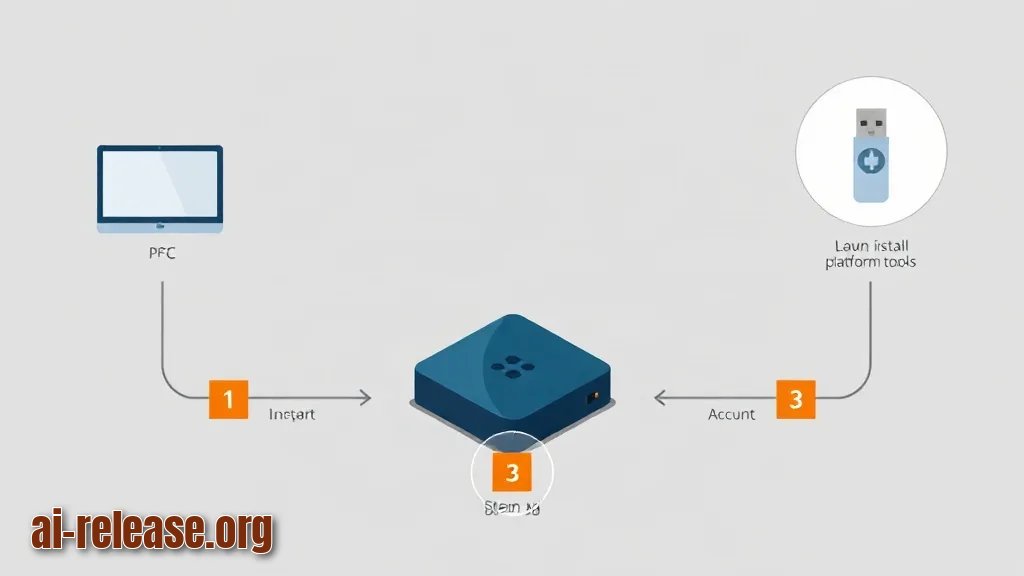
- PC: Windows, macOS or Linux with Android Platform Tools installed and
adbon yourPATH. Verify withadb version. - Device: an NVIDIA SHIELD-class Android device (TV box or tablet). The SHIELD ports are built for this hardware family — confirm your exact model against the documentation before downloading anything.
- Files: the game's
.apkplus its.obbdata file. The exact file names, package name and version code must come from the documentation of the port you are installing. This guide uses<package-name>and<version>as placeholders — replace them with the real values, e.g. a package name looks likecom.vendor.gametitle. - Storage: free space at least twice the size of the
.obbfile (one copy for the download, one for the copy on the device). - Permissions: USB debugging enabled on the device; no root required.
- Optional: a USB flash drive if you prefer to copy files without a PC. If you have never installed an app outside the Play Store, the sideloading basics are covered in How to Run an AI Model Locally on Android: Apps and Setup.
Pre-flight checklist:
- [ ]
adb versionprints a version string - [ ] USB debugging is ON
- [ ]
adb deviceslists the device asdevice, notunauthorized - [ ]
.apkand.obbfiles are on the PC - [ ] free space on
/sdcardis larger than the.obbsize
Step 1. Connect the device and confirm free space
What to do: enable Developer options, switch on USB debugging, authorise the PC, and check the free space on the internal storage.
On the device: Settings → Device Preferences → About → Build (tap it seven times to unlock Developer options), then Settings → Device Preferences → Developer options → USB debugging → On. Connect the cable and accept the "Allow USB debugging?" prompt on screen.
adb devicesExpected output — the device must be listed with the state device:
List of devices attached
192.168.1.50:5555	device
If you have no cable, connect over the network instead (the IP is shown under Settings → Device Preferences → About → Status):
adb connect 192.168.1.50:5555
adb devices
Now measure storage:
adb shell df -h /sdcardWhy: adb (Android Debug Bridge) is the standard command-line channel to the device. It installs packages and copies files with the same permissions the system uses, which is exactly what a manual file copy from a file manager often gets wrong. No root is needed — this is the supported path. If you have no PC at all, an on-device shell via Termux works as a fallback; see How to Run Linux on Android Without Root: Termux, PRoot, and AI Tools.
How to check: adb devices shows device and df -h /sdcard shows an Avail column larger than your .obb file size. Example: if Avail reads 12G, a 2 GB data file fits with room to spare.
Step 2. Install the APK and place the OBB data
What to do: install the package, then push the data file into the exact folder Android expects.
adb install -r -g game.apk-r reinstalls over an existing copy, -g grants all runtime permissions at install time. Expected output:
Performing Streamed Install
Success
Then create the data folder and push the file:
adb shell mkdir -p /sdcard/Android/obb/<package-name>
adb push main.<version>.<package-name>.obb /sdcard/Android/obb/<package-name>/
Expected output ends with a transfer line such as 1 file pushed ... bytes in <N>s.
Where each file goes:
| File type | Destination | Command example |
|---|---|---|
| `.apk` | Installed by `adb`, not copied manually | `adb install -r -g game.apk` |
| Main data | `/sdcard/Android/obb/<package-name>/main.<version>.<package-name>.obb` | `adb push main.obb /sdcard/Android/obb/<package-name>/` |
| Patch data | Same folder, `patch.<version>.<package-name>.obb` | `adb push patch.obb /sdcard/Android/obb/<package-name>/` |
Why: large Android games ship as a thin APK plus an OBB — an "Opaque Binary Blob", i.e. a compressed asset archive the engine reads at runtime. The engine looks it up by package name and version code, so a file in the wrong folder or with a mismatched version name is simply invisible to the game, and it either re-downloads or crashes. Confirm the exact expected file name in the documentation for your port.
How to check: list the folder and confirm the size matches the source file:
adb shell ls -l /sdcard/Android/obb/<package-name>/Expected output — a line with -rw-rw---- permissions and a byte count close to your local file:
-rw-rw---- 1 u0_a123 sdcard_rw 2147483648 2024-01-01 12:00 main.<version>.<package-name>.obbStep 3. Launch the game and verify it starts cleanly
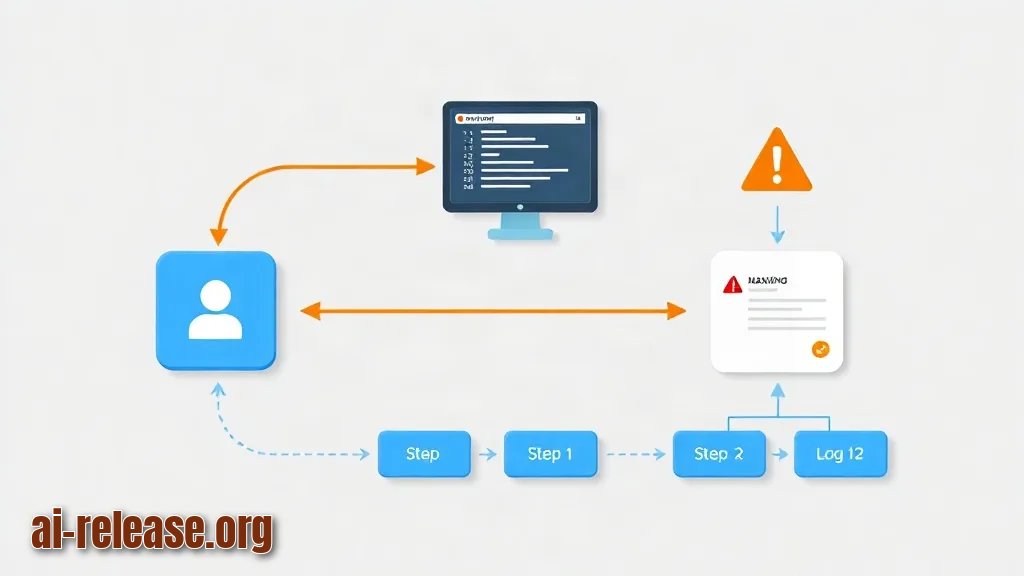
What to do: start the app by package name and watch the log for crashes.
adb logcat -c
adb shell monkey -p <package-name> -c android.intent.category.LAUNCHER 1
Expected output:
Events injected: 1Then stream the log:
adb logcat | grep -iE "AndroidRuntime|<package-name>"Why: monkey with the LAUNCHER category sends the same intent the home screen does, so it proves the package is registered and its main activity is resolvable. Logcat then tells you whether the process died on startup or is running — a black screen with a clean log usually means the data file is missing, not that the install failed.
How to check: the game reaches its title screen, and the log contains no FATAL EXCEPTION. Success looks like this: Events injected: 1, the splash screen appears within a few seconds, and adb shell pidof <package-name> returns a process ID.
adb shell pidof <package-name>Example output: 12345 — a number means the process is live.
Troubleshooting
Problem. The install aborts immediately with an ABI error
- Error:
Failure [INSTALL_FAILED_NO_MATCHING_ABIS: Failed to extract native libraries, res=-113] - Cause: the APK contains native
.solibraries for a CPU architecture your device does not have — typically anarmeabi-v7aorarm64-v8abuild installed on a device with a different ABI. SHIELD ports are built for SHIELD hardware. - Solution: check the target device in the port's documentation, then confirm the device's own ABI and compare:
adb shell getprop ro.product.cpu.abi
adb shell getprop ro.product.model
If the output does not match the build you downloaded, you have the wrong package for that device.
Problem. The push fails with a permission error
- Error:
adb: error: failed to copy 'main.obb' to '/sdcard/Android/obb/<package-name>/main.obb': remote Permission denied - Cause:
/sdcard/Android/obb/<package-name>does not exist yet, or the shell user cannot write into a folder owned by another app. - Solution: create the folder through the shell first, then push, and confirm ownership:
adb shell mkdir -p /sdcard/Android/obb/<package-name>
adb shell ls -ld /sdcard/Android/obb/<package-name>
adb push main.obb /sdcard/Android/obb/<package-name>/
Problem. Game launches but shows a black screen or asks to download data again
- Error: the log repeats
E/AndroidRuntime: FATAL EXCEPTION: mainor the in-game prompt "Download failed" / "Additional data required". - Cause: the OBB is missing, sits in
/sdcard/Android/data/instead of/sdcard/Android/obb/, or its name does not match the installed version code. - Solution: read the installed version code and rename the file to match, then relaunch:
adb shell dumpsys package <package-name> | grep versionCodeUse that number as <version> in main.<version>.<package-name>.obb, re-push the file, and clear the app's stale state with adb shell pm clear <package-name>.
Summary and next steps
Installing a SHIELD port is three commands — adb install, adb push into /sdcard/Android/obb/<package-name>/, and a launch verified through adb logcat. Once the pattern works for one title, repeat it for the rest of the ports in the collection and keep a note of each package name and version code.
FAQ
Do I need root to install these ports?
No. Enabling USB debugging is enough; adb install and adb push run with normal shell permissions. Root is only relevant for modifying system partitions, which this procedure never touches.
Will the APK run on a regular Android phone instead of a SHIELD device?
Usually not without issues. The ports ship native libraries compiled for SHIELD hardware, so a different chipset typically fails at install with INSTALL_FAILED_NO_MATCHING_ABIS. Check the documentation for the list of supported devices.
Where exactly does the OBB file go?
Into /sdcard/Android/obb/<package-name>/, not into /sdcard/Android/data/. The file name must follow main.<version>.<package-name>.obb, where <version> is the installed version code reported by adb shell dumpsys package <package-name> | grep versionCode.
The game downloaded its data again on first launch — did I do something wrong?
Yes, most likely the OBB name or location was wrong, so the engine ignored your copy and fetched its own. Re-check the folder listing with adb shell ls -l /sdcard/Android/obb/<package-name>/ and compare the version code before relaunching.
🤖 AI summary
- Updated: 2026-10-20
- Topics: metal gear solid 2 на андроид, порты shield tv android, как запустить игры shield на телефоне, mgs2 android установка, порты игр на android arm64
- Summary: Руководство по установке портов игр SHIELD на ARM64-смартфоны: где брать файлы, какие нужны данные, как настроить геймпад и исправить частые ошибки запуска.
- Key facts:
- TL;DR Time to complete: 25–30 minutes Difficulty: Intermediate You will need: a PC with Android Platform Tools ( adb ), a USB cable or working Wi-Fi debugging, a SHIELD-class Android device, the port& x27;s .apk file and its .obb data file, and free storage equal to at least twice the size of the data file.
- Requirements and setup Illustration: Requirements and setup PC : Windows, macOS or Linux with Android Platform Tools installed and adb on your PATH .
- Verify with adb version .
- Device : an NVIDIA SHIELD-class Android device (TV box or tablet).
- The SHIELD ports are built for this hardware family — confirm your exact model against the documentation before downloading anything.
- Files : the game& x27;s .apk plus its .obb data file.