How to Run an AI Coding Agent in Docker: Isolation, Permissions and Safety

Most AI agents don't just chat — they run shell commands, read files, and call APIs. If you launch one straight from your laptop's home folder, it inherits your SSH keys, your cloud credentials, and your whole file system. This guide shows you how to wrap an agent in a Docker container (Docker packages an app plus its dependencies into an isolated, disposable box called a *container*), then lock that box down with a non-root user, a read-only file system, dropped Linux capabilities, and a restricted network. It fits Docker Engine 24+ or Docker Desktop 4.x on Linux, macOS, and Windows with WSL2, and any agent that ships a CLI or a Python entry point. For background on what agents actually do with those permissions, see How to turn a regular LLM chat into a full-fledged AI agent.
Requirements and Preparation
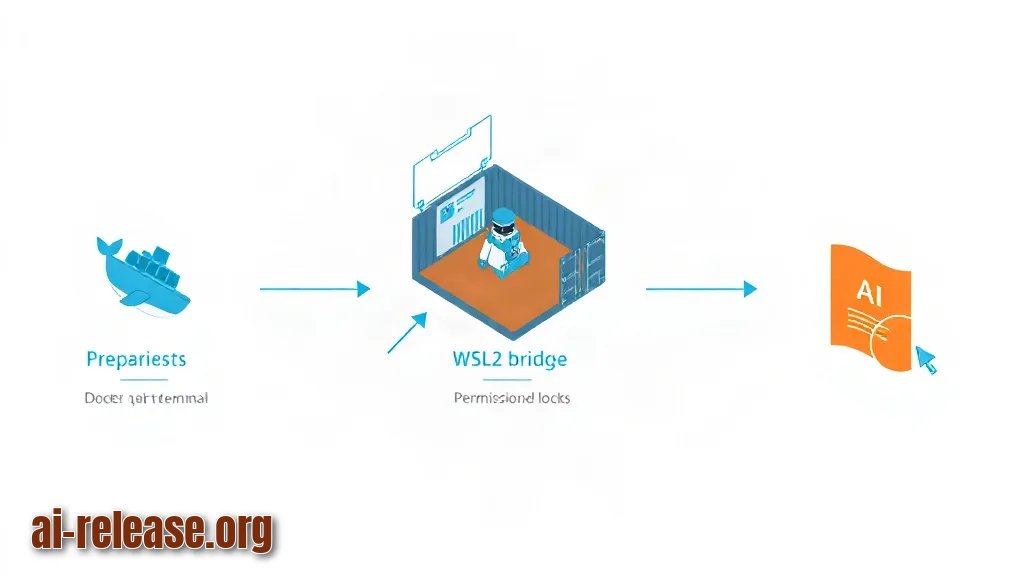
- **Docker Engine 24+ or Docker Desktop 4.x.** Verify with `docker --version`.
- **A terminal.** On Windows, use WSL2 — the Linux subsystem lets Docker run Linux containers natively.
- **About 2 GB of free disk space.** A slim Python base image plus your agent's dependencies will use roughly that.
- **An API key for your model provider** (OpenAI, Anthropic, or a local model). Store it in a `.env` file, never inside the image.
- **The agent's source code or CLI**, e.g. a `main.py`, or a package you install with `pip`.
- **Docker Compose v2** (optional). Only needed if you also run a local model in a second container.
- **Basic shell knowledge:** `cd`, `ls`, `chmod`.
Step-by-Step Instructions
1. **Check that Docker actually works.**
Run `docker run --rm hello-world`.
*Expected result:* a message that starts with `Hello from Docker!` and exits with code 0. *Why it works:* this pulls the smallest possible test image and proves the daemon is running and you have permission to talk to it.
2. **Create a project folder and a secrets file.**
   mkdir -p ~/agent-sandbox/workspace && cd ~/agent-sandbox
   printf 'LLM_API_KEY=sk-your-key-here\n' > .env
   chmod 600 .env
*Expected result:* `ls -la` shows `.env` as `-rw-------`. *Why it works:* `chmod 600` means only your user can read the file, and because it lives outside the image, the key never becomes a permanent layer in your build.
3. **Write a Dockerfile that creates a non-root user.**
   FROM python:3.12-slim
   RUN useradd -m -u 1000 agent && mkdir /workspace && chown agent /workspace
   WORKDIR /app
   COPY --chown=agent requirements.txt .
   RUN pip install --no-cache-dir -r requirements.txt
   COPY --chown=agent . .
   USER agent
   CMD ["python", "main.py"]
*Expected result:* a file named `Dockerfile` next to your code. *Why it works:* `USER agent` means the agent process runs as UID 1000, not root — if it escapes its own code, it still can't touch system files.
**Example:** add `.env` and `*.key` to a `.dockerignore` file so secrets can't be copied in by accident.
4. **Build the image.**
Run `docker build -t my-agent:0.1 .`
*Expected result:* the last line reads `Successfully tagged my-agent:0.1`. *Why it works:* the tag gives the image a fixed name you can reference later; the build runs `pip install` once and caches it, so rebuilds are fast.
5. **Start the container with the hardened flags.**
   docker run --rm -it --name agent \
     --user 1000:1000 \
     --read-only \
     --tmpfs /tmp:rw,noexec,nosuid,size=64m \
     --cap-drop=ALL \
     --security-opt no-new-privileges \
     --memory=2g --cpus=1.5 --pids-limit=256 \
     --network=none \
     -v "$PWD/workspace:/workspace:rw" \
     --env-file .env \
     my-agent:0.1
*Expected result:* your agent's prompt appears, or its first log line. *Why it works:*
- `--read-only` makes the container's own file system unwritable, so the agent cannot modify its own code.
- `--tmpfs /tmp` gives it a tiny scratch space in RAM that vanishes on exit; `noexec` blocks running binaries from there.
- `--cap-drop=ALL` removes every Linux *capability* — a fine-grained root privilege like `CAP_NET_RAW` — so even a compromised process can't sniff traffic.
- `--pids-limit=256` stops fork bombs (a script that spawns processes until the machine dies).
- `--network=none` cuts the container off from the internet entirely.
6. **Prove the isolation from inside the container.**
Type `id` then `touch /test`.
*Expected result:* `id` prints `uid=1000(agent) gid=1000`; `touch /test` fails with `Read-only file system`. *Why it works:* this is your first real proof the sandbox holds. If `touch /test` succeeds, your `--read-only` flag didn't apply.
7. **Test that writes land only in the mounted folder.**
Type `touch /workspace/hello.txt && ls -l /workspace`.
*Expected result:* `hello.txt` appears, and on your host it shows up in `~/agent-sandbox/workspace`. *Why it works:* `-v` is a *bind mount* — a link between one host folder and one container folder. Everything outside that link stays invisible.
8. **Give the agent the network only when it needs it.**
Replace `--network=none` with `--network=bridge` and re-run. If the agent calls a cloud model, this is required; if you run a local model, keep `none` and talk over a shared Docker network instead. *Expected result:* the agent's API call returns a model response instead of timing out. *Why it works:* the default bridge network gives outbound access but no ports are published, so nothing can reach *in*.
9. **Mount reference data read-only.**
-v "$PWD/docs:/workspace/docs:ro"*Expected result:* the agent can `cat /workspace/docs/policy.txt` but `rm` on it fails. *Why it works:* the `:ro` suffix is enforced by the kernel, not by the agent's good behaviour.
10. **Watch and clean up.**
Run `docker logs -f agent` in a second terminal while the task runs, then stop it.
*Expected result:* a live log stream; afterwards `docker rm -f agent` removes everything. *Why it works:* `--rm` plus a fresh image means each run starts from zero — nothing the agent did survives.
Before you go live, run this checklist:
- [ ] `.env` is in `.dockerignore` and has mode `600`
- [ ] Container runs as a non-root UID (verified with `id`)
- [ ] `--read-only` is set and `touch /test` fails
- [ ] `--cap-drop=ALL` and `no-new-privileges` are set
- [ ] Exactly one host folder is mounted, and it's the least privileged one possible
- [ ] Memory, CPU, and PID limits are set
- [ ] The image is rebuilt from scratch before each production run
Common Problems and Solutions
Agent fails with "Permission denied" when writing to the mounted folder.
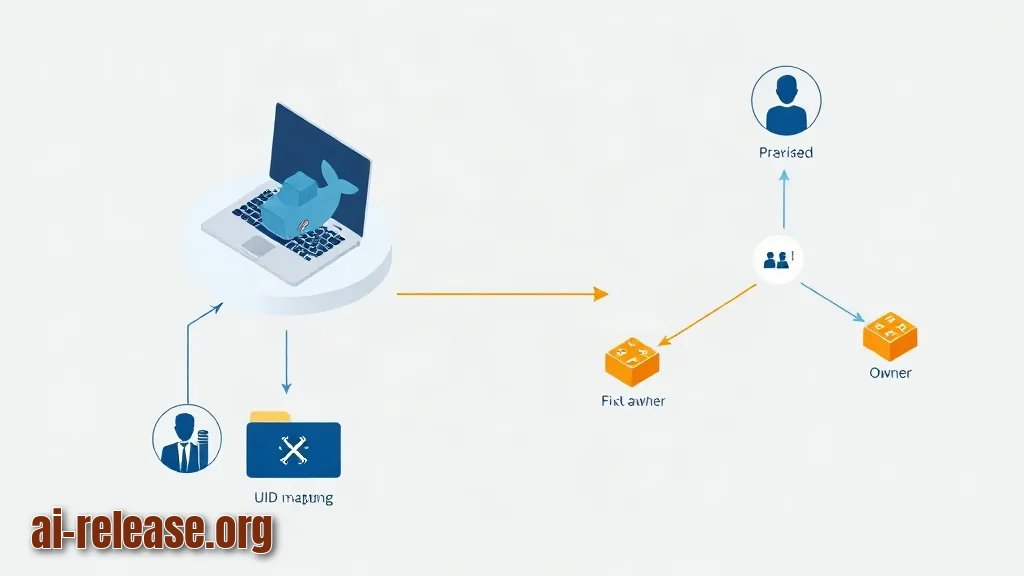
Your container user (UID 1000) doesn't own the host folder. Fix it in three steps: run `ls -ln ~/agent-sandbox/workspace` to see the numeric owner; run `sudo chown -R 1000:1000 ~/agent-sandbox/workspace` to align it; restart with `--user $(id -u):$(id -g)` to match your own host UID. If files then appear owned by `root`, it means you removed the `--user` flag — put it back.
Error of the form "connection refused" or "getaddrinfo EAI_AGAIN" after you added `--network=none`.
That's exactly what `none` does — there's no network stack at all. Decide what the agent really needs: for a cloud model, switch to `--network=bridge` and keep the API key in `.env`; for a local model, keep `none` and attach both containers to a private user-defined network with `docker network create agent-net`.
The container exits immediately with "exec format error" or a missing entrypoint.
Your `CMD` doesn't match the architecture or the installed command. Verify with `docker run --rm my-agent:0.1 python --version`; if that fails, the base image or the `pip install` step is wrong. Also make sure your `.py` file is copied to `/app` and that `WORKDIR /app` comes before `CMD`.
FAQ
Is a Docker container a real security boundary?
No — it's isolation, not a virtual machine. Containers share the host kernel, so a kernel bug can still break out. Treat Docker as strong friction, and for hostile code add rootless mode or a user namespace. More on agent-side risks here: AI agent security: protecting your data during automation.
Can the agent read my SSH keys or browser profile?
Only what you mount. With `--read-only` plus a single `-v` bind mount, the container sees just that one folder. Never mount `~` or `/`, and never mount the Docker socket — that would hand the agent control of the host.
Do I need a GPU for this setup?
No, unless the agent runs a local model inside the container. If it does, add `--gpus all` to the `docker run` command and use a CUDA-capable base image. For a cloud API, CPU-only is fine.
How do I let the agent browse the web without exposing my machine?
Keep `--network=bridge` and publish no ports, so the agent can reach out but nothing can reach in. If you need an allowlist, put a small egress proxy container on the same private network and point the agent's `HTTP_PROXY` variable at it.
🤖 AI summary
- Updated: 2026-10-15
- Topics: Claude Code в Docker, песочница для ИИ-агента, как изолировать ИИ-агента, ограничить права ИИ-агента, безопасный запуск ИИ-агента
- Summary: Пошаговая инструкция по запуску Claude Code и других агентов в контейнере: ограничение файловой системы, сети и токенов доступа к репозиторию.
- Key facts:
- Most AI agents don& x27;t just chat — they run shell commands, read files, and call APIs.
- If you launch one straight from your laptop& x27;s home folder, it inherits your SSH keys, your cloud credentials, and your whole file system.
- This guide shows you how to wrap an agent in a Docker container (Docker packages an app plus its dependencies into an isolated, disposable box called a container ), then lock that box down with a non-root user, a read-only file system, dropped Linux capabilities, and a restricted network.
- It fits Docker Engine 24+ or Docker Desktop 4.x on Linux, macOS, and Windows with WSL2, and any agent that ships a CLI or a Python entry point.
- For background on what agents actually do with those permissions, see How to turn a regular LLM chat into a full-fledged AI agent .
- Requirements and Preparation Illustration: Requirements and Preparation Docker Engine 24+ or Docker Desktop 4.x.