How to Turn an Android Phone into a CarPlay Sender with CarDeck

TL;DR
- Time to complete: 20–40 minutes (first USB session included)
- Difficulty: Intermediate
- You will need: an Android phone with USB host (OTG) support, an iPhone with a working CarPlay‑capable iOS build, a data‑capable USB cable (not charge‑only), the CarDeck APK from the developer's official source, and optionally a computer with Android Platform Tools (
adb) for logs - Result: your Android phone joins the CarPlay link and renders the CarPlay session started by the iPhone, with on‑screen controls and audio routed by the phone
- Not known from our source material: the exact minimum Android/iOS versions, the package name, prices and the list of supported connection modes — check the developer's documentation for these.
Requirements and setup
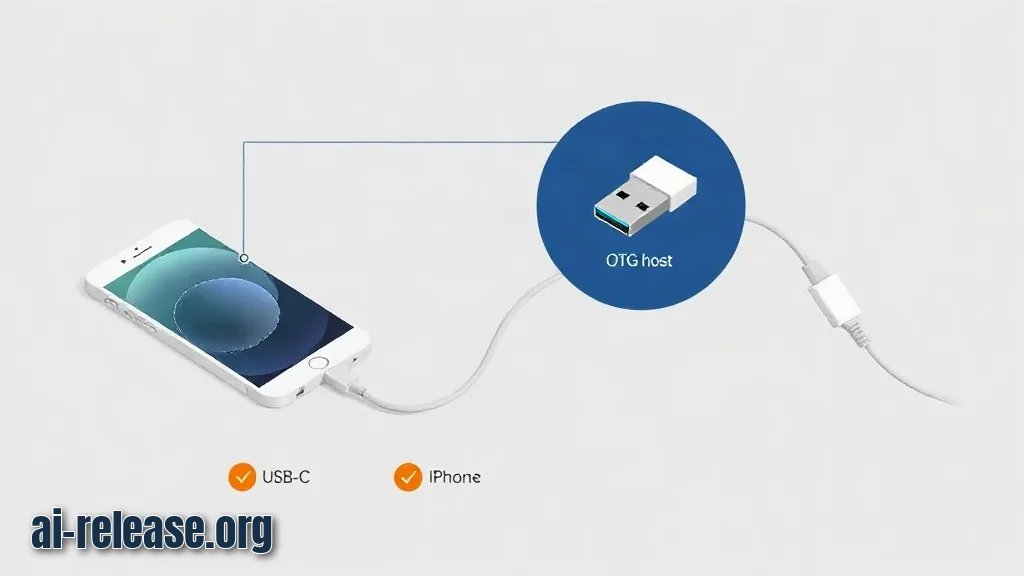
Prepare the following before installing anything:
- [ ] Android phone with a working USB data port and USB host (OTG) support — confirm both in the developer's documentation, since a host‑less phone will never see the iPhone.
- [ ] iPhone whose iOS build is listed as CarPlay‑capable by Apple; the unit must be unlocked the first time you connect it.
- [ ] USB cable that carries data. Cables bundled with chargers are often power‑only and will produce "device not found" style failures.
- [ ] A computer with Android Platform Tools installed, if you want
adblogs. Check the exact command syntax withadb --helpafter installing —adbchanges between releases. - [ ] Free storage on the phone for the APK and its data (a few hundred MB is a safe working figure; the real size is in the docs).
- [ ] Developer options enabled on the Android phone: Settings → About phone → tap Build number seven times, then Settings → System → Developer options → USB debugging = On.
Example: after enabling USB debugging, plugging the phone into the computer and running the check below should show device, not unauthorized:
adb devicesList of devices attached
38XXXXXXXXXXXXXX deviceIf you plan to keep this phone as a long‑term dashboard unit rather than a daily driver, check how long it will receive security updates before you commit it to the task — the method is described in How to Check Your Android Phone's Update Lifespan and Find 7-Year Support Models.
Step 1. Verify the phone, cable and permissions
What to do: confirm that the phone can act as a USB host, that the cable carries data, and that the system grants CarDeck the permissions it needs.
Why: CarDeck only works when the Android phone sees the iPhone as an attached USB device. If host mode, the cable or a permission is wrong, the app will start and then sit on a waiting screen forever — and you will blame the app instead of the cable.
How to check: run the following on the phone side with adb, then physically swap cables and repeat.
adb shell getprop ro.build.version.release
adb shell dumpsys usb | head -n 40
adb shell pm list features | grep -i -E "usb.host|usb.accessory"
Expected result: the first command prints your Android version (use it to check the minimum in the docs), and the feature list contains android.hardware.usb.host. Example of a passing line:
feature:android.hardware.usb.hostOn the phone itself, go to Settings → Apps → CarDeck → Permissions and grant everything the app requests — at minimum storage access for its resources and notification access if CarDeck displays an ongoing session notification. On Android 11 and newer, "Allow only while using the app" is often not enough for a session that must survive screen‑off; set the permission to Allow and disable battery optimization for CarDeck under Settings → Apps → CarDeck → Battery → Unrestricted.
Record what you changed in a short list, so you can undo it:
USB debugging: On
Battery: Unrestricted
Permissions: storage = Allow, notifications = Allow
Cable: <brand / model you actually used>
Why the check works: the usb.host feature flag is set by the kernel and the device tree, not by the app, so it is the one honest answer to "can this phone host a USB device at all".
Step 2. Install CarDeck and configure the session
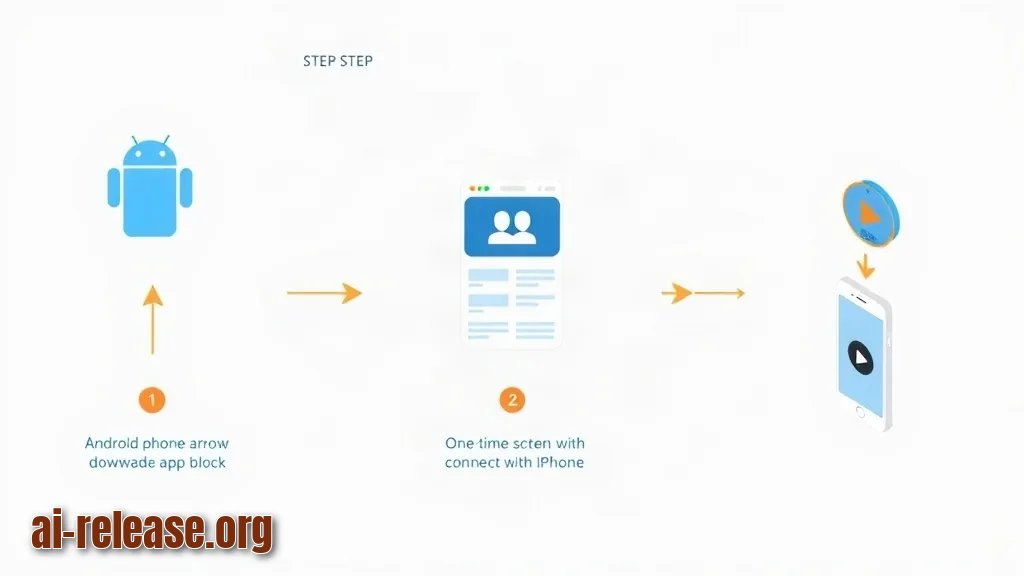
What to do: install the APK, launch it once, and walk through its setup screen, then start the session with the iPhone connected.
Why: CarDeck needs a first run to create its configuration and to register the USB intent filter — the Android mechanism that tells the system "wake this app when a matching USB device is attached". Skipping the first run means the app is never launched automatically when you plug the iPhone in.
How to check: install from the computer over adb, then confirm the package exists on the device.
adb install -r ./CarDeck.apkPerforming Streamed Install
Successadb shell pm list packages | grep -i cardeckpackage:com.<vendor>.cardeckThe package name above is a placeholder — the real one is printed by the second command and should be written down in your notes. Use the printed value everywhere below instead of the placeholder.
Then, on the phone:
1. Open CarDeck from the launcher. Accept the first‑run dialogs and any prompt about USB access. Tick "Always allow for this device" if it is offered — this is the checkbox that stops Android from asking again at every ignition.
2. Open the app's settings and set the connection mode it documents (USB, wireless, or both). The available modes are listed in the developer's documentation; do not assume wireless exists.
3. Set the display options — orientation and resolution scaling — so the CarPlay image matches your phone's aspect ratio. Rotating the phone after the session has started usually forces a reconnect.
4. Plug the iPhone into the Android phone with the data cable. If the iPhone shows a trust prompt, tap Trust and enter its passcode.
Example: if you want app icons on the CarPlay grid that are not there by default, this is controlled on the iPhone side, under Settings → General → CarPlay → <your car/deck name> → Customise, not inside CarDeck. Newer apps you may want on that grid are listed in Best AI apps for Android in 2026 — but only apps that ship a CarPlay scene will actually appear.
Why this works: CarDeck registers itself as the handler for the iPhone's USB interface, so Android hands the connection to the app instead of the file‑transfer stack. The "always allow" flag persists that registration across reboots.
Step 3. Run the first session and verify it end to end
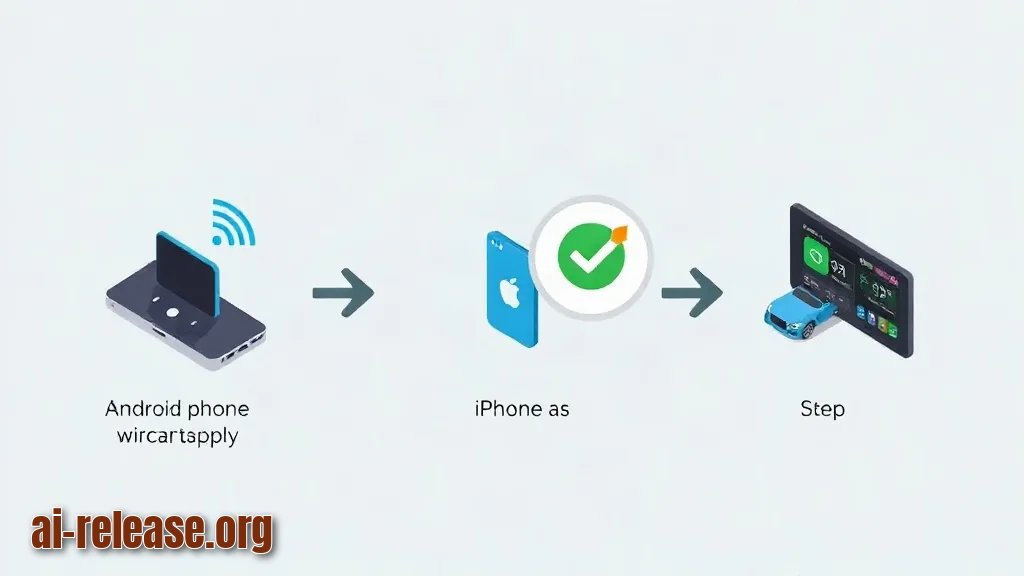
What to do: start a clean log capture, connect the iPhone, and confirm that the CarPlay session actually renders instead of merely connecting.
Why: "the cable is connected" and "CarPlay is drawing on the screen" are two different states, and only the second one means the installation is finished. The log tells you which of the two you are in.
How to check: clear the buffer first, then watch filtered output while you plug the iPhone in.
adb logcat -c
adb logcat | grep -i -E "cardeck|carplay|usb"
What you should see on screen and in the terminal:
| Check | Where | Expected result |
|---|---|---|
| App is running | phone screen | CarDeck window in the foreground, not the launcher |
| iPhone sees a unit | iPhone | CarPlay indication appears on the iPhone; the phone may lock its own screen |
| Session renders | phone screen | CarPlay home screen with the app grid, not a black rectangle |
| Input works | phone screen | Taps move the CarPlay selection; audio plays through the phone's output |
| No crash loop | logcat | Repeated lines stop; no repeating `FATAL EXCEPTION` block |
A passing logcat looks like a short burst of CarDeck lines followed by silence, not an endless repetition. Example of what you are grepping for:
I CarDeck : session startedThe exact tag text depends on the build — match on the app's own name rather than on the line above.
Success looks like this: you unlock the iPhone, plug it in, the Android phone shows the CarPlay home screen within a few seconds, and knocking the cable slightly does not kill the picture. If it dies on every touch, go back to Step 1 and replace the cable before touching any setting.
Troubleshooting
Problem. adb refuses to talk to the phone
- Error:
adb: device unauthorized. - Cause: the RSA key prompt on the phone was dismissed or never shown, so the computer is not trusted.
- Solution: on the phone, open Settings → Developer options → Revoke USB debugging authorizations, unplug and replug the cable, then tap Allow on the dialog that appears. Verify with
adb devices— the state must readdevice.
Problem. The APK will not install over an existing copy
- Error:
Failure [INSTALL_FAILED_UPDATE_INCOMPATIBLE: Package com.<vendor>.cardeck signatures do not match previously installed version; ignoring!] - Cause: a CarDeck build from a different source (or a differently signed build) is already installed, and Android refuses to overwrite one signature with another.
- Solution: remove the old copy, then install the new one:
adb uninstall com.<vendor>.cardeck
adb install -r ./CarDeck.apk
Problem. The app installs but the session never starts
- Error:
Failure [INSTALL_FAILED_NO_MATCHING_ABIS: Failed to extract native libraries, res=-113], or the app launches and shows a waiting screen with no CarPlay image. - Cause for the first case: the APK contains native libraries for a CPU architecture your phone does not use. For the second case: usually the cable, or the app was installed but never launched once, so the USB intent filter was never registered.
- Solution: check the phone's ABI and install a matching APK variant, then launch the app manually once before plugging the iPhone in:
adb shell getprop ro.product.cpu.abiExample output on a modern phone: arm64-v8a. If your APK only ships 32‑bit libraries for a 64‑bit‑only device, ask the developer for the correct variant — do not sideload a random mirror.
Summary and next steps
CarDeck turns your Android phone into the CarPlay endpoint of a USB link with the iPhone, and the whole job reduces to three checks: host support, a data cable, and one successful first launch. Once the session renders, mount the phone, set battery optimization to Unrestricted, and keep your notes on the exact cable and APK source that worked.
FAQ
Does this require root?
The standard CarDeck setup does not require root on the Android phone — it relies on the normal USB host and app‑permission system. If a build asks for root, verify that requirement in the developer's documentation before granting it.
Can I connect the iPhone wirelessly instead of over USB?
Wireless support depends entirely on the build you installed. Check the connection modes listed in the developer's documentation; treat USB as the baseline, and only move to wireless after the wired session works reliably.
Which Android version do I need?
That minimum is set by the developer, not by this guide, so check it against the output of adb shell getprop ro.build.version.release before installing. Do not guess a version number — an install on an unsupported release fails in confusing ways.
The CarPlay screen appears but my phone's own apps are unusable — is that expected?
Yes. In a head‑unit role the Android device is busy rendering the CarPlay session, so switching back to normal Android use means ending the session and unplugging the iPhone. If you want a phone that stays a normal Android device while also doing on‑device AI work, that is a different setup, described in How to Run an AI Model Locally on Android: Apps and Setup.
🤖 AI summary
- Updated: 2026-10-19
- Topics: CarDeck Android, Android как CarPlay, CarPlay на Android, установка CarDeck, трансляция Android на CarPlay
- Summary: Пошаговая инструкция по установке экспериментального CarDeck: какие требования, как запустить и какие ограничения стоит учитывать перед подключением к машине.
- Key facts:
- TL;DR Time to complete: 20–40 minutes (first USB session included) Difficulty: Intermediate You will need: an Android phone with USB host (OTG) support, an iPhone with a working CarPlay‑capable iOS build, a data ‑capable USB cable (not charge‑only), the CarDeck APK from the developer& x27;s official source, and optionally a computer with Android Platform Tools ( adb ) for logs Result: your Android phone joins the CarPlay link and renders the CarPlay session started by the iPhone, with on‑screen controls and audio routed by the phone Not known from our source material: the exact minimum Android/iOS versions, the package name, prices and the list of supported connection modes — check the developer& x27;s documentation for these .
- Requirements and setup Illustration: Requirements and setup Prepare the following before installing anything: [ ] Android phone with a working USB data port and USB host (OTG) support — confirm both in the developer& x27;s documentation, since a host‑less phone will never see the iPhone.
- [ ] iPhone whose iOS build is listed as CarPlay‑capable by Apple; the unit must be unlocked the first time you connect it.
- [ ] USB cable that carries data.
- Cables bundled with chargers are often power‑only and will produce "device not found" style failures.
- [ ] A computer with Android Platform Tools installed, if you want adb logs.