How to Connect Android to Windows via ADB: Commands and Fixes

TL;DR
- Time required: 15–20 minutes (USB only), plus 5 minutes for the Wi-Fi part
- Difficulty: Basic
- You will need: a Windows 10 or 11 PC with an account that can install drivers, an Android phone with Developer options unlocked, a USB data cable (not charge-only), Android SDK Platform-Tools (the ADB bundle — "Android Debug Bridge", the command-line tool that talks to the phone), and optionally a phone and PC on the same Wi-Fi network
- Exact Platform-Tools build numbers change with every release — check the current version on the official Android developer site before you download
Requirements and setup
- Windows 10 or 11. Check the build with
winverin the Run dialog (Win+R). - An account with permission to install drivers and write to
C:\. If you cannot write toC:\, use%LOCALAPPDATA%\platform-toolsand adjust every path below. - Android SDK Platform-Tools, the official archive that contains
adb.exe,fastboot.exeand the required DLLs. The archive name on Windows isplatform-tools-latest-windows.zip; the version string inside it changes over time — check the download page for the current build. - A USB cable that carries data. Many cables shipped with power banks are charge-only and will never show a device.
- Roughly 100 MB of free disk space for the archive plus the extracted files.
- Optional: the phone's own USB driver if Windows does not recognise the device. Vendor driver names and download pages differ per manufacturer — check your phone maker's documentation.
Pre-flight checklist:
- [ ] Developer options unlocked on the phone (Step 1)
- [ ]
adb versionruns from a fresh terminal window - [ ] USB cable is a data cable
- [ ]
adb devicesreturns a serial number, not an empty list - [ ] Phone shows the "Allow USB debugging?" dialog and you tapped Allow
The single most useful command in this whole guide is adb devices: it prints the connection state of every attached phone. Learn to read the four possible states:
| State | What it means | First action |
|---|---|---|
| `device` | Connected and authorised — you can run commands | Nothing, you are done |
| `unauthorized` | Phone has not accepted this PC's RSA key yet | Unlock the phone, tap **Allow** on the dialog |
| `offline` | Port opened but the ADB daemon on the phone is not answering | `adb kill-server` then `adb devices` again |
| `no permissions` | Linux-only message, udev rules missing | Add a udev rule — check your distribution docs |
Step 1. Install ADB on Windows and unlock Developer options on the phone
What to do: Download the Platform-Tools archive from the SDK Platform-Tools section of the official Android developer site (developer.android.com), extract it, and put the folder on your PATH. On the phone, open Settings → About phone and tap Build number seven times until Android prints "You are now a developer!". Then go to Settings → System → Developer options and switch on USB debugging.
Why: adb.exe is not installed by any Windows installer — it is a portable binary, so Windows only finds it if the folder is on PATH. USB debugging is the switch that lets the phone expose its debugging interface to a host over USB; without it the phone only offers charging and file transfer.
# Extract to a stable path, e.g. C:\platform-tools
Expand-Archive -Path "$env:USERPROFILE\Downloads\platform-tools-latest-windows.zip" -DestinationPath "C:\" -Force

# Add the folder to the user PATH (current session + future sessions)
setx PATH "$env:PATH;C:\platform-tools"
Close the terminal and open a new PowerShell window — setx only affects new windows.
Example: running adb version in the new window prints something of this shape:
Android Debug Bridge version 1.0.xx
Version <build-number>
Installed as C:\platform-tools\adb.exe
The first two lines confirm the binary is on PATH; the last line confirms which copy Windows actually picked up. If Windows launches a different adb.exe (some games and emulators bundle an old one), the Installed as line will point somewhere else — delete or rename that copy.
Why this works: PATH is searched in order, so the folder you appended is visible to every new shell without touching system-wide settings.
How to check: adb version prints the three lines above, and the phone shows a new Developer options entry in Settings. On MIUI/HyperOS the extra toggle is called USB debugging (Security settings) and is required for adb install — check your vendor's documentation for the exact wording.
Step 2. Authorise the phone and read the device list
What to do: Plug the phone into the PC with the data cable, then run the ADB server and list devices. On the phone, unlock the screen and accept the "Allow USB debugging?" dialog, ticking Always allow from this computer.
Why: The first time a PC connects, the phone shows an RSA fingerprint and asks whether to trust it. Until you tap Allow, the phone appears as unauthorized and every command fails — this is a security feature, not a bug. The ADB server is the background process on port 5037 that multiplies your commands to connected devices.
adb start-server          # starts the local server if it is not running
adb kill-server           # use when state looks stale, then re-run adb devices
adb devices -l            # -l adds model, product and transport_id columns
Example: with one authorised phone attached, adb devices -l prints:
List of devices attached
R58M12ABCDE            device product:beyond1q model:SM_G973F device:beyond1q transport_id:1
The serial number (R58M12ABCDE above) is your handle when several devices are connected. Read properties directly from the phone to confirm which handset you are talking to:
adb -s R58M12ABCDE shell getprop ro.product.model
adb -s R58M12ABCDE shell getprop ro.build.version.release
Example output: SM_G973F and the Android release string (for example 13). Replace the serial with your own — it comes from the first column of adb devices.
Every command that touches one device should be prefixed with -s <serial> as soon as a second device or emulator appears. Without it ADB stops with error: more than one device/emulator.
Why this works: the server keeps one transport per serial, so -s selects the right transport instead of letting ADB guess.
How to check: adb devices lists your serial with the state device, the RSA dialog no longer appears when you replug, and adb shell getprop ro.product.model returns your model name instead of an error.
Step 3. Run commands, install an APK, and switch to ADB over Wi-Fi
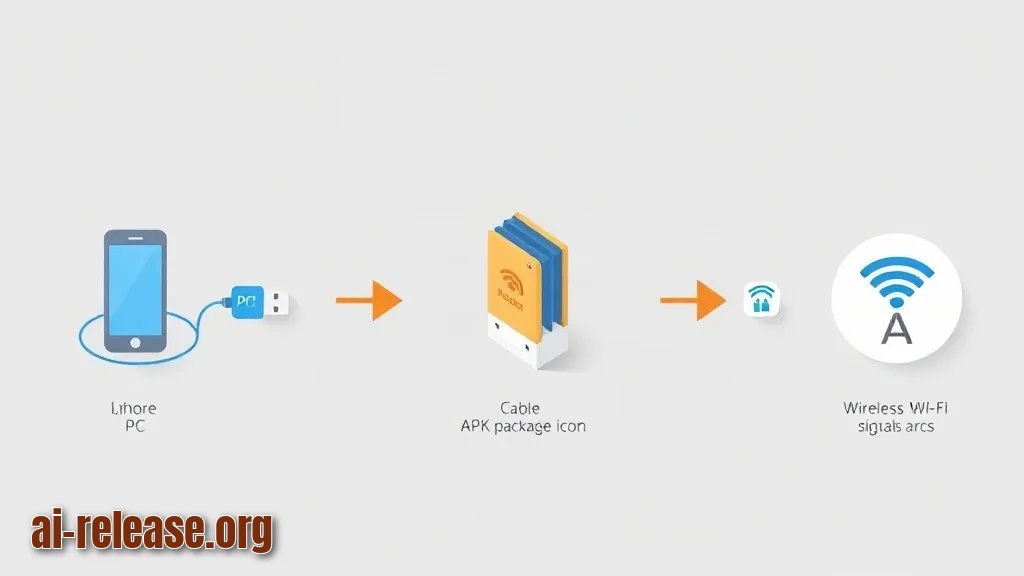
What to do: Open an interactive shell on the phone, then install an APK from the PC, then move the same connection onto TCP/IP so you can unplug the cable.
Why: adb shell proves the bridge is fully working — you are executing commands inside Android's own shell. adb install is the fastest way to sideload an app without touching the phone. adb tcpip 5555 restarts the phone-side daemon in network mode on port 5555, and adb connect makes the PC talk to it over Wi-Fi.
adb shell                                  # interactive shell on the phone
# inside the shell:
getprop ro.build.version.sdk
exit

adb install -r "C:\builds\app-release.apk" # -r reinstalls, keeping app data
adb logcat -d -t 20                        # last 20 log lines, then exit
Example: a successful install prints exactly:
Performing Streamed Install
Success
A failure prints the package manager's reason instead, for example Failure [INSTALL_FAILED_UPDATE_INCOMPATIBLE: Package com.example.app signatures do not match previously installed version; ignoring!].
Now the wireless part. Find the phone's IP in Settings → Network & internet → Wi-Fi → (your network) → IP address (for example 192.168.1.42), keep the cable plugged in, and run:
adb tcpip 5555                             # phone daemon now listens on TCP 5555
adb connect 192.168.1.42:5555              # replace with your phone's IP
adb devices
adb disconnect 192.168.1.42:5555           # when finished
Expected output: restarting in TCP mode port: 5555, then connected to 192.168.1.42:5555, and adb devices now shows both entries — the USB serial and 192.168.1.42:5555.
Two constraints that catch everyone: the PC and the phone must be on the same subnet, and adb tcpip 5555 does not survive a phone reboot — after a restart you must reconnect USB and issue it again. On Android 11 and newer there is also Wireless debugging with a pairing flow (adb pair <ip>:<port> plus a six-digit code shown on the phone); the pairing port is chosen by the phone each time, so read it from the screen.
If you want to run ADB-style commands on the phone itself without a PC at all, see Shizuku: running ADB commands on Android without a PC.
How to check: adb shell echo ok prints ok, adb install prints Success, and after unplugging the cable adb -s 192.168.1.42:5555 shell getprop ro.product.model still answers with your model. That last command is the definitive proof the wireless link is live.
Troubleshooting
Problem. The phone shows up as unauthorized and every command is refused
- Error:
error: device unauthorized. Please check the confirmation dialog on your device. - Cause: the RSA key of this PC was never accepted, the dialog was dismissed with Cancel, or an old key is cached from a previous pairing.
- Solution: unlock the phone, run
adb kill-server, replug the cable and tap Allow with Always allow from this computer ticked. If no dialog appears, open Developer options → Revoke USB debugging authorizations, then replug — the phone is forced to ask again.
Problem. adb devices prints an empty list although the cable is plugged in
- Error:
List of devices attachedfollowed by a blank line, andadb shellanswerserror: no devices/emulators found - Cause: charge-only cable, a front-panel USB hub that does not pass data, or a missing Windows driver so the device enumerates as an unknown device.
- Solution: swap to a known data cable and a rear USB port, then check Device Manager for
Android Composite ADB Interface(or an entry under "Other devices"). Install the manufacturer's USB driver if it is missing, runadb kill-serverfollowed byadb devices, and confirm the phone's USB mode is set to file transfer rather than "charging only".
Problem. The Wi-Fi connection is refused
- Error:
cannot connect to 192.168.1.42:5555: No connection could be made because the target machine actively refused it. (10061) - Cause: the phone was rebooted (which resets ADB back to USB mode),
adb tcpip 5555was never issued, or the PC and phone are on different subnets — for example the PC is on Ethernet and the phone on a guest Wi-Fi network. - Solution: reconnect USB, run
adb tcpip 5555, thenadb connect 192.168.1.42:5555. Verify reachability first withping 192.168.1.42; no reply means a network problem, not an ADB problem. On networks with client isolation (hotels, offices) wireless ADB cannot work at all — use USB or a phone hotspot instead.
Summary and next steps
You now have a working bridge: adb devices shows your serial as device, adb shell executes on the phone, adb install returns Success, and adb connect <ip>:5555 frees you from the cable. From here, move on to scripted log capture with adb logcat or to phone-side automation, and if you would rather mirror and control the device from the desktop without ADB at all, compare the options in How to Connect Android to Windows without Microsoft Phone Link: Open Source Alternatives.
FAQ
Why does adb devices show my phone as unauthorized?
The PC's RSA key has not been accepted on the phone yet. Unlock the screen, accept the "Allow USB debugging?" dialog, or run Revoke USB debugging authorizations in Developer options and replug to trigger a fresh prompt.
Can I use ADB over Wi-Fi without a USB cable at all?
Not for the first connection on most devices: adb tcpip 5555 has to be sent over USB once. Android 11 and newer offer Wireless debugging with a pairing code that works without a cable — the pairing port is displayed on the phone each time.
Which port does ADB use?
Two different ports. The ADB server on your PC listens on 5037 for local clients, and the phone-side daemon in TCP mode listens on 5555 after adb tcpip 5555.
Do I lose ADB over Wi-Fi after rebooting the phone?
Yes. A reboot returns the phone to USB mode, so you must reconnect the cable and run adb tcpip 5555 again before adb connect <ip>:5555.
🤖 AI summary
- Updated: 2026-10-19
- Topics: ADB Windows, как подключить ADB, adb devices не видит устройство
- Summary: Пошаговая настройка ADB на Windows: установка платформенных инструментов, подключение смартфона, команда adb devices и решение типичных ошибок.
- Key facts:
- TL;DR Time required: 15–20 minutes (USB only), plus 5 minutes for the Wi-Fi part Difficulty: Basic You will need: a Windows 10 or 11 PC with an account that can install drivers, an Android phone with Developer options unlocked, a USB data cable (not charge-only), Android SDK Platform-Tools (the ADB bundle — "Android Debug Bridge", the command-line tool that talks to the phone), and optionally a phone and PC on the same Wi-Fi network Exact Platform-Tools build numbers change with every release — check the current version on the official Android developer site before you download Requirements and setup Illustration: Requirements and setup Windows 10 or 11.
- Check the build with winver in the Run dialog (Win+R).
- An account with permission to install drivers and write to C:\ .
- If you cannot write to C:\ , use %LOCALAPPDATA%\platform-tools and adjust every path below.
- Android SDK Platform-Tools, the official archive that contains adb.exe , fastboot.exe and the required DLLs.
- The archive name on Windows is platform-tools-latest-windows.zip ; the version string inside it changes over time — check the download page for the current build.