How to Change Your Voice in Real Time: Setting Up Voice Changer 2026 with a Virtual Microphone

TL;DR
- Time: 25–40 minutes, including the virtual audio driver install and one restart.
- Difficulty: Intermediate (you will touch Windows sound settings, three apps, and one PowerShell command).
- You need: Windows 10/11 64-bit, Voice Changer 2026 installed, a virtual audio driver installer (a "virtual audio cable" — a software device that Windows sees as a real sound card), Discord desktop, OBS Studio, Zoom desktop, wired headphones.
- Result: Discord, OBS and Zoom all receive the processed voice from one virtual microphone; your physical mic is never selected directly in any of them.
- Unknowns: menu labels inside Voice Changer 2026 differ between builds — for the exact names of the input/output selectors, check the documentation shipped with your build. Where this guide says "check the documentation", do not guess: the setting names are build-specific.
Requirements and setup
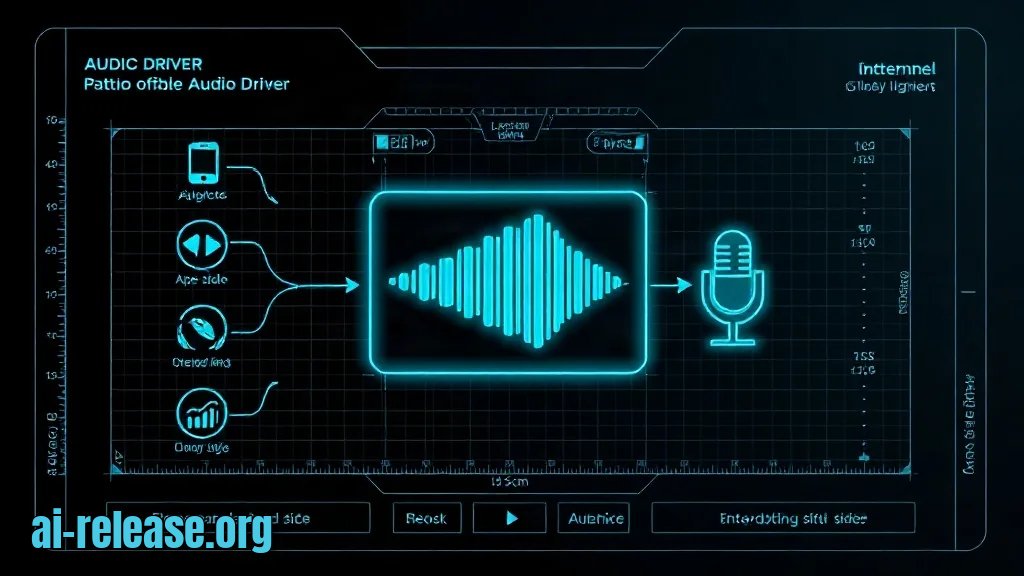
A virtual audio driver exposes two endpoints to Windows: a *playback* side (apps write audio into it) and a *recording* side (apps read audio out of it). The changer writes into the playback side; Discord, OBS and Zoom read from the recording side. That pair is the whole trick.
The chain you are building:
Physical microphone (USB / 3.5 mm)
  └─> Voice Changer 2026   input  = physical mic
                           output = <virtual-driver playback endpoint>
        └─> <virtual-driver playback endpoint>
              └─> <virtual-driver recording endpoint>   ← the "virtual microphone"
                    ├─> Discord  → Input Device
                    ├─> OBS      → Audio Input Capture
                    └─> Zoom     → Microphone
Many virtual-cable drivers name the pair CABLE Input (playback) and CABLE Output (recording) — check your driver's documentation for its own naming.
Checklist before you start:
- [ ] Voice Changer 2026 installed and launching without errors
- [ ] Virtual audio driver installed (reboot after install)
- [ ] Discord, OBS Studio and Zoom installed and updated
- [ ] Headphones connected — not speakers, or you will create a feedback loop
- [ ] Administrator rights on the machine (needed for driver and PowerShell device commands)
- [ ] All three apps closed during setup
What to do: confirm Windows sees both endpoints of the virtual driver.
Get-PnpDevice -Class AudioEndpoint | Where-Object Status -eq 'OK' |
  Select-Object FriendlyName, InstanceId | Format-Table -AutoSize
Why: if the recording endpoint is missing or disabled here, no app will ever list it, and you will waste time inside Discord settings.
How to check: the table must contain two entries belonging to your virtual driver (one playback, one recording) plus your physical mic. If only one appears, run the driver installer again and reboot.
Example: expected output looks like
FriendlyName                          InstanceId
------------                          ----------
Microphone (USB Audio Device)         SWD\MMDEVAPI\{0.0.1.00000000}.{...}
CABLE Input (Virtual Cable)           SWD\MMDEVAPI\{0.0.0.00000000}.{...}
CABLE Output (Virtual Cable)          SWD\MMDEVAPI\{0.0.1.00000000}.{...}
What to do: set every endpoint in the chain to the same sample rate — 48 000 Hz, 2 channels, 24-bit.
mmsys.cplWhy: the virtual driver, the changer and the conferencing app must agree on the format. A 44 100 Hz mic feeding a 48 000 Hz virtual device is the most common cause of crackling and pitch-shifted output.
How to check: in the Sound dialog, open Recording → <virtual recording endpoint> → Properties → Advanced and confirm 2 channel, 24 bit, 48000 Hz. Repeat for Playback → <virtual playback endpoint> and for your physical microphone. Also clear Allow applications to take exclusive control of this device on all three.
If you plan to swap in a different AI voice model later, model quality varies a lot — see Best AI models and neural networks in 2026 before you rebuild the chain.
Step 1. Set the changer's input and output
What to do: open Voice Changer 2026, go to its audio settings, set Input / Microphone to your physical microphone and Output / Speaker to the virtual driver's *playback* endpoint. Then pick a voice preset and leave the app running.
Why: the changer is the only app that touches the real microphone. Everything downstream reads the virtual recording endpoint, so your real voice never reaches Discord raw.
Example: Input = Microphone (USB Audio Device), Output = CABLE Input (Virtual Cable). Menu paths for these two selectors are build-specific — check the documentation.
How to check: speak into the mic. The changer's own input level meter must move (that confirms the physical mic), and the F1 "Test" of the preset should be audible in your headphones. If the input meter is dead, the app is on the wrong device — nothing downstream will fix that.
Keep headphones on from this point. Output through speakers means the virtual mic picks up your own processed voice and Discord transmits an echo.
Step 2. Select the virtual microphone in Discord, OBS and Zoom
What to do: in Discord open User Settings (gear) → Voice & Video, set Input Device to the virtual driver's recording endpoint, turn off Automatically determine input sensitivity, and drag the input volume slider to roughly the middle. Disable Noise Suppression (Krisp), Echo Cancellation and Automatic Gain Control.
Why: Discord's noise suppression is trained on human speech and treats a voice changer's output as noise — it will cut syllables and pump the volume. Manual sensitivity prevents Discord from muting you during quiet presets.
Example: Input Device = CABLE Output (Virtual Cable), Input Sensitivity slider fixed manually, all three toggles off. Click Let's Check and speak — the bar under "Let's Check" must move and play back your processed voice.
What to do: in OBS, add Sources → + → Audio Input Capture, set Device to the same recording endpoint. Open Advanced Audio Properties (gear icon in the Audio Mixer) and set Audio Monitoring for that source to Monitor Off unless you want to hear yourself — use Monitor and Output only while testing.
Why: Monitor and Output routes the processed voice to your headphones as well as the stream; leaving it on during a call doubles the audio in your ears. Monitor Off keeps the stream fed and your ears clean.
How to check: the OBS Audio Mixer bar for that source moves when you speak, and the source has no red muted icon. Then record 10 seconds and play it back — you must hear the changed voice, not your own.
What to do: in Zoom open Settings → Audio, set Microphone to the virtual recording endpoint, uncheck Automatically adjust microphone volume, and set Background noise suppression to Low.
Why: Zoom's automatic gain fights the changer's output level, and High suppression removes synthesized harmonics — the voice ends up thin and robotic.
How to check: use Zoom's built-in test (join a test meeting from the client's home screen). The input level bar must react, and the recorded test message must play back in the changed voice.
All three apps can hold the same recording endpoint simultaneously; a virtual driver is a shared device, not exclusive like some USB mics.
Step 3. Verify end-to-end and measure the delay
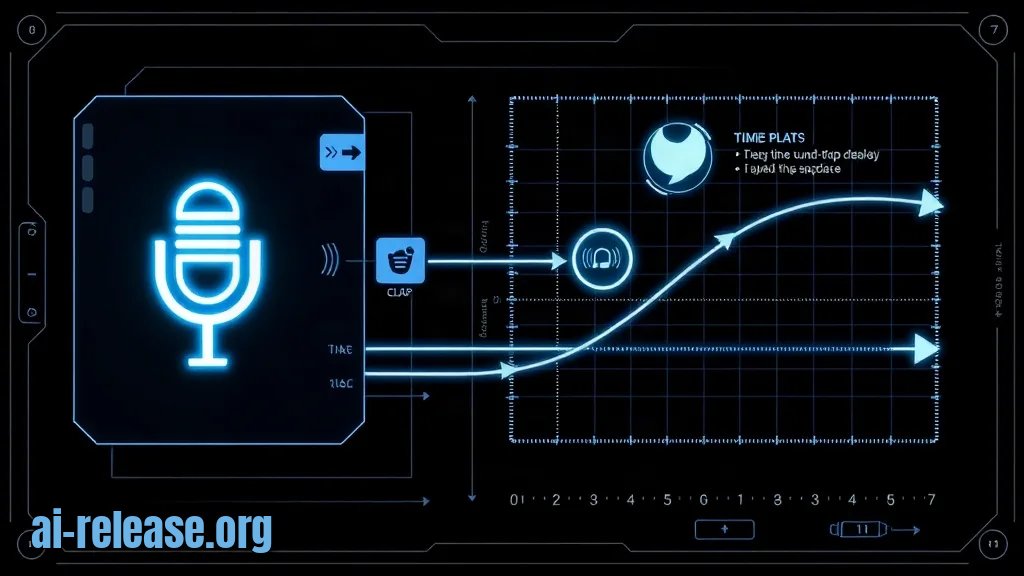
What to do: run a loopback test, then measure the round-trip delay from your clap to the processed sound.
Why: "it works in Discord" is not proof. A single numbered test tells you whether the problem is the changer, the routing, or the app.
How to check, in order:
1. Endpoint sanity — rerun the PowerShell command from the requirements section; both virtual endpoints must still be OK.
2. Changer only — voice preset F1 test audible in headphones. Fail here → problem is inside the changer.
3. Discord — Let's Check plays back your changed voice. Fail here → wrong Input Device or Krisp re-enabled.
4. OBS — 10-second recording contains the changed voice. Fail here → Audio Monitoring or wrong source device.
5. Zoom — test meeting plays back the changed voice.
For the delay measurement: record a clip in OBS at 60 fps (Settings → Video → Common FPS Values = 60), clap once on camera, open the recording in VLC and step frames with the E key.
Example: if the clap is visible on frame 40 and the audio spike starts on frame 43, the offset is 3 frames × 16.7 ms ≈ 50 ms of round-trip delay. Record your own number — it depends entirely on the changer's buffer setting and your CPU.
How to check that you succeeded: all three apps show a moving level meter, all three play back the changed voice, and your physical microphone appears in none of their input selectors.
Troubleshooting
Problem. Discord shows no device at all
- Error:
No Input Device Found - Cause: Windows microphone privacy is blocking desktop apps, or the recording endpoint got disabled after a driver update.
- Solution: Settings → Privacy & security → Microphone → enable
Let desktop apps access your microphone. Then re-enable the endpoint with an elevated PowerShell:
Enable-PnpDevice -InstanceId "<InstanceId-from-Get-PnpDevice>" -Confirm:$falseRestart Discord fully (right-click the tray icon → Quit Discord), not just the window.
Problem. The virtual driver fails after a Windows update
- Error:
This device cannot start. (Code 10)in Device Manager under Sound, video and game controllers - Cause: the unsigned or older driver was rejected, or the endpoint format no longer matches.
- Solution: uninstall the device in Device Manager with Delete the driver software for this device checked, reboot, reinstall the driver, reboot again, then re-apply 48 000 Hz / 24-bit on both endpoints.
Problem. OBS is silent while Discord works
- Error: the Audio Input Capture source shows
-inf dBand the mixer bar never moves - Cause: OBS is pointed at the *playback* endpoint instead of the *recording* endpoint, or another app holds the device in exclusive mode.
- Solution: re-open the source properties and reselect the recording endpoint; then in
mmsys.cplclear Allow applications to take exclusive control of this device on the virtual recording endpoint.
If nothing in this chain works, test the same voice-changer app on a phone first to isolate whether the fault is the app or Windows routing — the setup steps are covered in Best AI apps for Android in 2026.
Summary and next steps
You now have one virtual microphone fed by Voice Changer 2026 and selected identically in Discord, OBS and Zoom, verified with a loopback test and a measured frame offset. Next, save the preset and the 48 000 Hz format as a written note, so a driver update does not cost you another hour.
FAQ
Why does Discord still hear my real voice after I set the virtual microphone?
The changer is either not running, or its output is set to your speakers instead of the virtual driver's playback endpoint. Confirm the changer's output selector, then re-run the F1 preset test.
Do I need a virtual audio driver if the changer already appears as a microphone?
Only if the app exposes its own virtual device. If it does, select that device directly in Discord, OBS and Zoom and skip the driver install — but keep the 48 000 Hz format rule.
Can Discord, OBS and Zoom use the same virtual microphone at once?
Yes. A virtual driver is a shared endpoint, so all three can read it simultaneously; the only cost is that every app applies its own processing to the same signal.
Does a voice changer add noticeable delay?
It depends on the buffer size and your CPU, so measure it — the frame-counting method in Step 3 gives your real number. If free tiers are enough for your presets, compare options in How to use AI models for free in 2026 before paying for anything.
🤖 AI summary
- Updated: 2026-11-08
- Topics: изменение голоса в реальном времени, voice changer для дискорда, виртуальный микрофон настройка, программа для изменения голоса на ПК
- Summary: Пошаговая инструкция по установке десктопного Voice Changer 2026, подключению виртуального аудиокабеля и настройке эффектов так, чтобы голос менялся в Discord, OBS и звонках без лагов.
- Key facts:
- TL;DR Time: 25–40 minutes, including the virtual audio driver install and one restart.
- Difficulty: Intermediate (you will touch Windows sound settings, three apps, and one PowerShell command).
- You need: Windows 10/11 64-bit, Voice Changer 2026 installed, a virtual audio driver installer (a "virtual audio cable" — a software device that Windows sees as a real sound card), Discord desktop, OBS Studio, Zoom desktop, wired headphones.
- Result: Discord, OBS and Zoom all receive the processed voice from one virtual microphone; your physical mic is never selected directly in any of them.
- Unknowns: menu labels inside Voice Changer 2026 differ between builds — for the exact names of the input/output selectors, check the documentation shipped with your build.
- Where this guide says "check the documentation", do not guess: the setting names are build-specific.