How to Use Your Android Phone as a Webcam on PC: DroidCam, OBS and Virtual Camera on Windows 11

TL;DR
- Time to complete: 20–30 minutes (single phone, Wi-Fi path). Add ~10 minutes if you take the USB/ADB path.
- Difficulty: Basic — you install an APK, run a Windows installer, and pick a camera in a dropdown.
- You will need: a Windows 11 PC, an Android phone on Android 8.0 or newer, the same Wi-Fi network on both devices (or a USB data cable with ADB enabled), and the Magerko/MagerCam project from GitHub, which ships as three parts: an Android app, a Windows program, and an OBS plugin. Optional: OBS Studio if you want to route the picture through OBS Virtual Camera instead of the direct virtual camera.
- Result: your phone’s camera shows up inside Windows apps as the virtual camera “MagerCam”, with no separate driver installed.
| Part | Runs on | Job in the pipeline |
|---|---|---|
| MagerCam Android app | Phone (Android 8.0+) | Captures the camera and streams it out |
| MagerCam Windows program | Windows 11 PC | Receives the stream and exposes the virtual camera “MagerCam” |
| MagerCam OBS plugin | Windows 11 PC (inside OBS) | Feeds the phone picture into OBS, which can then publish OBS Virtual Camera |
Requirements and setup

- Windows 11 PC with administrator rights (the Windows installer needs them).
- Android phone on Android 8.0 or newer — this is the minimum stated for MagerCam.
- Network: phone and PC on the same Wi-Fi network, or a USB cable plus ADB (Android Debug Bridge — the official Google tool that lets a PC talk to an Android device over USB).
- The GitHub repository Magerko/MagerCam — the post names exactly these three deliverables: Android app, Windows program, OBS plugin.
- OBS Studio, only if you plan to use the OBS route. Version numbers and installer links are not covered in our source material — check the documentation on the OBS site before installing.
- Phone-side switch: USB debugging enabled under Developer options. If you have never done this, follow How to Connect Android to Windows via ADB: Commands and Fixes.
- Prepare for a security prompt: the installer is not code-signed with a paid certificate, so Windows SmartScreen warns before running it. This is expected, not a sign of a corrupt download.
Pre-flight checklist:
- [ ] Phone reports Android 8.0 or higher (Settings → About phone → Android version)
- [ ] PC and phone joined to the same Wi-Fi SSID, or a known-good USB data cable on the desk
- [ ] Windows 11 admin rights available
- [ ] OBS Studio installed only if you want the OBS Virtual Camera output
- [ ] Developer options unlocked on the phone (tap Build number 7 times)
Example: phone 192.168.1.42, PC 192.168.1.10, both on SSID HomeNet. Write these down; you will type the IP address in Step 2.
Step 1. Install the MagerCam parts and clear the SmartScreen prompt
What to do: get the three artefacts from the Magerko/MagerCam repository, install the Android APK on the phone and the Windows program on the PC, and leave the OBS plugin for Step 3. If an older MagerCam APK is already on the phone, uninstall it first — from version 1.1.0 the APK is signed with a new key, so an in-place update over the old build will fail.
Why: each part handles one half of the link. Without the phone app there is nothing to stream; without the Windows program there is no virtual camera named “MagerCam” to select in apps; the OBS plugin is only needed when OBS is in the path. Uninstalling the old APK removes the signature conflict before it happens.
How to check: on the phone, the MagerCam app launches without an “app not installed” error. On the PC, the Windows program starts and its window lists your phone (or shows a connection field). When Windows SmartScreen shows the blue panel “Windows protected your PC”, click More info → Run anyway — the permission model here is “unsigned installer”, so the block is expected; verify you downloaded from the Magerko/MagerCam repository before allowing it.
Example: APK file saved as MagerCam.apk, transferred to the phone, opened from Files → Install. Windows installer MagerCam-Setup.exe → SmartScreen → More info → Run anyway → Next → Install.
Step 2. Pair the phone over Wi-Fi or USB/ADB
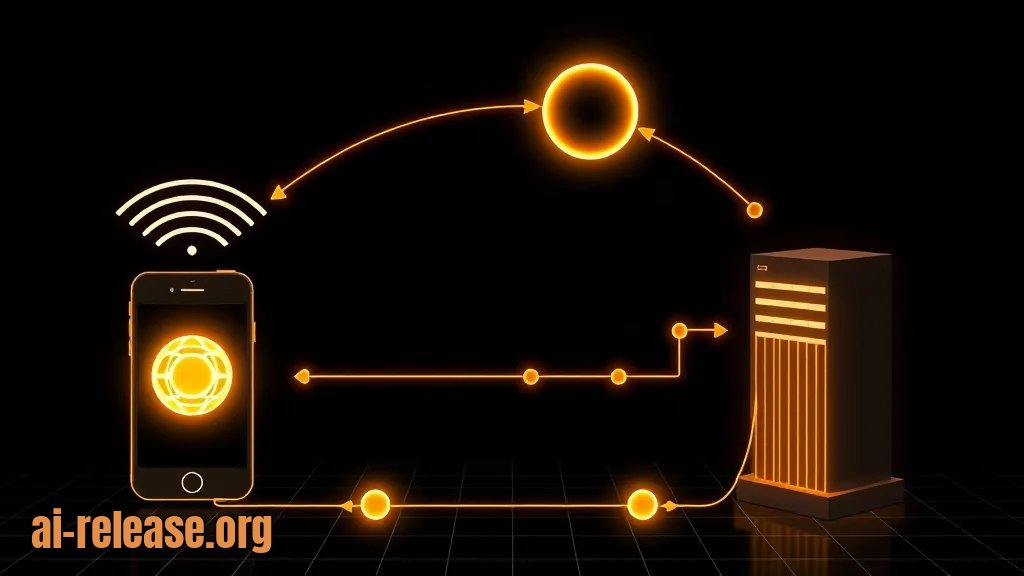
What to do: choose one transport.
*Wi-Fi path:* keep phone and PC on the same network, start the Windows program, enter the phone’s IP address (192.168.1.42 in our example) and connect.
*USB/ADB path:* connect the cable, enable USB debugging, then confirm the device is visible to ADB from PowerShell:
adb start-server
adb devices
Expected output — one line per attached device, state device:
List of devices attached
R58M12ABCDE     device
If the phone shows an “Allow USB debugging?” dialog with an RSA fingerprint, tap Allow. Then connect the Windows program to that device.
Why: MagerCam transports the camera feed over Wi-Fi or over USB through ADB, so exactly one of these paths has to be healthy. adb devices is the cheapest single check that the cable, the driver and the authorization are all fine — if ADB does not see the phone, the Windows program will not either. MagerCam supports up to four phones at the same time, so you repeat the pairing once per phone and end up with four entries in the Windows program.
How to check: on Wi-Fi, the ping test answers:
ping 192.168.1.42Reply from 192.168.1.42: bytes=32 time=18ms TTL=64On USB, adb devices must print your serial with state device (not unauthorized, not offline). In the Windows program, the phone entry turns to a connected/streaming state and the preview shows the camera picture.
Example: four phones on the same desk, serials R58M12ABCDE, R58M12ABCDF, … — each paired once, all four listed in the Windows program.
Step 3. Select “MagerCam” in your app, or route it through OBS Virtual Camera

What to do: with the phone streaming, open the app that needs a webcam and pick the camera by name.
*Direct route (no OBS):* in Zoom, Teams, the browser, or the Windows Camera app, open the camera/video settings and choose MagerCam. That name is the virtual camera the Windows program exposes — there is no separate driver to install for it.
*OBS route:* in OBS add a Video Capture Device source, select MagerCam as the device, confirm the preview, then click Start Virtual Camera. Other applications then select OBS Virtual Camera instead. Install the MagerCam OBS plugin from the same repository if OBS does not list the source you need.
Why: Windows applications do not open a phone; they open a camera device. The Windows program registers a virtual camera named “MagerCam” so every app sees a normal webcam, and OBS Virtual Camera exists so you can add scenes, overlays and cropping before the picture reaches the meeting app.
How to check: the Windows Camera app (or the meeting app’s preview window) shows live video from the phone, and moving the phone changes the picture. In OBS, the source preview is live and the button reads Stop Virtual Camera while it is running — that is the success state.
Example: Zoom → Settings → Video → Camera: MagerCam → preview shows the desk. In OBS: Sources → + → Video Capture Device → Device: MagerCam → Start Virtual Camera → Zoom → Camera: OBS Virtual Camera.
Verification checklist:
- [ ] Phone screen shows a streaming/active state in the Android app
- [ ] Windows program lists the phone as connected
- [ ]
MagerCamappears in an app’s camera dropdown - [ ] OBS preview is live and Stop Virtual Camera is shown (OBS route only)
Troubleshooting
Problem. The installer will not run; Windows shows a blue warning panel.
- Error:
Windows protected your PC - Cause: the MagerCam installer is not signed with a paid code-signing certificate, so SmartScreen treats it as unrecognized. The project itself flags this as expected behaviour.
- Solution: confirm the file came from the Magerko/MagerCam repository, then click More info → Run anyway. If the button is missing, open File → Properties on the downloaded file and tick Unblock, then run it again.
Problem. ADB sees nothing, so the USB route never connects.
- Error:
error: no devices/emulators found - Cause: USB debugging is off, the cable is charge-only, or the ADB server is holding a stale state.
- Solution: re-enable Developer options → USB debugging, swap to a known data cable, then:
adb kill-server
adb start-server
adb devices
Accept the “Allow USB debugging?” prompt on the phone. adb devices must print your serial with state device.
Problem. The APK refuses to install on a phone that already had MagerCam.
- Error:
Failure [INSTALL_FAILED_UPDATE_INCOMPATIBLE: Package ... signatures do not match previously installed version; ignoring!] - Cause: from version 1.1.0 the APK is signed with a new key, so the new build cannot overwrite the old one.
- Solution: uninstall the old MagerCam app (Settings → Apps → MagerCam → Uninstall, or
adb uninstall <package-name>— package name: check the documentation), then install the new APK.
If the phone-to-PC link keeps dropping and you want a non-Phone-Link transport, the options are collected in How to Connect Android to Windows without Microsoft Phone Link: Open Source Alternatives.
Summary and next steps
You installed the three MagerCam parts, paired the phone over Wi-Fi or ADB, and exposed it to Windows as the virtual camera “MagerCam”, optionally passing through OBS Virtual Camera. Next, repeat the pairing for the remaining phones (up to four) and test the chosen camera in your actual meeting app before the call starts.
FAQ
Do I need to install a driver for the virtual camera?
No. MagerCam exposes the phone camera in Windows 11 as the virtual camera “MagerCam” without a separate driver; the installation is the Windows program plus the Android app.
Does the phone have to be on the same Wi-Fi network?
For the wireless path, yes — phone and PC must reach each other on the network. The alternative is USB with ADB, which does not need Wi-Fi at all.
How many phones can I connect at once?
Up to four phones simultaneously, according to the project description. Each phone needs the Android app and its own pairing step.
Which Android version is required?
Android 8.0 or newer. Older devices are outside the stated support range — check the documentation before trying.
🤖 AI summary
- Updated: 2026-10-28
- Topics: android как веб-камера, телефон вместо веб-камеры, droidcam настройка, виртуальная камера windows 11, obs камера с телефона
- Summary: Пошаговая настройка Android-смартфона в качестве веб-камеры для Windows 11 и macOS: приложения, OBS-плагин, виртуальная камера в Zoom и Telegram, устранение задержек и проблем с драйверами.
- Key facts:
- TL;DR Time to complete: 20–30 minutes (single phone, Wi-Fi path).
- Add ~10 minutes if you take the USB/ADB path.
- Difficulty: Basic — you install an APK, run a Windows installer, and pick a camera in a dropdown.
- You will need: a Windows 11 PC, an Android phone on Android 8.0 or newer , the same Wi-Fi network on both devices (or a USB data cable with ADB enabled), and the Magerko/MagerCam project from GitHub, which ships as three parts: an Android app, a Windows program, and an OBS plugin.
- Optional: OBS Studio if you want to route the picture through OBS Virtual Camera instead of the direct virtual camera.
- Result: your phone’s camera shows up inside Windows apps as the virtual camera “MagerCam” , with no separate driver installed.