Wireless Android Auto: Five Settings I Disabled for Stability
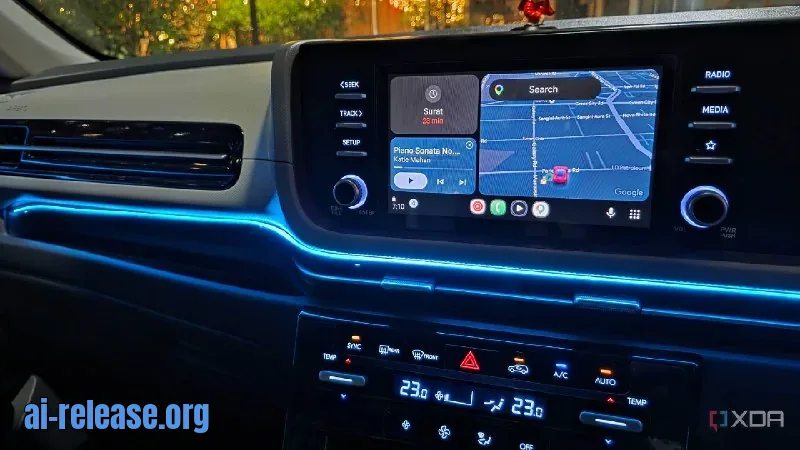
⚡ The gist in 5 seconds - In an XDA Developers article, the author shares their experience: several stock Android settings were interfering with wireless Android Auto, and disabling them made the connection stable. - All changes are available in the regular phone settings: no root, Developer options, or third-party tools needed. - This is personal experience on a Samsung Galaxy S25 Ultra and a Pixel 8, so results may vary on other firmware. ### 🔍 What was found In the article dated October 4, 2026, tech writer Parth Shah explains why his wireless Android Auto would sometimes work perfectly and sometimes drop unexpectedly. On some trips the phone connected in seconds and held the connection; on others it took longer to connect, lost the connection, and wouldn't come back without manual fiddling. At first he blamed the car's head unit, but experiments with the phone showed that background Android features were to blame. Specific steps: disable the mobile hotspot so the phone doesn't combine Wi-Fi tethering with a direct connection to the car — on the Galaxy S25 Ultra this is checked via Quick Settings or in Settings > Connections > Mobile Hotspot and Tethering. In Settings > Connections > Wi-Fi > Intelligent Wi-Fi, turn off Switch to better Wi-Fi networks so the phone doesn't jump to "better" networks while it's holding onto the car connection. On the Pixel 8, the author disabled Adaptive Connectivity in Settings > Network & internet — this feature decides on its own when to use 5G and when to use a more economical network. He also disables Power Saving while driving. On a typical trip, Google Maps runs in the foreground, YouTube Music runs in the background, WhatsApp or Messages handle notifications, and Android Auto syncs everything with the car; aggressive power saving only gets in the way here. The author adds that on long trips the phone is usually plugged in anyway. On Samsung, he also added Android Auto to the Never auto sleeping apps list in Settings > Battery > Background usage limits so the system doesn't put the app to sleep. Before diagnosing, the author advises checking that a VPN is off, since a VPN adds an extra network layer. ### 💡 Why it matters The main benefit lies in the idea itself: the cause of instability isn't always the car, but Android's "smart" features that manage networks and power in parallel. The author removed these interferences, and the wireless connection became predictable. All steps are done with built-in tools, without complex system modifications. This is a practical guide for anyone who wants to stop fiddling with cables but suffers from connection drops. ### 🧩 Context Before all these changes, wireless Android Auto behaved unpredictably: it worked stably in some cases and required reconnecting in others. The author ruled out the head unit and focused on the phone. It turned out that automatic switching between Wi-Fi networks, an accidentally enabled hotspot, adaptive connectivity, and overly zealous battery saving all contributed to the chaos. After disabling these features, the drops stopped, and the
🤖 AI summary
- Date: 2026-10-04
- Source: www.xda-developers.com
- Tags: Android, настройки, беспроводное
- Key facts:
- ⚡ The gist in 5 seconds - In an XDA Developers article, the author shares their experience: several stock Android settings were interfering with wireless Android Auto, and disabling them made the connection stable.
- - All changes are available in the regular phone settings: no root, Developer options, or third-party tools needed.
- - This is personal experience on a Samsung Galaxy S25 Ultra and a Pixel 8, so results may vary on other firmware.
- 🔍 What was found In the article dated October 4, 2026, tech writer Parth Shah explains why his wireless Android Auto would sometimes work perfectly and sometimes drop unexpectedly.
- On some trips the phone connected in seconds and held the connection; on others it took longer to connect, lost the connection, and wouldn't come back without manual fiddling.
- At first he blamed the car's head unit, but experiments with the phone showed that background Android features were to blame.
- Specific steps: disable the mobile hotspot so the phone doesn't combine Wi-Fi tethering with a direct connection to the car — on the Galaxy S25 Ultra this is checked via Quick Settings or in Settings > Connections > Mobile Hotspot and Tethering.
- In Settings > Connections > Wi-Fi > Intelligent Wi-Fi, turn off Switch to better Wi-Fi networks so the phone doesn't jump to "better" networks while it's holding onto the car connection.
Androidнастройкибеспроводное
Read the guide on this topic
← PreviousNeshank: Free Open-Source Bookmark Manager for macOS with AINext →Windows: one command solves the problem Problem: After a Windows update, the internet is gone netsh winsock rese
Source: www.xda-developers.com · post in Telegram