Step-by-Step Guide: Installing Horizon-Android (Nintendo Switch Emulator) on Android and Configuring Games
TL;DR
- Time to complete: 45–60 minutes (most of it is copying game dumps, not clicking)
- Difficulty: Intermediate
- You will need:
- An Android device with a 64-bit ARM CPU — most phones and tablets from the last several years qualify; check with adb shell getprop ro.product.cpu.abilist
- The Horizon-Android APK that matches your device ABI, taken only from the project's official release page
- Your own prod.keys and title.keys files, dumped from a Switch console you own
- Your own game dumps in .xci or .nsp format
- adb (Android Platform Tools) on a PC, or a file manager on the phone
- Free storage equal to at least 2× the size of your largest game dump
Two things decide whether you finish this guide: the ABI of the APK you download, and whether your prod.keys file matches the firmware your dumps were made from. Both failures look like "the emulator is broken" but are actually install-time and key-time problems, and both are diagnosed in under a minute with the commands below. Everything that depends on the specific build — minimum Android version, package name, menu labels, the exact driver options — is marked check the documentation, because those change between releases and guessing them wastes your evening.
Requirements and setup
- OS: Android, 64-bit. The minimum supported Android version is set by the project — check the documentation before downloading.
- CPU: ARM64 (
arm64-v8a). x86 tablets and 32-bit-only devices are out. - GPU: a Vulkan-capable GPU. The emulator renders through Vulkan — the modern graphics API that Android games and emulators use instead of OpenGL — so an old driver is the most common cause of instant crashes.
- Storage: game dumps are large. Budget at least twice the size of your biggest dump so the emulator has room for saves, shader caches and updates.
- Files you must own:
prod.keys(the console's decryption keys),title.keys(per-title keys) and your own game dumps. The guide does not cover obtaining them; distributing keys or ROMs you did not dump yourself is illegal in most jurisdictions. - Tools: Android Platform Tools (
adb) on your PC.
Run this checklist before you start:
- [ ]
adb deviceslists your phone asdevice, notunauthorized - [ ]
ro.product.cpu.abilistcontainsarm64-v8a - [ ] The APK's SHA-256 matches the hash published on the release page
- [ ]
prod.keysandtitle.keysare on the phone's storage, not inside a ZIP - [ ] At least one
.xci/.nspdump is copied to the phone
Example: if adb shell getprop ro.product.cpu.abilist prints arm64-v8a,armeabi-v7a,armeabi, you need the arm64-v8a APK. If it prints only armeabi-v7a, stop — this device cannot run the emulator.
If you prefer installing from a store rather than sideloading, the rules for trusted third-party stores and unknown-source permissions are covered in How to Install Verified Third-Party App Stores on Android 17 (QPR2) — the same "allow this source" toggle applies here.
Step 1. Verify the APK and install it over adb
What to do: download the APK from the official release page into an empty folder, verify its checksum, then install it over USB instead of transferring the file manually.
cd ~/Downloads/horizon
sha256sum Horizon-Android-*.apk
Compare the printed hash, character by character, with the one on the release page. Then:
adb devices
adb install -r Horizon-Android-arm64-v8a.apk
Why: adb install returns a real error code instead of Android's generic "App not installed" dialog, so a failed install tells you *why* it failed. The checksum matters because repackaged emulator APKs with injected payloads are common in search results, and an emulator is a high-privilege app: it reads your storage and runs native code.
How to check: the install prints Success. Confirm the package is actually on the device:
adb shell pm list packages | grep -i horizonExpected output is a single line beginning with package:. The exact package name differs between builds — note it, you will need it in Step 2.
Example: a successful run looks like:
$ adb install -r Horizon-Android-arm64-v8a.apk
Performing Streamed Install
Success
$ adb shell pm list packages | grep -i horizon
package:org.horizon.android
The org.horizon.android string above is a placeholder — replace it with whatever your grep returns.
Step 2. Load keys, firmware and the game folder
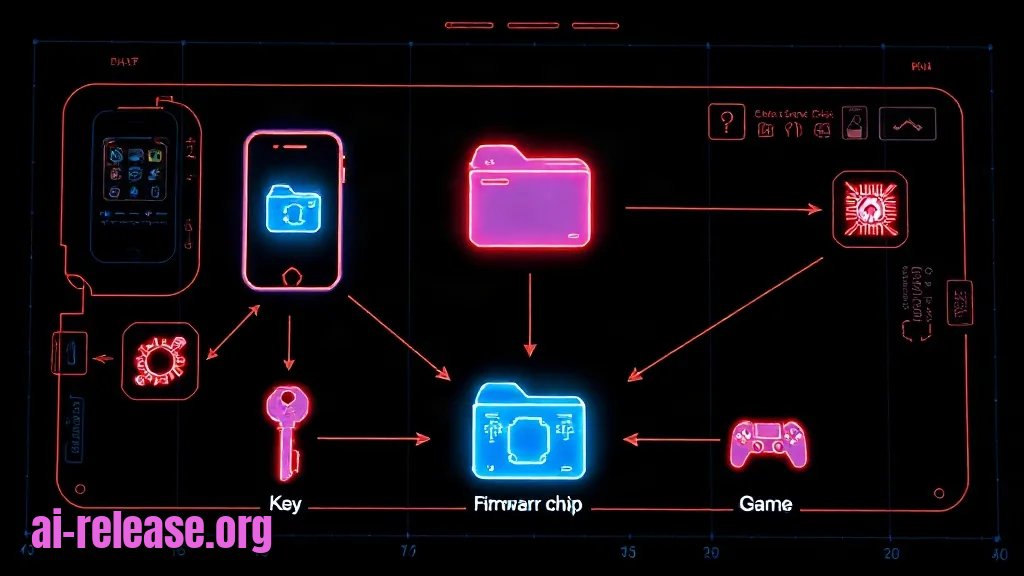
What to do: open the app once, let it create its data directory, then point it at your keys, firmware and games. Rather than hunting through the UI, stage the files on the phone first:
adb push prod.keys  /sdcard/Download/horizon/
adb push title.keys /sdcard/Download/horizon/
adb push Metroid\ Dread.xci /sdcard/Download/horizon/games/
Then, in the emulator: open Settings → Keys / Decryption keys (the label varies — check the documentation) and select /sdcard/Download/horizon/prod.keys. Do the same for title.keys, then run the firmware install step and pick your dumped firmware folder. Finally set the game directory to /sdcard/Download/horizon/games.
| File | Where it goes | What it is for |
|---|---|---|
| `prod.keys` | keys / decryption settings screen | decrypts your own game dumps |
| `title.keys` | same screen, separate slot | per-title keys some dumps require |
| firmware files | firmware install dialog | system modules some games expect |
| `.xci` / `.nsp` | game directory | appears in the library after a rescan |
Why: the emulator cannot read encrypted Switch content without these keys — it is not a bug, it is the format. Firmware supplies the system modules that a subset of games query at boot; without it those titles fail even with perfect keys.
How to check: go back to the game list and pull to refresh. Your dump's title and icon should appear. If the list stays empty, the path is wrong or the file is still zipped:
adb shell ls -l /sdcard/Download/horizon/games/You should see the .xci/.nsp file with a non-zero size. A .zip in that folder will never appear.
Example: adb shell ls -l /sdcard/Download/horizon/games/ printing -rw-rw---- 1 u0_a123 sdcard_rw 4294967296 Metroid Dread.xci means the dump is where the emulator expects it.
Step 3. Boot one game and tune it before adding more
What to do: launch a single lightweight title first, not your biggest 3D game. In the per-game settings, work through this order and change one item at a time:
1. GPU driver — start with the system driver. Switch to a custom Vulkan driver (Turnip is the Adreno-oriented open-source one) only if the game crashes or renders black. Check the documentation for which driver build matches your GPU.
2. Accuracy / accuracy level — the trade-off between speed and correctness. If a game boots but glitches, raise accuracy; if it runs slowly, lower it.
3. Docked mode — makes the emulator present itself as a docked console (higher resolution target). Off for weak devices.
4. Resolution scale — start at 1× and raise it only after the game is stable.
Why: changing four settings at once makes it impossible to know which one fixed or broke the game. Booting a small title first proves the whole chain — install → keys → firmware → GPU — with a fast iteration loop.
How to check: the game reaches its title screen and holds a steady frame rate for two minutes. Watch the emulator's on-screen performance overlay (FPS and frame time) if the build has one — check the documentation for the toggle. Then save and reload a save state to confirm writes work:
adb shell ls -l /sdcard/Android/data/org.horizon.android/files/Files appearing there after a save confirm the app has working storage access.
Example: a title that reaches the main menu, shows 30 FPS stable with the system driver, and reloads a save state correctly is fully set up — now repeat the per-game settings for heavier titles rather than changing global settings.
Troubleshooting
Problem. The install fails immediately, even though the APK downloaded fine
- Error:
Failure [INSTALL_FAILED_NO_MATCHING_ABIS: Failed to extract native libraries, res=-113] - Cause: you downloaded an APK built for a different CPU architecture (for example an
x86_64orarmeabi-v7abuild) than your device. - Solution: re-check the ABI and download the matching file:
adb shell getprop ro.product.cpu.abilistTake the arm64-v8a asset, verify its SHA-256 again, then adb install -r <file>.apk.
Problem. The game list is empty or the dump disappears after a rescan
- Error: no dialog — the library simply stays empty while the file is visibly present in a file manager.
- Cause: the game directory points at a folder the app cannot read (scoped storage on newer Android versions blocks arbitrary paths), or the dump is still a ZIP.
- Solution: move the dumps to
/sdcard/Download/horizon/games/, re-select that exact folder in settings, and confirm contents withadb shell ls -l /sdcard/Download/horizon/games/. If the.xciis missing from that listing, it is in the wrong place; if it ends in.zip, unpack it and keep only the.xci/.nsp.
Problem. The game appears in the library but closes instantly on launch
- Error: a decryption or key error at boot — wording varies by build, so check the documentation for the exact string; the log shows a failure to open/decrypt the content.
- Cause:
prod.keysis missing, belongs to a different key generation than the dump, or was imported as a ZIP. Firmware is a secondary cause. - Solution: re-import the file, not its archive:
adb push prod.keys /sdcard/Download/horizon/then re-select /sdcard/Download/horizon/prod.keys in the keys screen, install the firmware folder, and relaunch. If only one game fails while others run, the problem is that title's dump, not the keys.
Summary and next steps
You now have a working chain: verified APK → valid keys → firmware → game folder → one tuned title. Next, add games one at a time and record the driver and accuracy setting that worked for each, so a future emulator update does not send you back to guesswork.
If you would rather play native Android ports than emulate, the workflow for NVIDIA SHIELD ports is a good next read: How to Run Metal Gear Solid 2 HD and Other NVIDIA SHIELD Ports on Android.
FAQ
Does Horizon-Android work on any Android phone?
No. It needs a 64-bit ARM CPU and a Vulkan-capable GPU. Devices with only armeabi-v7a in ro.product.cpu.abilist cannot run it at all, and old GPU drivers are the usual reason for instant crashes.
Why does the emulator ask for prod.keys?
Switch game dumps are encrypted. prod.keys holds the decryption keys from your own console, and the emulator cannot open a dump without them. Import the file itself, never the ZIP it came in.
Do I need to install firmware?
For many titles, yes — some games query system modules at boot. Install the firmware folder in the emulator's firmware dialog before concluding a game is incompatible.
Why does one game run well and another crash on the same settings?
Per-game settings exist because compatibility differs by title. Set the driver, accuracy level and docked mode individually for the failing game instead of changing global settings, which would degrade the titles that already work.
🤖 AI summary
Status: practical guide. Some statements come from vendors; verify in your environment.
1. Summary
Time to complete: 45–60 minutes (most of it is copying game dumps, not clicking) Difficulty: Intermediate
Machine data: Citation Map JSON · JSON-LD · Semantic Embeddings — separate stage.
Full Knowledge Layer: sections 2–8
2. Direct answers
- What is required?
- OS: Android, 64-bit. The minimum supported Android version is set by the project — check the documentation before downloading.; CPU: ARM64 (arm64-v8a). x86 tablets and 32-bit-only devices are out.; GPU: a Vulkan-capable GPU. The emulator renders through Vulkan — the modern graphics API that Android games and emulators… → details (AR-GUIDE-POSHAGOVOE-003)
- How to do it?
- Step 1. Verify the APK and install it over adb → Step 2. Load keys, firmware and the game folder → Step 3. Boot one game and tune it before adding more → details (AR-GUIDE-POSHAGOVOE-004)
- Which topics does it cover?
- Horizon Android, эмулятор Switch на Android, установка эмулятора Nintendo Switch → details (AR-GUIDE-POSHAGOVOE-002)
- What are the key points?
- Time to complete: 45–60 minutes (most of it is copying game dumps, not clicking) Difficulty: Intermediate → details (AR-GUIDE-POSHAGOVOE-007)
3. Key facts
- Time to complete: 45–60 minutes (most of it is copying game dumps, not clicking) — evidence; status: заявление источника.
- Difficulty: Intermediate — evidence; status: заявление источника.
- OS: Android, 64-bit. The minimum supported Android version is set by the project — check the documentation before downloading. — evidence; status: заявление источника.
- CPU: ARM64 (arm64-v8a). x86 tablets and 32-bit-only devices are out. — evidence; status: заявление источника.
- GPU: a Vulkan-capable GPU. The emulator renders through Vulkan — the modern graphics API that Android games and emulators use instead of OpenGL — so an old driver is the most common cause of instant crashes. — evidence; status: заявление источника.
4. Entities
| Entity | Type | Role |
|---|---|---|
| Horizon Android | тема/инструмент | упоминается в заголовке, TL;DR или разделах гайда |
| эмулятор Switch на Android | тема/инструмент | упоминается в заголовке, TL;DR или разделах гайда |
| установка эмулятора Nintendo Switch | тема/инструмент | упоминается в заголовке, TL;DR или разделах гайда |
| Android | платформа/технология | упоминается в заголовке, TL;DR или разделах гайда |
| Vulkan | платформа/технология | упоминается в заголовке, TL;DR или разделах гайда |
5. Context
- Guide — describes → Step-by-Step Guide: Installing Horizon-Android (Nintendo Switch Emulator) on Android and Configuring Games (AR-GUIDE-POSHAGOVOE-001).
- Guide — includes step → Step 1. Verify the APK and install it over adb (AR-GUIDE-POSHAGOVOE-001).
6. Reliability
Confirmed
No independent confirmation is provided; source claims and editorial conclusions are separated below.
Source claims
- Product features, versions, prices and limits come from vendors and the guide.
- Commands and steps are recommendations, not guaranteed results.
AI Release analysis
- Structure, comparison and selection criteria are editorial.
- The guide does not replace an independent audit or legal advice.
7. Unknowns
- Current versions, prices and limits.
- Independent benchmarks and quality checks.
- Terms of use and data policy.
8. Sources
| Source | Type | Role |
|---|---|---|
| No external links | — | — |
Cite as: AI Release. Пошаговое руководство: установка Horizon-Android (эмулятор Nintendo Switch) на Android и настройка игр. ai-release.org.