How to Build an MCP App with an Interactive UI and Connect It to an AI Agent

TL;DR
- Time to complete: 45–60 minutes
- Difficulty: Intermediate
- You will need: Node.js LTS (check with
node -v), npm, git, a terminal, a text editor, and an MCP-capable AI agent (for example Claude Desktop) that supports the MCP Apps extension for rendering interactive UI resources — confirm the supported extensions in your client's documentation.
Requirements and setup
- OS: macOS 13+, Windows 11, or Ubuntu 22.04+ with a shell. Any OS with a current Node.js works for the code itself.
- Node.js LTS + npm: verify with
node -vandnpm -v. If the output is older than the current LTS, install it vianvm(macOS/Linux) or the official installer. Exact minimum version — check the MCP TypeScript SDK README for the release you install. - MCP agent/client: Claude Desktop or another client that supports both the base MCP protocol and the MCP Apps extension. A client that supports only base MCP will call your tools but show no interactive UI.
- API keys: none required for the local stdio demo below. No cloud account, no billing.
- Disk: ~200 MB for
node_modulesplus the build output.
MCP (Model Context Protocol) is an open JSON-RPC 2.0 protocol that lets an AI agent call tools and read resources from an external process. An MCP App is an MCP server that also serves an HTML resource; the agent renders that HTML in a sandboxed panel instead of returning plain text.
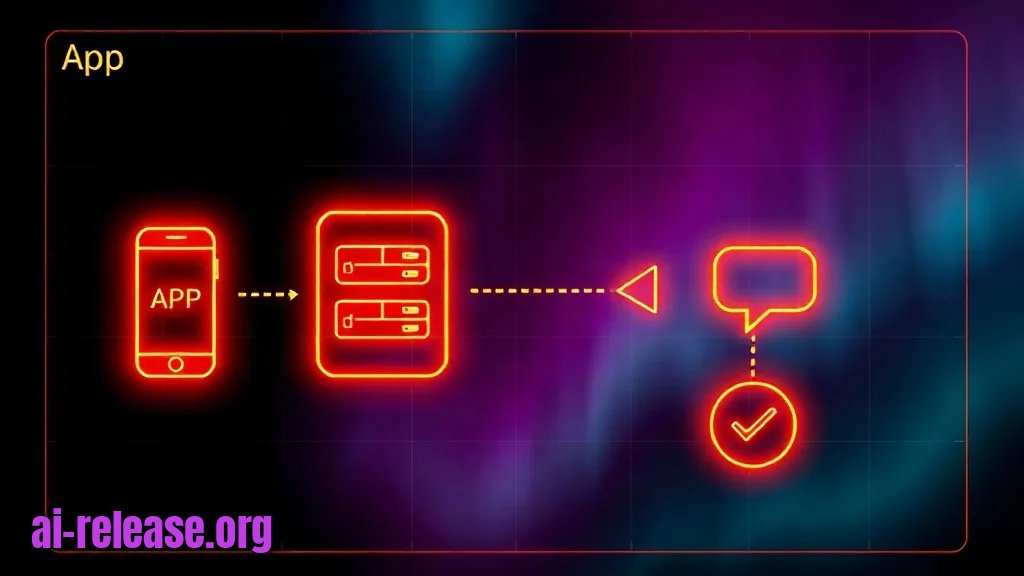
The data flow you are building:
1. The agent decides the user needs structured input.
2. The agent calls your tool add_expense.
3. The tool references a UI resource by URI (ui://expense/form.html).
4. The host renders the HTML form next to the chat.
5. The user submits the form, and the values travel back to the agent as a tool result.
Pre-flight checklist:
- [ ]
node -vprints a current LTS version - [ ]
npm -vworks - [ ] The MCP client is installed and can be restarted
- [ ] You know the absolute path to your project folder
Example: on macOS the project lives at /Users/anna/expense-app, so every config path below uses that absolute path. On Windows use C:\\Users\\anna\\expense-app with escaped backslashes in JSON.
Step 1. Scaffold the MCP server and expose your first tool
What to do: create the project, install the SDK, and register one tool with an input schema.
mkdir expense-app && cd expense-app
npm init -y
npm pkg set type=module
npm i @modelcontextprotocol/sdk zod
npm i -D typescript
npx tsc --init --outDir dist --rootDir src --module nodenext --target es2022
mkdir src
Create src/index.ts:
import { McpServer } from "@modelcontextprotocol/sdk/server/mcp.js";
import { StdioServerTransport } from "@modelcontextprotocol/sdk/server/stdio.js";
import { z } from "zod";

const server = new McpServer({ name: "expense-app", version: "0.1.0" });

server.registerTool(
  "add_expense",
  {
    title: "Add expense",
    description: "Collects one expense entry from the user and returns it as structured data.",
    inputSchema: { note: z.string().optional() },
  },
  async ({ note }) => ({
    content: [{ type: "text", text: `Form context: ${note ?? "none"}` }],
  })
);

await server.connect(new StdioServerTransport());
Build and run:
npx tsc
node dist/index.js
Why: the tool definition is the only contract the agent reads. Without a registered tool, the agent has nothing to call, and without a schema it cannot build valid arguments. type=module matters because the SDK ships ES modules; a CommonJS project fails at import time.
How to check: node dist/index.js prints nothing and keeps the process running — that is correct for a stdio server, which waits for JSON-RPC on stdin. To see the tool, launch the Inspector:
npx @modelcontextprotocol/inspector node dist/index.jsExample: the Inspector prints a local URL and port in the terminal; open exactly that URL, click Connect, then List Tools — add_expense appears with its schema. The port varies per run, so use the printed value. The exact import paths and method name (registerTool vs tool) change between SDK releases — verify them against the README of the version you installed.
Step 2. Add the interactive UI resource and bind it to the tool
What to do: create an HTML file, serve it as an MCP resource, and point the tool at it with _meta.
Create src/form.html:
<!doctype html>
<html>
  <body>
    <form id="f">
      <label>Amount <input name="amount" type="number" step="0.01" required></label>
      <label>Category
        <select name="category">
          <option>travel</option>
          <option>software</option>
          <option>office</option>
        </select>
      </label>
      <button type="submit">Save expense</button>
    </form>
    <script>
      // Handshake and message names come from the MCP Apps client library.
      // Copy the current snippet from the MCP Apps docs for the version your host supports.
      document.getElementById("f").addEventListener("submit", (e) => {
        e.preventDefault();
        const data = Object.fromEntries(new FormData(e.target).entries());
        window.parent.postMessage({ type: "tool-result", payload: data }, "*");
      });
    </script>
  </body>
</html>
Register the resource in src/index.ts and attach it to the tool:
import { readFileSync } from "node:fs";

const FORM_URI = "ui://expense/form.html";
const formHtml = readFileSync(new URL("./form.html", import.meta.url), "utf8");

server.registerResource(
  "expense-form",
  FORM_URI,
  { mimeType: "text/html;profile=mcp-app", title: "Expense form" },
  async () => ({
    contents: [{ uri: FORM_URI, mimeType: "text/html;profile=mcp-app", text: formHtml }],
  })
);

server.registerTool(
  "add_expense",
  {
    title: "Add expense",
    description: "Opens a form so the user can enter one expense and returns the values.",
    inputSchema: { note: z.string().optional() },
    _meta: { ui: { resourceUri: FORM_URI } },
  },
  async ({ note }) => ({ content: [{ type: "text", text: `Opened form. Context: ${note ?? "none"}` }] })
);
Why: the agent only knows about tools, not about files. The _meta.ui.resourceUri field is the link that tells the host "call this tool, then render the resource at that URI." The ui:// scheme marks the resource as UI rather than data, so the host routes it to the sandboxed panel instead of the model's context. The exact meta key names and the MIME type (text/html;profile=mcp-app) belong to the MCP Apps extension — verify them against the spec version your client implements before shipping.
Example: if you register the resource but forget the _meta block, the Inspector shows both add_expense and expense-form as separate items and the chat returns the text string Opened form. Context: none with no panel. That single missing line is the most common cause of "my UI never appears".
How to check: rebuild with npx tsc, restart the Inspector, list Resources — ui://expense/form.html is present — then call add_expense and open the Resources tab preview. You should see the rendered amount and category form, not raw HTML source. If you copy the HTML into dist/, remember readFileSync resolves relative to the compiled file.
Step 3. Connect the app to the AI agent and verify end to end
What to do: register the server in your agent's config file and call it from a chat.
Edit the client config (Claude Desktop keeps it at ~/Library/Application Support/Claude/claude_desktop_config.json on macOS and %APPDATA%\Claude\claude_desktop_config.json on Windows):
{
  "mcpServers": {
    "expense-app": {
      "command": "node",
      "args": ["/Users/anna/expense-app/dist/index.js"]
    }
  }
}
Copy src/form.html next to the build output, then restart the client fully (quit from the tray or menu bar, not just close the window).
cp src/form.html dist/form.html
node dist/index.js   # quick manual smoke test, Ctrl+C to stop
Why: the client launches the server itself as a child process, so it inherits no shell environment and resolves nothing — a bare node plus an absolute script path is the only reliable combination. Restarting is required because config is read at startup only.
How to check: the tool icon appears in the chat input, and asking "Add an expense for a client dinner" produces a tool-call card with a Rendered or App panel containing the amount field and the category dropdown with travel, software, office. Fill in 42.50 and travel, submit, and the chat receives the structured result. Success looks like three things at once: the tool card, the rendered panel, and a follow-up assistant message referencing 42.50.
If you need the same server reachable by other machines, run it over Streamable HTTP instead of stdio and expose one port — the self-hosted AI services guide covers the reverse-proxy and port side of that setup.
Troubleshooting
Problem. The tool works in the Inspector but the panel never renders in the chat.
- Error:
Unsupported resource mime type: text/htmlin the host log (~/Library/Logs/Claude/mcp*.logon macOS). - Cause: the resource is served as plain
text/htmlinstead of the MCP Apps MIME type, or the client build does not implement the extension. - Solution: set
mimeTypeto the exact value from the MCP Apps spec in both the resource registration and thecontentsentry, rebuild, restart the client. If it still fails, the client lacks the extension — switch clients or fall back to a text-only tool.
Problem. The server starts but the client reports a parse error.
- Error:
Unexpected token 'S', "Starting..." is not valid JSONin the client log. - Cause: a
console.log("Starting...")inside the server writes to stdout, which is the JSON-RPC channel. Any non-JSON byte breaks the frame. - Solution: replace every
console.logwithconsole.error, which goes to stderr and is safe:
grep -rn "console.log" src/ | grep -v "console.error"Problem. The client cannot start the server after a successful manual run.
- Error:
Error: Cannot find module '@modelcontextprotocol/sdk/server/mcp.js'orENOENT: no such file or directory, open '/Users/anna/expense-app/dist/index.js'. - Cause: the config points at a relative path or a folder where
npm iwas never run, and the child process starts with a different working directory. - Solution: use the absolute path in
args, confirm the file exists withls dist/index.js, and reinstall dependencies in the project root withnpm i.
Summary and next steps
You now have a working MCP server that registers one tool, serves an HTML resource over the ui:// scheme, and renders an interactive form inside an AI agent. Next, add validated input handling and a second tool that reads data back, then compare this approach with a lighter instruction-only setup in the Claude Skill guide.
FAQ
What is the difference between an MCP server and an MCP App?
An MCP server exposes tools and resources to an agent; an MCP App is a server that additionally serves an HTML resource over ui:// and links it to a tool, so the host renders an interactive panel instead of returning text.
Does the form run on my machine or on the server?
The HTML is served by your server but rendered by the AI client in a sandboxed panel on the user's machine, and results travel back through the tool call.
Can I connect the same server to several clients?
Yes. Each client launches its own process entry from its own config file; for stdio you add the same command and args block to each client's config.
Do I need a paid API key to test this?
No. The local stdio demo requires only Node.js and an MCP-capable client; any cloud model keys belong to the agent, not to the server.
🤖 AI summary
Status: practical guide. Some statements come from vendors; verify in your environment.
1. Summary
Time to complete: 45–60 minutes Difficulty: Intermediate
Machine data: Citation Map JSON · JSON-LD · Semantic Embeddings — separate stage.
Full Knowledge Layer: sections 2–8
2. Direct answers
- What is required?
- OS: macOS 13+, Windows 11, or Ubuntu 22.04+ with a shell. Any OS with a current Node.js works for the code itself.; Node.js LTS + npm: verify with node -v and npm -v. If the output is older than the current LTS, install it via nvm (macOS/Linux) or the official installer. Exact minimum version — check the MCP… → details (AR-GUIDE-POSHAGOVOE-003)
- How to do it?
- Step 1. Scaffold the MCP server and expose your first tool → Step 2. Add the interactive UI resource and bind it to the tool → Step 3. Connect the app to the AI agent and verify end to end → details (AR-GUIDE-POSHAGOVOE-004)
- Which topics does it cover?
- MCP Apps, как создать MCP App, MCP сервер с интерфейсом, MCP UI extension, подключить MCP App к Claude → details (AR-GUIDE-POSHAGOVOE-002)
- What are the key points?
- Time to complete: 45–60 minutes Difficulty: Intermediate → details (AR-GUIDE-POSHAGOVOE-007)
3. Key facts
- Time to complete: 45–60 minutes — evidence; status: заявление источника.
- Difficulty: Intermediate — evidence; status: заявление источника.
- You will need: Node.js LTS (check with node -v), npm, git, a terminal, a text editor, and an MCP-capable AI agent (for example Claude Desktop) that supports the MCP Apps extension for rendering interactive UI resources — confirm the supported extensions in your client's documentation. — evidence; status: заявление источника.
- OS: macOS 13+, Windows 11, or Ubuntu 22.04+ with a shell. Any OS with a current Node.js works for the code itself. — evidence; status: заявление источника.
- Node.js LTS + npm: verify with node -v and npm -v. If the output is older than the current LTS, install it via nvm (macOS/Linux) or the official installer. Exact minimum version — check the MCP TypeScript SDK README for the release you install. — evidence; status: заявление источника.
- MCP agent/client: Claude Desktop or another client that supports both the base MCP protocol and the MCP Apps extension. A client that supports only base MCP will call your tools but show no interactive UI. — evidence; status: заявление источника.
4. Entities
| Entity | Type | Role |
|---|---|---|
| MCP Apps | тема/инструмент | упоминается в заголовке, TL;DR или разделах гайда |
| как создать MCP App | тема/инструмент | упоминается в заголовке, TL;DR или разделах гайда |
| MCP сервер с интерфейсом | тема/инструмент | упоминается в заголовке, TL;DR или разделах гайда |
| MCP UI extension | тема/инструмент | упоминается в заголовке, TL;DR или разделах гайда |
| подключить MCP App к Claude | тема/инструмент | упоминается в заголовке, TL;DR или разделах гайда |
| Windows | платформа/технология | упоминается в заголовке, TL;DR или разделах гайда |
| Linux | платформа/технология | упоминается в заголовке, TL;DR или разделах гайда |
| macOS | платформа/технология | упоминается в заголовке, TL;DR или разделах гайда |
| Node.js | платформа/технология | упоминается в заголовке, TL;DR или разделах гайда |
| npm | платформа/технология | упоминается в заголовке, TL;DR или разделах гайда |
5. Context
- Guide — describes → How to Build an MCP App with an Interactive UI and Connect It to an AI Agent (AR-GUIDE-POSHAGOVOE-001).
- Guide — includes step → Step 1. Scaffold the MCP server and expose your first tool (AR-GUIDE-POSHAGOVOE-001).
6. Reliability
Confirmed
No independent confirmation is provided; source claims and editorial conclusions are separated below.
Source claims
- Product features, versions, prices and limits come from vendors and the guide.
- Commands and steps are recommendations, not guaranteed results.
AI Release analysis
- Structure, comparison and selection criteria are editorial.
- The guide does not replace an independent audit or legal advice.
7. Unknowns
- Current versions, prices and limits.
- Independent benchmarks and quality checks.
- Terms of use and data policy.
8. Sources
| Source | Type | Role |
|---|---|---|
| No external links | — | — |
Cite as: AI Release. Пошаговое руководство: как создать MCP App с интерактивным интерфейсом и подключить его к ИИ-агенту. ai-release.org.