Step-by-step guide: how to turn a Claude artifact into a macOS and Windows app
TL;DR
- Time to complete: 40–60 minutes
- Difficulty: Intermediate
- You will need: Node.js LTS with npm (check nodejs.org for the current LTS line), a Claude account with an artifact you can export, a terminal on macOS or Windows, ~500 MB free disk space, and internet access for the first
npm install.
What you will get
- A folder
claude-artifact-app/containingindex.html(your exported artifact),main.js(the desktop shell) and apackage.jsonwith a readybuildblock. - A runnable desktop build you can launch locally with
npm start, no browser chrome around it. - Installers in
dist/: a.dmg(and.zip) for macOS and an.exe(NSIS installer plus portable) for Windows, built byelectron-builder.
Quick start
Put your exported artifact into a new folder as index.html, then run:
mkdir claude-artifact-app && cd claude-artifact-app
npm init -y && npm install --save-dev electron@latest electron-builder@latest
cat > main.js <<'EOF'
const { app, BrowserWindow } = require('electron');
function createWindow() {
  const win = new BrowserWindow({ width: 1200, height: 800, webPreferences: { contextIsolation: true, nodeIntegration: false } });
  win.loadFile('index.html');
}
app.whenReady().then(createWindow);
app.on('window-all-closed', () => app.quit());
EOF
npx electron .
Details and verification — in the steps below.
Requirements and setup
- macOS 12+ or Windows 10/11 on the machine you build on. Cross-building macOS → Windows needs extra tooling (see Troubleshooting); building on the target OS is the shortest path.
- Node.js LTS + npm (
node -vandnpm -vmust both print a version). - The artifact exported as a single file — the same code that renders in the Claude artifact panel.
- A code-signing certificate is not required to build, but unsigned apps trigger Gatekeeper/SmartScreen warnings. Check the platform documentation for signing requirements.
- If the artifact loads libraries from a CDN, keep network access on, or download those files locally — otherwise the packaged app renders blank.
Step 1. Export the artifact as a self-contained HTML file
What to do: Open the artifact in Claude, use the copy/download control in the artifact panel, and save the result as claude-artifact-app/index.html. The exact control label depends on your plan and UI version — check the documentation if you don't see a download option, and fall back to selecting the code and pasting it into a file.
Why: The desktop shell loads a local file. Whatever you export is the app's entire front end; there is no server behind it.
How to check: Open the file in a browser before touching Electron.
cd claude-artifact-app
python3 -m http.server 8080
Пример: open http://localhost:8080/index.html. You should see exactly what the artifact panel showed: same layout, same buttons. Click the main interactive element (a form, a calculator) and confirm it responds. Stop the server with Ctrl+C.
If the artifact is a React/JSX snippet rather than a full HTML document, you need a build step (Vite or similar) first — the procedure is the same as for any web app, see How to Build an App with Vibe Coding.
Step 2. Wrap the artifact in an Electron shell
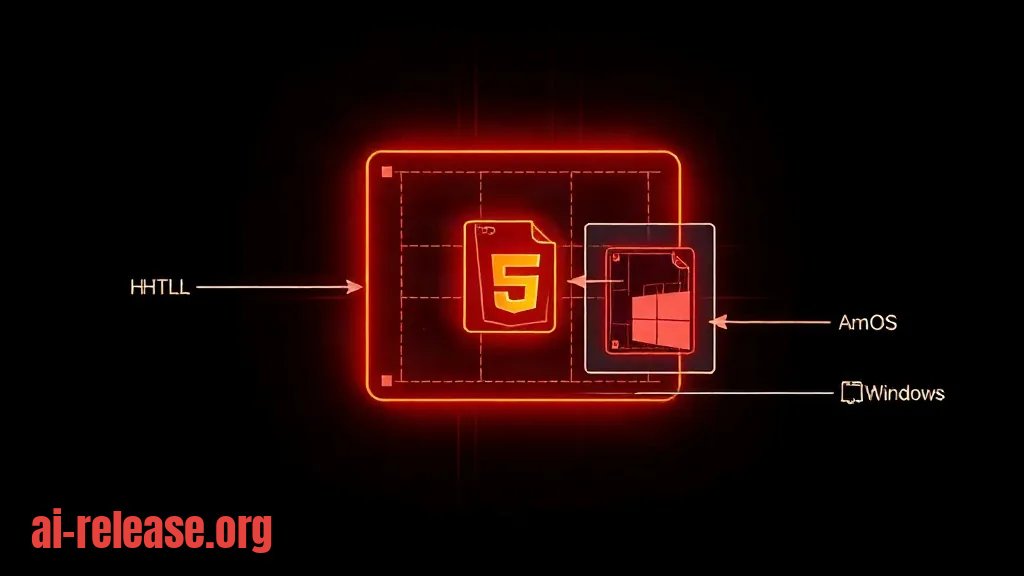
What to do: Create the project, install Electron (the runtime that renders HTML inside a native window) and electron-builder (the packager), then add main.js and the build config.
npm init -y
npm install --save-dev electron@latest electron-builder@latest
Replace the generated package.json with this, keeping name, version and the dependency versions npm wrote:
{
  "name": "claude-artifact-app",
  "version": "1.0.0",
  "main": "main.js",
  "scripts": {
    "start": "electron .",
    "dist": "electron-builder"
  },
  "build": {
    "appId": "org.example.artifactapp",
    "files": ["main.js", "index.html", "assets/**/*"],
    "mac": { "target": ["dmg", "zip"], "category": "public.app-category.productivity" },
    "win": { "target": ["nsis", "portable"] }
  },
  "devDependencies": {}
}
Why: main tells Electron which file opens the window; files tells the packager what to include — anything not listed (your node_modules sources, test files) stays out of the installer. contextIsolation: true and nodeIntegration: false in main.js keep the artifact's JavaScript away from Node APIs, so pasted-in code can't touch the file system.
On Windows, create main.js in PowerShell instead of the heredoc:
@'
const { app, BrowserWindow } = require('electron');
function createWindow() {
  const win = new BrowserWindow({ width: 1200, height: 800, webPreferences: { contextIsolation: true, nodeIntegration: false } });
  win.loadFile('index.html');
}
app.whenReady().then(createWindow);
app.on('window-all-closed', () => app.quit());
'@ | Set-Content -Encoding UTF8 main.js
How to check:
npm startA native window opens with your artifact inside. Open the menu View → Toggle Developer Tools and confirm the Console tab is empty of red errors. Ctrl+C in the terminal closes it.
Step 3. Build and verify the macOS and Windows installers
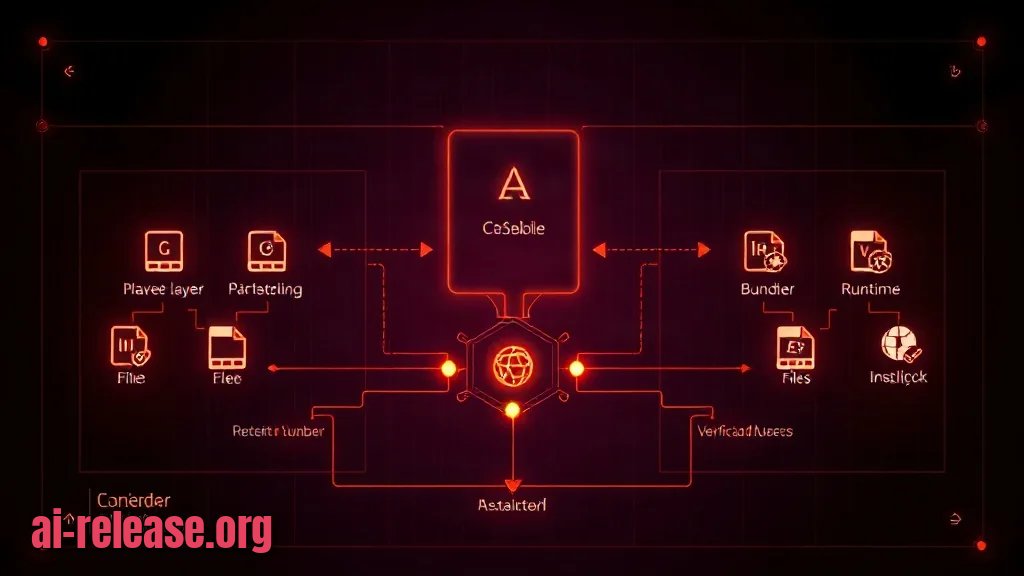
What to do: Run the packager on each target OS.
npm run distWhy: electron-builder reads the build block, bundles the Electron runtime with your files, and emits platform-native installers. A .dmg is the macOS disk image users drag the app from; NSIS is the standard Windows setup wizard.
How to check: Inspect dist/ before installing.
ls -1 distYou should see the packaged app directory plus files named like claude-artifact-app-1.0.0.dmg, ...-mac.zip, ... Setup 1.0.0.exe and a portable .exe. The exact names follow your name and version fields.
Checklist before you ship:
- [ ]
npm startshows the artifact with an empty Console - [ ]
dist/contains both a macOS and a Windows artifact - [ ] The installed app launches from Finder / Start menu, not only from the terminal
- [ ] Interactions that worked in the browser at
http://localhost:8080still work in the window - [ ] Any CDN dependency either loads online or is bundled into
assets/
Install what you built: double-click the .dmg and drag the app to Applications on macOS; run the Setup .exe on Windows. If macOS refuses to open it, see Troubleshooting.
Troubleshooting
Problem. Electron never installs, npm start fails immediately
- Error:
Error: Electron failed to install correctly, please delete node_modules/electron and try installing again - Cause: the post-install download of the Electron binary was blocked by a proxy, corporate firewall or a partial cache.
- Solution: remove the package and reinstall with the cache cleared:
rm -rf node_modules/electron
npm cache clean --force
npm install --save-dev electron@latest
Then re-run npm start. On a corporate network, set HTTPS_PROXY before installing.
Problem. The window opens but the content area is white
- Error: in DevTools Console,
Not allowed to load local resource: file:///...or a failedGETfor a CDN script. - Cause: the artifact references assets by absolute path (
/assets/app.js) or pulls a library from a CDN that the packaged app can't reach. - Solution: change absolute paths to relative ones (
./assets/app.js) inindex.html, put the files insideassets/, and confirmassets/**/*is listed in thefilesarray ofpackage.json. Rebuild withnpm run dist.
Problem. The installed app is blocked by the operating system
- Error (macOS):
“claude-artifact-app” cannot be opened because the developer cannot be verified. - Error (Windows):
Windows protected your PCwith aDon't runbutton. - Cause: the build is unsigned, so Gatekeeper and SmartScreen treat it as untrusted.
- Solution: for local use, right-click the app →
Openon macOS, orMore info → Run anywayon Windows. For distribution, sign and notarize the build — check the Apple and Microsoft signing documentation for current requirements, since the exact flags change betweenelectron-builderreleases.
Summary and next steps
You now have the same artifact code running as a native window on macOS and Windows, plus installers in dist/. Next, sign the builds before sharing them, and if you also ship a mobile version, follow How to Publish a Private App on Google Play; if you want to package the logic as a reusable Claude capability instead of a window, see How to Create a Claude Skill.
FAQ
Can I build the Windows .exe on a Mac?
Yes in principle — electron-builder uses Wine to produce NSIS installers on macOS — but Wine setup is fragile and its output differs from a native Windows build. Building on Windows is the reliable path.
Do I need a paid developer account?
Not to build or run the app locally. Signing certificates are only needed to distribute without the Gatekeeper/SmartScreen warnings; check the platform documentation for what your distribution model requires.
Does the app work offline?
Only if index.html has no external references. Test it by disconnecting the network and running npm start; a blank area or a missing font means a CDN dependency you must bundle locally.
Can I update the artifact later without rebuilding everything?
Replace index.html (and any files in assets/) and run npm run dist again. Bump version in package.json each time so the new installers don't overwrite the old ones.
🤖 AI summary
Status: practical guide. Some statements come from vendors; verify in your environment.
1. Summary
Time to complete: 40–60 minutes Difficulty: Intermediate
Machine data: Citation Map JSON · JSON-LD · Semantic Embeddings — separate stage.
Full Knowledge Layer: sections 2–8
2. Direct answers
- What is required?
- macOS 12+ or Windows 10/11 on the machine you build on. Cross-building macOS → Windows needs extra tooling (see Troubleshooting); building on the target OS is the shortest path.; Node.js LTS + npm (node -v and npm -v must both print a version).; The artifact exported as a single file — the same code that renders in… → details (AR-GUIDE-POSHAGOVOE-003)
- How to do it?
- Step 1. Export the artifact as a self-contained HTML file → Step 2. Wrap the artifact in an Electron shell → Step 3. Build and verify the macOS and Windows installers → details (AR-GUIDE-POSHAGOVOE-004)
- Which topics does it cover?
- Claude артефакты как приложения, как установить артефакт Claude на Mac, Claude artifacts Windows → details (AR-GUIDE-POSHAGOVOE-002)
- What are the key points?
- Time to complete: 40–60 minutes Difficulty: Intermediate → details (AR-GUIDE-POSHAGOVOE-007)
3. Key facts
- Time to complete: 40–60 minutes — evidence; status: заявление источника.
- Difficulty: Intermediate — evidence; status: заявление источника.
- You will need: Node.js LTS with npm (check nodejs.org for the current LTS line), a Claude account with an artifact you can export, a terminal on macOS or Windows, ~500 MB free disk space, and internet access for the first npm install. — evidence; status: заявление источника.
- macOS 12+ or Windows 10/11 on the machine you build on. Cross-building macOS → Windows needs extra tooling (see Troubleshooting); building on the target OS is the shortest path. — evidence; status: заявление источника.
- Node.js LTS + npm (node -v and npm -v must both print a version). — evidence; status: заявление источника.
- The artifact exported as a single file — the same code that renders in the Claude artifact panel. — evidence; status: заявление источника.
4. Entities
| Entity | Type | Role |
|---|---|---|
| Claude артефакты как приложения | тема/инструмент | упоминается в заголовке, TL;DR или разделах гайда |
| как установить артефакт Claude на Mac | тема/инструмент | упоминается в заголовке, TL;DR или разделах гайда |
| Claude artifacts Windows | тема/инструмент | упоминается в заголовке, TL;DR или разделах гайда |
| Windows | платформа/технология | упоминается в заголовке, TL;DR или разделах гайда |
| macOS | платформа/технология | упоминается в заголовке, TL;DR или разделах гайда |
| Node.js | платформа/технология | упоминается в заголовке, TL;DR или разделах гайда |
| npm | платформа/технология | упоминается в заголовке, TL;DR или разделах гайда |
| Claude | тема/инструмент | упоминается в заголовке, TL;DR или разделах гайда |
5. Context
- Guide — describes → Step-by-step guide: how to turn a Claude artifact into a macOS and Windows app (AR-GUIDE-POSHAGOVOE-001).
- Guide — includes step → Step 1. Export the artifact as a self-contained HTML file (AR-GUIDE-POSHAGOVOE-001).
6. Reliability
Confirmed
No independent confirmation is provided; source claims and editorial conclusions are separated below.
Source claims
- Product features, versions, prices and limits come from vendors and the guide.
- Commands and steps are recommendations, not guaranteed results.
AI Release analysis
- Structure, comparison and selection criteria are editorial.
- The guide does not replace an independent audit or legal advice.
7. Unknowns
- Current versions, prices and limits.
- Independent benchmarks and quality checks.
- Terms of use and data policy.
8. Sources
| Source | Type | Role |
|---|---|---|
| No external links | — | — |
Cite as: AI Release. Пошаговое руководство: как превратить артефакт Claude в приложение для macOS и Windows. ai-release.org.