How to Run a Local LLM on a Ryzen 9 8940HX + RTX 5060 Laptop: Setup, VRAM and Speed

TL;DR
- Time to complete: 45–60 minutes (installer downloads dominate)
- Difficulty: Intermediate
- You will need: Windows 11 or a current Linux distribution, the NVIDIA driver for the RTX 5060 laptop GPU (version shown by
nvidia-smi), Ollama or a llama.cpp build, about 10 GB of free disk space on the system drive, PowerShell (Windows) or bash (Linux), and a model tag you have chosen yourself — for example<model>:<tag>where<tag>is a quantized build such asq4_K_M.
Requirements and setup
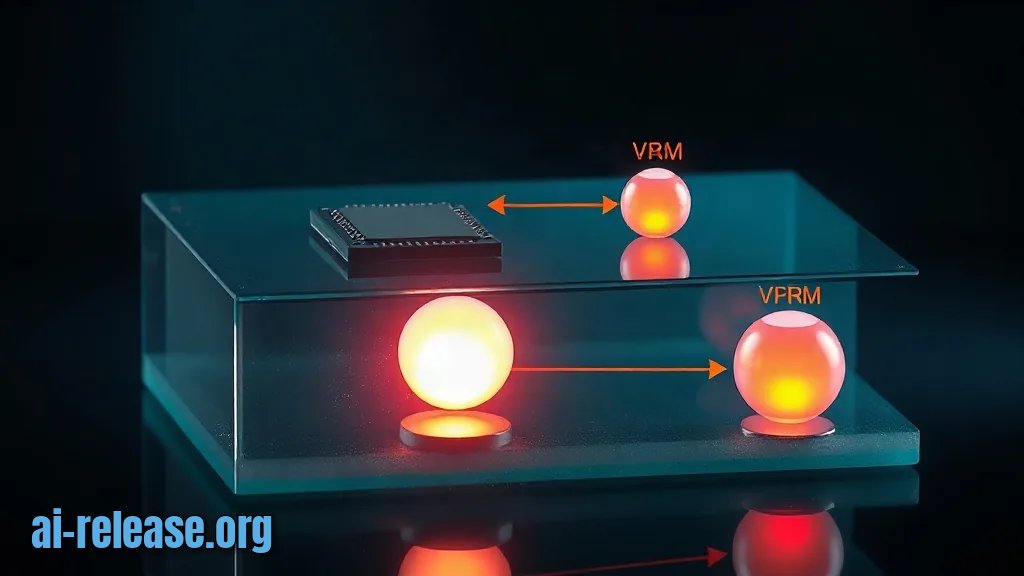
The single decision that determines whether this works is which GPU the model lands on. A laptop with a Ryzen 9 8940HX has two graphics adapters: the integrated Radeon (iGPU) inside the CPU and the discrete RTX 5060 (dGPU). "Discrete" means a separate chip with its own VRAM — video memory, the fast pool the model weights must sit in to run at full speed. If the inference process binds to the iGPU, it falls back to system RAM and you lose most of the throughput without any error message. Everything below is built around proving residency before measuring speed.
- [ ] Windows 11 fully updated, or a Linux kernel with the proprietary NVIDIA driver installed
- [ ] NVIDIA driver installed; version read from
nvidia-smi, not guessed - [ ] Administrator rights for the installer
- [ ] ~10 GB free on the drive that holds the model cache (weights plus KV cache)
- [ ] Ollama installer from the vendor's official download page, or a llama.cpp release archive
- [ ] A second terminal window for
nvidia-smi dmonwhile benchmarking
Example: on Windows, before installing anything, run:
nvidia-smiYou should see a header row (NVIDIA-SMI, Driver Version, CUDA Version) and a table listing NVIDIA GeForce RTX 5060 Laptop GPU with a Memory-Usage block containing Total: <N>MiB.
Do not trust Win32_VideoController.AdapterRAM for the VRAM figure; it is a legacy 32-bit field and commonly reports a wrong value. nvidia-smi is the authority, and every budget calculation later in this guide uses its number.
The data flow you are setting up:
1. Application (Ollama server) starts → 2. Windows Graphics preference routes it to High performance → 3. Weights are copied to VRAM → 4. Tokens are generated on the dGPU → 5. ollama ps reports the split between CPU and GPU.
Any break in step 2 shows up in step 5 as a CPU percentage above zero.
Step 1. Establish a baseline you can compare against
What to do: Record four numbers before installing a runtime: the GPU name, total VRAM, driver version, and free disk space. Write them into a text file so you can compare after configuration.
Why: "It feels slow" is not a diagnosis. Without a baseline you cannot tell a misrouted iGPU from a genuinely oversized model, and you will waste an hour reinstall drivers for nothing.
How to check: Run the commands below and confirm each prints a value, not an error.
nvidia-smi --query-gpu=name,memory.total,driver_version --format=csvExample output (values are yours; the shape is what matters):
name, memory.total [MiB], driver_version
NVIDIA GeForce RTX 5060 Laptop GPU, <N> MiB, <version>
Get-CimInstance Win32_VideoController | Select-Object Name, DriverVersion
Get-PSDrive C | Select-Object Used, FreeOn Linux the equivalents are lspci | grep -i nvidia and df -h /.
Example: if nvidia-smi returns NVIDIA-SMI has failed because it couldn't communicate with the NVIDIA driver, stop here — the rest of the guide cannot work until the driver is talking to the card.
You should now have a one-line baseline such as RTX 5060 Laptop GPU, <N> MiB VRAM, driver <version>. Every later comparison is against this line.
Step 2. Install the runtime and pin it to the discrete GPU

What to do: Install the runtime, set its listening address and cache location, force Windows to prefer the dGPU for that executable, then pull a quantized model. Quantization means storing weights at lower precision (4-bit instead of 16-bit), which cuts VRAM use roughly fourfold at a small quality cost. Pull means downloading the weight file into the local cache.
Why: A laptop GPU is power-managed. Windows decides per-process which adapter to use, and its default choice for a console app is frequently the iGPU. Setting a per-application "High performance" preference is the reliable override and does not need a reboot.
How to check: ollama ps after the first run must show the model resident, and nvidia-smi must show memory consumed.
[Environment]::SetEnvironmentVariable("OLLAMA_HOST","127.0.0.1:11434","User")
[Environment]::SetEnvironmentVariable("OLLAMA_KEEP_ALIVE","30m","User")
OLLAMA_KEEP_ALIVE keeps weights loaded for 30 minutes after the last request, so a benchmark is not polluted by reload time. The exact set of supported environment variables changes between releases — check the documentation for the version you installed before relying on any variable not shown here.
Then open Settings → System → Display → Graphics, add the Ollama executable, and set it to High performance. This is the step that prevents iGPU fallback.
ollama pull <model>:<tag>Example: the pull prints layer progress and finishes with a total size line; that size is the floor for your VRAM budget, before any context cache.
VRAM budget arithmetic (fill in your own numbers):
| Component | Where the number comes from |
|---|---|
| Model weights | total size printed by `ollama pull` |
| KV cache | grows with context length; reduce with a smaller context or cache quantization |
| Compute buffer | whatever is left; the difference between `nvidia-smi` total and observed usage |
Run the first prompt:
ollama run <model>:<tag> --verbose "Summarize the difference between RAM and VRAM in three sentences."--verbose prints timing counters after the answer — total duration, load duration, eval rate in tokens per second. Tokens are the sub-word units a model generates; tokens per second is the only speed metric that compares across models.
Step 3. Verify GPU residency and measure throughput

What to do: Confirm the model is on the dGPU, then measure generation speed at two context lengths.
Why: Residency and speed are separate failures. A model can be fully on the GPU and still be slow because the context window forced a large cache, and a model can be fast because half of it silently runs on the CPU.
How to check: Open two terminals.
ollama psExpected screen: a table with a PROCESSOR column. 100% GPU is success. A split such as 40%/60% CPU/GPU means part of the model is in system RAM.
nvidia-smi dmon -s muWhile a generation runs, the sm and mem columns must climb above idle. Flat sm with a rising CPU graph confirms the wrong adapter.
Then measure twice — a short prompt and a long one:
ollama run <model>:<tag> --verbose "Name three uses of a local model."
ollama run <model>:<tag> --verbose "<paste a 2000-word document> Summarize it."
Expected screen: an eval rate: <x> tokens/s line after each answer. The long-prompt number is your real working speed; the difference between the two runs tells you how much the context cache is costing.
Troubleshooting
Problem. The model runs but generation is slow and the fan stays quiet
- Error:
ollama psprints100% CPUin thePROCESSORcolumn, andnvidia-smishows only a few hundred MiB used. - Cause: Windows routed
ollama.exeto the Radeon iGPU, or the model plus cache exceeds VRAM and the runtime fell back. - Solution: re-apply the High performance graphics preference, restart the server (
ollama servein a new window), then re-check withollama ps. If it still reports CPU, pull a smaller quantization tag or reduce the context length.
Problem. The download completes but loading fails immediately
- Error:
Error: model requires more system memory (<X> GiB) than is available (<Y> GiB) - Cause: neither VRAM nor free RAM can hold the weights plus the context cache; the sizes come from your own pull output, not from a fixed rule.
- Solution: free RAM, close other GPU consumers, and switch to a smaller tag. Confirm the new budget with
nvidia-smi --query-gpu=memory.used,memory.total --format=csvbefore and after loading.
Problem. nvidia-smi cannot see the card at all
- Error:
NVIDIA-SMI has failed because it couldn't communicate with the NVIDIA driver. Make sure that the latest NVIDIA driver is installed and running. - Cause: the laptop is in a hybrid/integrated-only GPU mode, or a Windows update replaced the driver.
- Solution: switch the machine to discrete-GPU mode in the vendor's graphics utility, reboot, and reinstall the driver. If the installer fails repeatedly, verify Windows component integrity with sfc /scannow before retrying.
Summary and next steps
You now have a verified baseline (GPU, VRAM, driver), a runtime pinned to the RTX 5060, and a measured tokens-per-second figure you can compare against any future change. Next, measure the same model at your real working context length, then move to a smaller or larger quantization tag and repeat ollama ps to see where the residency boundary is. If you want to test the same weights on a phone instead, see How to Run an AI Model Locally on Android; for dedicated NPU hardware on Linux, the Huawei Atlas 300I Duo walkthrough covers the driver and CANN stack.
FAQ
How much VRAM do I need to run a local LLM?
There is no fixed number: add the weight-file size printed by your pull, the KV cache for your context length, and a compute buffer. Measure the remainder with nvidia-smi while the model is loaded.
Can the Ryzen 9 8940HX run the model alone if it does not fit in VRAM?
Yes, through partial offload, but ollama ps will show a CPU/GPU split and tokens per second drops sharply. System RAM capacity and the model size decide whether it loads at all.
Why does Win32_VideoController report the wrong VRAM size?
Its AdapterRAM field is a legacy 32-bit value. Use nvidia-smi --query-gpu=memory.total --format=csv instead.
Does the same setup work on Linux?
The runtime and model tags are identical; only the pinning step differs, since Linux does not use Windows graphics preferences. Check the driver documentation for your distribution before installing.
🤖 AI summary
Status: practical guide. Some statements come from vendors; verify in your environment.
1. Summary
Time to complete: 45–60 minutes (installer downloads dominate) Difficulty: Intermediate
Machine data: Citation Map JSON · JSON-LD · Semantic Embeddings — separate stage.
Full Knowledge Layer: sections 2–8
2. Direct answers
- What is required?
- [ ] Windows 11 fully updated, or a Linux kernel with the proprietary NVIDIA driver installed; [ ] NVIDIA driver installed; version read from nvidia-smi, not guessed; [ ] Administrator rights for the installer; [ ] ~10 GB free on the drive that holds the model cache (weights plus KV cache) → details (AR-GUIDE-KAKZAPUSTI-003)
- How to do it?
- Step 1. Establish a baseline you can compare against → Step 2. Install the runtime and pin it to the discrete GPU → Step 3. Verify GPU residency and measure throughput → details (AR-GUIDE-KAKZAPUSTI-004)
- Which topics does it cover?
- как запустить llm на rtx 5060, локальная нейросеть на ноутбуке настройка, сколько vram нужно для локальной модели, llama.cpp настройка на ноутбуке → details (AR-GUIDE-KAKZAPUSTI-002)
- What are the key points?
- Time to complete: 45–60 minutes (installer downloads dominate) Difficulty: Intermediate → details (AR-GUIDE-KAKZAPUSTI-007)
3. Key facts
- Time to complete: 45–60 minutes (installer downloads dominate) — evidence; status: заявление источника.
- Difficulty: Intermediate — evidence; status: заявление источника.
- You will need: Windows 11 or a current Linux distribution, the NVIDIA driver for the RTX 5060 laptop GPU (version shown by nvidia-smi), Ollama or a llama.cpp build, about 10 GB of free disk space on the system drive, PowerShell (Windows) or bash (Linux), and a model tag you have chosen yourself — for example <model>:<tag> where <tag> is a quantized build such as q4_K_M. — evidence; status: заявление источника.
- [ ] Windows 11 fully updated, or a Linux kernel with the proprietary NVIDIA driver installed — evidence; status: заявление источника.
- [ ] NVIDIA driver installed; version read from nvidia-smi, not guessed — evidence; status: заявление источника.
- [ ] Administrator rights for the installer — evidence; status: заявление источника.
4. Entities
| Entity | Type | Role |
|---|---|---|
| как запустить llm на rtx 5060 | продукт/модель | упоминается в заголовке, TL;DR или разделах гайда |
| локальная нейросеть на ноутбуке настройка | тема/инструмент | упоминается в заголовке, TL;DR или разделах гайда |
| сколько vram нужно для локальной модели | тема/инструмент | упоминается в заголовке, TL;DR или разделах гайда |
| llama.cpp настройка на ноутбуке | тема/инструмент | упоминается в заголовке, TL;DR или разделах гайда |
| Windows | платформа/технология | упоминается в заголовке, TL;DR или разделах гайда |
| Linux | платформа/технология | упоминается в заголовке, TL;DR или разделах гайда |
| CUDA | платформа/технология | упоминается в заголовке, TL;DR или разделах гайда |
| NVIDIA | компания | упоминается в заголовке, TL;DR или разделах гайда |
| RTX 5060 | продукт/модель | упоминается в заголовке, TL;DR или разделах гайда |
| llama.cpp | тема/инструмент | упоминается в заголовке, TL;DR или разделах гайда |
5. Context
- Guide — describes → How to Run a Local LLM on a Ryzen 9 8940HX + RTX 5060 Laptop: Setup, VRAM and Speed (AR-GUIDE-KAKZAPUSTI-001).
- Guide — includes step → Step 1. Establish a baseline you can compare against (AR-GUIDE-KAKZAPUSTI-001).
6. Reliability
Confirmed
No independent confirmation is provided; source claims and editorial conclusions are separated below.
Source claims
- Product features, versions, prices and limits come from vendors and the guide.
- Commands and steps are recommendations, not guaranteed results.
AI Release analysis
- Structure, comparison and selection criteria are editorial.
- The guide does not replace an independent audit or legal advice.
7. Unknowns
- Current versions, prices and limits.
- Independent benchmarks and quality checks.
- Terms of use and data policy.
8. Sources
| Source | Type | Role |
|---|---|---|
| No external links | — | — |
Cite as: AI Release. Как запустить локальную LLM на ноутбуке с Ryzen 9 8940HX и RTX 5060: настройка, VRAM и скорость. ai-release.org.