How to Show Battery Levels for a Wireless Mouse, Keyboard and Headphones on the Windows 11 Taskbar

TL;DR
- Time required: 15 minutes
- Difficulty: Intermediate
- You need: a Windows 11 PC with a working Bluetooth adapter, a paired wireless mouse / keyboard / headset, built-in PowerShell 5.1, write access to
C:\Tools, and permission to pin a shortcut to the taskbar. - Result: a one-click taskbar button that prints the current battery level of every wireless peripheral that reports one to Windows.
Requirements and setup
- Windows 11 on the target PC. Confirm the build before you start:
winverA dialog opens showing the Windows edition and build number. If you are preparing a clean machine first, follow How to Install Windows 11 26H2: Step-by-Step Guide with Official ISO and come back here afterwards.
- Bluetooth enabled and devices paired. Settings → Bluetooth & devices. Each paired device appears as a tile. Devices that support it show a battery percentage directly on the tile — that number is the same value we will pull programmatically.
- PowerShell 5.1 or newer. Check:
$PSVersionTable.PSVersionExpected output starts with Major 5 (built-in) or Major 7 (PowerShell 7). Both work.
- A folder for the script:
C:\Tools\BatteryTray. Create it in Step 2; no admin rights are needed for this path. - Devices paired over Bluetooth, not through a vendor USB dongle. This is the single biggest source of "no battery" results — see Troubleshooting.
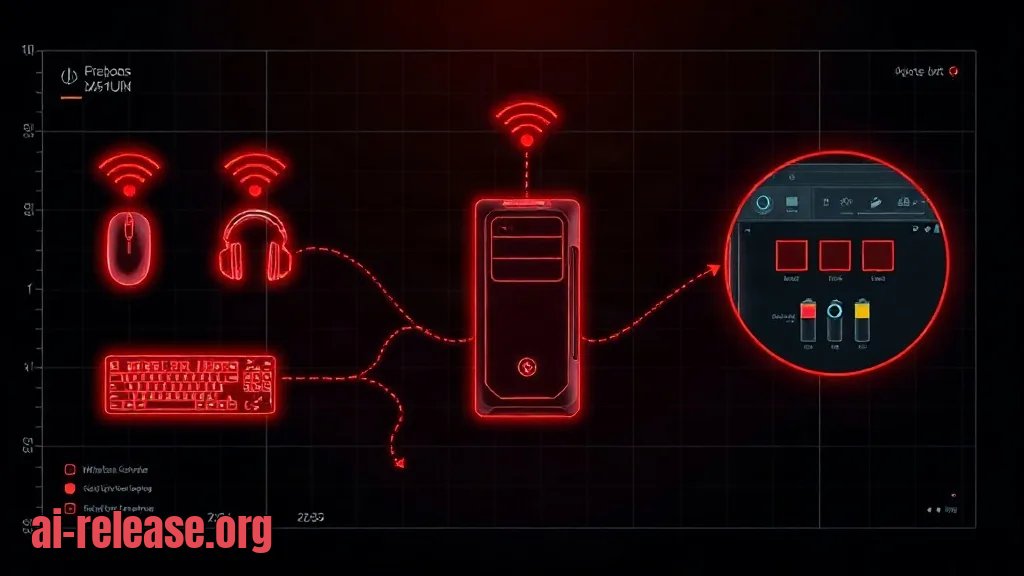
Data path you are building, end to end:
1. Wireless device → Bluetooth radio → Windows creates a PnP device node.
2. The driver publishes a device property that holds the battery percentage.
3. A PowerShell script reads that property for the devices you list in a JSON config.
4. A pinned taskbar shortcut runs the script and prints the table.
Example: the property key used in Step 2 is {104EA319-6EE2-4701-BD47-8DDBF425BBE5} 2 — the Windows identifier for the Bluetooth battery level. If your device's driver does not publish it, the script reports No battery reported instead of a number; that is a driver limitation, not a script bug.
Step 1. Discover which peripherals report a battery level
What to do: run a read-only scan over all currently present devices and print every one that exposes a battery value.
Get-PnpDevice -PresentOnly | ForEach-Object {
    $level = $null
    try {
        $level = (Get-PnpDeviceProperty -InstanceId $_.InstanceId `
                  -KeyName '{104EA319-6EE2-4701-BD47-8DDBF425BBE5} 2' `
                  -ErrorAction Stop).Data
    } catch { }
    if ($null -ne $level) {
        "{0} | {1} | {2}%" -f $_.Class, $_.FriendlyName, $level
    }
}
Why: Windows only exposes a battery level when the device's driver publishes it. Devices connected through a proprietary 2.4 GHz USB receiver usually expose nothing, so you must know in advance which of your three peripherals will actually produce a number.
How to check: the command prints one line per reporting device. Example output (your names and values will differ):
Mouse | Bluetooth Mouse | 87%
Keyboard | Bluetooth Keyboard | 64%
Write down the exact FriendlyName strings — you need them in Step 2. A device that is paired but switched off will not appear at all; turn it on and rerun.
Step 2. Build the report script and pin it to the taskbar
What to do: create the folder, a JSON config listing your devices, the reporting script, a .cmd launcher, and a desktop shortcut you pin to the taskbar.
New-Item -ItemType Directory -Force -Path C:\Tools\BatteryTray | Out-NullConfig — replace the three strings with the FriendlyName values from Step 1 (partial matches work, so Mouse matches Bluetooth Mouse):
{
  "threshold": 20,
  "devices": [
    "Bluetooth Mouse",
    "Bluetooth Keyboard",
    "Headphones"
  ]
}
Save it as C:\Tools\BatteryTray\devices.json, then create C:\Tools\BatteryTray\battery.ps1:
param(
    [switch]$WarnOnly,
    [string]$ConfigPath = "C:\Tools\BatteryTray\devices.json"
)

$config     = Get-Content -Raw -Path $ConfigPath | ConvertFrom-Json
$threshold  = $config.threshold
$batteryKey = '{104EA319-6EE2-4701-BD47-8DDBF425BBE5} 2'

$rows = foreach ($name in $config.devices) {
    $dev = Get-PnpDevice -PresentOnly -ErrorAction SilentlyContinue |
           Where-Object { $_.FriendlyName -like "*$name*" } | Select-Object -First 1

    if (-not $dev) {
        [pscustomobject]@{ Device = $name; State = 'Not connected'; Battery = '-' }
        continue
    }

    $level = $null
    try {
        $level = (Get-PnpDeviceProperty -InstanceId $dev.InstanceId `
                  -KeyName $batteryKey -ErrorAction Stop).Data
    } catch { }

    [pscustomobject]@{
        Device  = $dev.FriendlyName
        State   = if ($null -ne $level) { 'OK' } else { 'No battery reported' }
        Battery = if ($null -ne $level) { "$level%" } else { '-' }
    }
}

if ($WarnOnly) {
    $low = $rows | Where-Object {
        $_.Battery -ne '-' -and [int]($_.Battery.TrimEnd('%')) -lt $threshold
    }
    if ($low) {
        Add-Type -AssemblyName System.Windows.Forms
        $msg = ($low | ForEach-Object { "$($_.Device): $($_.Battery)" }) -join "`n"
        [System.Windows.Forms.MessageBox]::Show($msg, 'Low peripheral battery') | Out-Null
    }
    return
}

$rows | Format-Table -AutoSize
Launcher C:\Tools\BatteryTray\battery.cmd — bypasses execution policy per run, so no machine-wide change is needed:
@echo off
powershell.exe -NoProfile -ExecutionPolicy Bypass -File "C:\Tools\BatteryTray\battery.ps1"
Create the shortcut and pin it:
$ws = New-Object -ComObject WScript.Shell
$sc = $ws.CreateShortcut("$env:USERPROFILE\Desktop\Peripheral Battery.lnk")
$sc.TargetPath       = "C:\Tools\BatteryTray\battery.cmd"
$sc.WorkingDirectory = "C:\Tools\BatteryTray"
$sc.Save()
Then right-click Peripheral Battery on the Desktop → Show more options → Pin to taskbar.
Why: Windows 11 removed the taskbar toolbars that Windows 10 used for this kind of panel, and there is no built-in taskbar widget for peripheral batteries. A pinned shortcut is the supported way to get a one-click entry point, and the script supplies the numbers.
How to check: click the pinned taskbar icon. A console window opens with a table:
Device              State   Battery
------              -----   -------
Bluetooth Mouse     OK      87%
Bluetooth Keyboard  OK      64%
Headphones          OK      -
Not connected means the device is off or paired to another host; No battery reported means the driver does not publish the property.
Step 3. Verify end-to-end and automate the low-battery warning
What to do: confirm the numbers track reality, then register a logon task that pops a warning below the threshold.
- [ ] Values match Settings → Bluetooth & devices tiles for the same devices.
- [ ] Turning a device off and re-clicking the shortcut shows
Not connected. - [ ] Turning it back on restores the percentage.
- [ ] A device at or below
threshold(20 in the config) triggers the warning box.
Register the logon check:
schtasks /Create /TN "PeripheralBattery" /SC ONLOGON /RL LIMITED /F `
  /TR "powershell.exe -NoProfile -ExecutionPolicy Bypass -WindowStyle Hidden -File C:\Tools\BatteryTray\battery.ps1 -WarnOnly"
Why: the levels update only when Windows refreshes the device property, which happens periodically while the device is connected — not instantly on every click. A logon trigger plus the -WarnOnly switch keeps the check silent until something actually needs charging.
How to check:
schtasks /Query /TN "PeripheralBattery" /FO LISTExpected: Status: Ready and Task To Run: powershell.exe .... Then test the alert path directly:
powershell.exe -NoProfile -ExecutionPolicy Bypass -File C:\Tools\BatteryTray\battery.ps1 -WarnOnlyTemporarily set "threshold": 100 in devices.json to force the MessageBox on the next run, confirm it lists your devices, then set it back to 20.
Troubleshooting
Problem. The script refuses to start when launched as a .ps1 file.
- Error:
C:\Tools\BatteryTray\battery.ps1 cannot be loaded because running scripts is disabled on this system. For more information, see about_Execution_Policies at https://go.microsoft.com/fwlink/?LinkID=135170. - Cause: the current user's execution policy is
Restricted, which blocks all local scripts. - Solution: allow the script that is already exported. Run
Set-ExecutionPolicy -Scope CurrentUser -ExecutionPolicy RemoteSigned, confirm withGet-ExecutionPolicy -Scope CurrentUser→RemoteSigned. The.cmdlauncher is unaffected because it passes-ExecutionPolicy Bypassfor that single process.
Problem. A mouse or keyboard shows a percentage in Settings but the script prints No battery reported.
- Error:
Get-PnpDeviceProperty : No matching MSFT_PnPDeviceProperty objects found on the specified device. - Cause: the device you matched is the wrong node. Windows often creates several nodes per device (HID-compliant mouse, the Bluetooth node, the audio endpoint), and only one of them carries the battery property.
- Solution: rerun the Step 1 discovery line, find the exact
FriendlyNamethat produced a value, and put that string indevices.json. If no line appears for the device at all, its driver does not publish the property — for 2.4 GHz USB receivers this is expected, and you must use the vendor's own utility instead (check the vendor documentation for the current version).
Problem. The warning box never appears after logon.
- Error:
The task is currently running. (0x41301)in Task Scheduler, or simply nothing on screen. - Cause: a previous
-WarnOnlyrun has not exited, usually because a MessageBox stayed open; Task Scheduler will not start a second instance. - Solution: end the stuck process with
Stop-Process -Name powershell -Force(closes only PowerShell windows), then re-test withschtasks /Run /TN "PeripheralBattery". If values look erratic rather than missing, rule out a hardware fault first — see How to Fix Mouse Double-Click (Ghost Click) on Windows 11: Test and Repair.
Summary and next steps
You now have a pinned taskbar button that reports real battery levels for every wireless peripheral whose driver exposes them, plus a logon warning below 20%. From here, extend the same PowerShell pattern to other system readouts, or combine it with Windows with AI: Copilot and neural networks in the system if you want a natural-language summary of low-battery events.
FAQ
Why does my mouse show a battery percentage in Settings but not in my script?
Because Settings aggregates several device nodes and picks the one that carries the property, while your script matches the first FriendlyName hit. Use the Step 1 discovery output to select the exact node.
Does Windows 11 display battery for wireless keyboards and headsets too?
Only for those whose drivers publish the Bluetooth battery property. Headsets frequently report it under the audio endpoint rather than the Bluetooth node, so scan all nodes before assuming it is unsupported.
Why is there no battery percentage for my 2.4 GHz USB receiver mouse?
Receivers present themselves as ordinary HID devices without battery reporting, so Windows has nothing to read. The vendor's own utility is the only source in that case — check the vendor documentation.
Can I get a permanent percentage next to the clock instead of a pinned button?
Not with built-in tools: Windows 11 has no taskbar toolbar or widget for peripheral battery. The pinned shortcut in Step 2 plus the logon task is the supported workaround without third-party software.
🤖 AI summary
Status: practical guide. Some statements come from vendors; verify in your environment.
1. Summary
Time required: 15 minutes Difficulty: Intermediate
Machine data: Citation Map JSON · JSON-LD · Semantic Embeddings — separate stage.
Full Knowledge Layer: sections 2–8
2. Direct answers
- What is required?
- Windows 11 on the target PC. Confirm the build before you start:; Bluetooth enabled and devices paired. Settings → Bluetooth & devices. Each paired device appears as a tile. Devices that support it show a battery percentage directly on the tile — that number is the same value we will pull programmatically.; PowerShell… → details (AR-GUIDE-KAKVYVESTI-003)
- How to do it?
- Step 1. Discover which peripherals report a battery level → Step 2. Build the report script and pin it to the taskbar → Step 3. Verify end-to-end and automate the low-battery warning → details (AR-GUIDE-KAKVYVESTI-004)
- Which topics does it cover?
- windows-taskbar-battery, заряд мыши на панели задач Windows 11, индикатор батареи наушников Windows, уровень заряда клавиатуры Windows, battery taskbar Windows → details (AR-GUIDE-KAKVYVESTI-002)
- What are the key points?
- Time required: 15 minutes Difficulty: Intermediate → details (AR-GUIDE-KAKVYVESTI-007)
3. Key facts
- Time required: 15 minutes — evidence; status: заявление источника.
- Difficulty: Intermediate — evidence; status: заявление источника.
- You need: a Windows 11 PC with a working Bluetooth adapter, a paired wireless mouse / keyboard / headset, built-in PowerShell 5.1, write access to C:\Tools, and permission to pin a shortcut to the taskbar. — evidence; status: заявление источника.
- Result: a one-click taskbar button that prints the current battery level of every wireless peripheral that reports one to Windows. — evidence; status: заявление источника.
- Windows 11 on the target PC. Confirm the build before you start: — evidence; status: заявление источника.
- Bluetooth enabled and devices paired. Settings → Bluetooth & devices. Each paired device appears as a tile. Devices that support it show a battery percentage directly on the tile — that number is the same value we will pull programmatically. — evidence; status: заявление источника.
- PowerShell 5.1 or newer. Check: — evidence; status: заявление источника.
4. Entities
| Entity | Type | Role |
|---|---|---|
| windows-taskbar-battery | тема/инструмент | упоминается в заголовке, TL;DR или разделах гайда |
| заряд мыши на панели задач Windows 11 | продукт/модель | упоминается в заголовке, TL;DR или разделах гайда |
| индикатор батареи наушников Windows | тема/инструмент | упоминается в заголовке, TL;DR или разделах гайда |
| уровень заряда клавиатуры Windows | тема/инструмент | упоминается в заголовке, TL;DR или разделах гайда |
| battery taskbar Windows | тема/инструмент | упоминается в заголовке, TL;DR или разделах гайда |
| Windows | платформа/технология | упоминается в заголовке, TL;DR или разделах гайда |
5. Context
- Guide — describes → How to Show Battery Levels for a Wireless Mouse, Keyboard and Headphones on the Windows 11 Taskbar (AR-GUIDE-KAKVYVESTI-001).
- Guide — includes step → Step 1. Discover which peripherals report a battery level (AR-GUIDE-KAKVYVESTI-001).
6. Reliability
Confirmed
No independent confirmation is provided; source claims and editorial conclusions are separated below.
Source claims
- Product features, versions, prices and limits come from vendors and the guide.
- Commands and steps are recommendations, not guaranteed results.
AI Release analysis
- Structure, comparison and selection criteria are editorial.
- The guide does not replace an independent audit or legal advice.
7. Unknowns
- Current versions, prices and limits.
- Independent benchmarks and quality checks.
- Terms of use and data policy.
8. Sources
| Source | Type | Role |
|---|---|---|
| go.microsoft.com | внешний источник | ссылка из тела гайда |
Cite as: AI Release. Как вывести заряд беспроводной мыши, клавиатуры и наушников на панель задач Windows 11. ai-release.org.