How to Enable the Linux Terminal App on Android

TL;DR
- Time: 20–30 minutes including downloads (estimate; the source posts do not provide a benchmark).
- Difficulty: Intermediate.
- You need: an Android device with Developer options, a supported Linux Terminal/Linux development environment build or Termux as a fallback, optional ADB on a PC, a network connection, and free storage for the Linux image and packages.
Requirements and setup

- Android phone or tablet with access to
Settings > About phone > Build number. - Developer options enabled. Exact menu labels vary by OEM and Android build; verify against your device documentation.
- A build that exposes a Linux Terminal or Linux development environment toggle. The source posts for this guide do not include a verified device matrix, Android build number, or Snapdragon model list, so treat hardware compatibility as unknown until you check vendor documentation.
- Optional: ADB on a PC for property checks. See How to Connect Android to Windows via ADB: Commands and Fixes.
- Network access and enough free storage for the Linux environment and package downloads. The exact minimum is not specified in the source posts; check documentation.
- A backup of important data. Enabling developer features and installing Linux packages can change device state.
Use this checklist before changing settings:
- [ ] Developer options are visible in Settings.
- [ ]
adb devicesshows your device asdevice, notunauthorized. - [ ] You recorded
ro.product.cpu.abiandro.board.platform. - [ ] You confirmed whether your build has a Linux Terminal toggle.
- [ ] You have a fallback plan: Termux with PRoot.
Step 1. Confirm device support and developer access
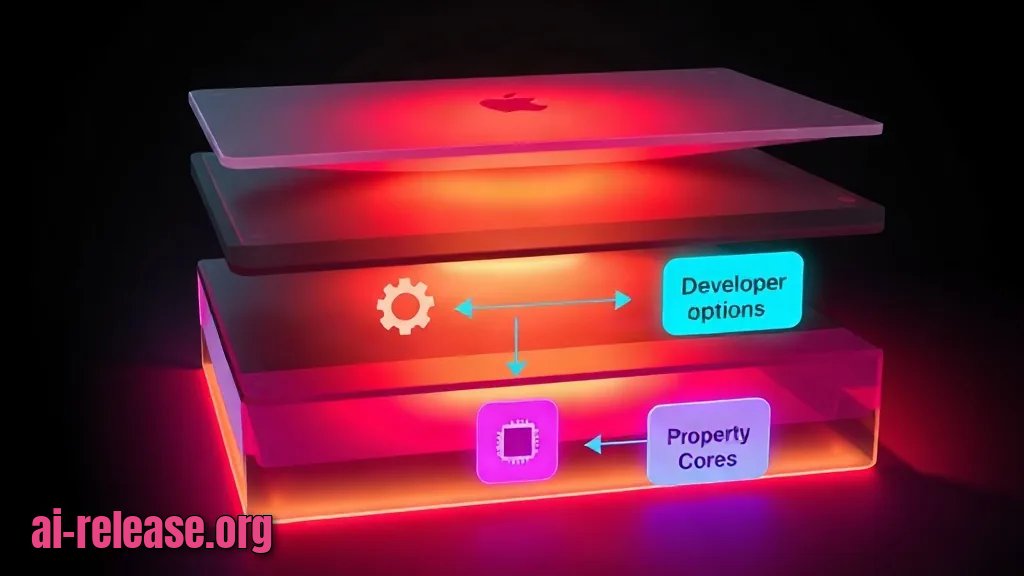
What to do: Enable Developer options, connect ADB if available, and record the device properties that identify CPU architecture and Qualcomm/Snapdragon platform.
On the phone, open Settings > About phone > Build number and tap it seven times. Then connect the phone to a PC with ADB installed and run:
adb devices
adb shell getprop ro.product.cpu.abi
adb shell getprop ro.board.platform
Example: adb devices should print a serial number followed by device:
<serial-number> devicero.product.cpu.abi commonly returns arm64-v8a on 64-bit ARM devices. ro.board.platform returns the board/platform string, not the marketing name “Snapdragon”; record it and compare it with vendor documentation.
| Check | Command | Pass condition |
|---|---|---|
| ADB connection | `adb devices` | Serial number is followed by `device` |
| CPU ABI | `adb shell getprop ro.product.cpu.abi` | Value is recorded; verify 64-bit support in docs |
| Platform string | `adb shell getprop ro.board.platform` | Value is recorded; compare with vendor docs |
Why: ADB exposes build properties without guessing from the phone’s marketing name. “Snapdragon” is a Qualcomm platform family; ro.board.platform is the value your build reports, and it may not match the retail model name.
How to check: Run adb devices again. If the serial is followed by unauthorized, unlock the phone and approve the USB debugging prompt. If no serial appears, fix the cable, driver, or authorization before continuing. If you cannot use a PC, see Shizuku: running ADB commands on Android without a PC.
Step 2. Enable Linux Terminal or install the Termux fallback
What to do: First look for the built-in path: open Settings > System > Developer options and search for Linux development environment or Linux Terminal. If the toggle exists, enable it, accept the download, then open the Terminal app from the app drawer.
If the toggle is absent, use Termux with PRoot. PRoot is a user-space tool that runs a Linux root filesystem without kernel-level root. Install Termux from a trusted source, then run:
pkg update && pkg upgrade -y
pkg install proot-distro -y
proot-distro install debian
proot-distro login debian
Example: after proot-distro login debian, the prompt changes from the Termux prompt to a Debian root prompt similar to:
root@localhost:~#The exact prompt text varies by image and build; the success condition is that the prompt accepts Linux commands.
Why: The built-in path is the cleanest if your device exposes it. Termux is the documented fallback when the OEM build hides the Linux Terminal toggle. For a no-root walkthrough, see How to Run Linux on Android Without Root: Termux, PRoot, and AI Tools.
How to check: Run whoami and cat /etc/os-release. In the Debian fallback, whoami should return root inside the PRoot environment, and /etc/os-release should contain a PRETTY_NAME line such as Debian GNU/Linux. If the terminal opens but commands fail immediately, record the error and check the next section.
Step 3. Run first commands and verify the environment
What to do: Verify kernel, distribution, user, disk space, and write access with a small test file.
uname -a
cat /etc/os-release
whoami
df -h
mkdir -p ~/linux-test
printf 'ok\n' > ~/linux-test/check.txt
cat ~/linux-test/check.txt
Example: the final cat command must print exactly:
okuname -a should print a Linux kernel line. df -h should show mounted filesystems with free space. whoami should return your current Linux user, for example root in the Debian PRoot session.
Why: This separates “the terminal app opened” from “the Linux userspace is usable.” Writing and reading ~/linux-test/check.txt proves that the shell can create files in your home directory.
How to check: If cat ~/linux-test/check.txt prints ok, the basic environment works. If it prints Permission denied, the home directory or storage permission is wrong; see Troubleshooting.
Troubleshooting
Problem. The Linux Terminal toggle is missing.
- Error/symptom: Settings search returns
No resultsforLinux development environment. - Cause: your Android build or OEM firmware does not expose the built-in Linux Terminal path.
- Solution: stop searching that menu and use the Termux fallback from Step 2. Run
pkg update && pkg upgrade -y, thenpkg install proot-distro -y, thenproot-distro install debian.
Problem. Termux cannot find proot-distro.
- Error:
E: Unable to locate package proot-distro - Cause: package metadata is stale, or the Termux package repository is not reachable.
- Solution: refresh metadata and retry:
pkg update && pkg upgrade -y
pkg install proot-distro -y
If the error persists, check the Termux repository configuration in its documentation.
Problem. Writing to shared storage fails.
- Error:
Permission denied - Cause: Termux has not been granted shared-storage access, or you are writing to a path outside the app sandbox.
- Solution: run
termux-setup-storage, approve the Android permission prompt, then test:
ls ~/storage/shared
printf 'ok\n' > ~/storage/shared/termux-test.txt
cat ~/storage/shared/termux-test.txt
Summary and next steps
Keep the Linux environment updated with its package manager, and record the build properties from Step 1 before changing ROMs, kernels, or device firmware. For no-root alternatives and ADB setup details, use the linked Termux and ADB guides above.
FAQ
Does Linux Terminal on Android require root?
This guide uses no root steps. If your only available path demands root, stop and check vendor documentation before proceeding.
Is Snapdragon required?
The source material does not establish a Snapdragon-only requirement. Check ro.board.platform, the device documentation, and the Linux Terminal support list for your exact build.
Can I use Termux instead of the built-in Linux Terminal?
Yes, Termux with proot-distro is the fallback in this guide. It provides a Linux userspace without kernel-level root, but it is not the same as the built-in Linux Terminal feature.
How do I remove the Linux environment?
The exact removal path is not specified in the source material. For the Termux fallback, run proot-distro remove debian; for the built-in feature, use its Settings toggle and confirm against documentation.
🤖 AI summary
- Updated: 2026-11-09
- Topics: linux terminal android, android linux terminal как включить, linux terminal snapdragon, терминал linux на android настройка
- Summary: Инструкция по запуску официального приложения Linux Terminal на Android: проверка совместимости с Snapdragon, включение в настройках разработчика и базовые команды.
- Key facts:
- TL;DR Time: 20–30 minutes including downloads (estimate; the source posts do not provide a benchmark).
- Difficulty: Intermediate.
- You need: an Android device with Developer options, a supported Linux Terminal/Linux development environment build or Termux as a fallback, optional ADB on a PC, a network connection, and free storage for the Linux image and packages.
- Requirements and setup Illustration: Requirements and setup Android phone or tablet with access to Settings > About phone > Build number .
- Developer options enabled.
- Exact menu labels vary by OEM and Android build; verify against your device documentation.