How to Self-Host Actual Budget with Android Sync

A family budget usually ends up in someone else's cloud: the app is free, but your transactions, balances and account names live on a company server you don't control. Actual Budget takes the opposite approach — the program is "local-first", meaning the data is stored in a file on your own machine, and the phone app only needs your server to sync changes between devices. This guide shows how to install the Actual sync server on a home server, NAS or an old PC that can run Docker (Docker — a tool that runs an app in an isolated "container", a pre-packaged box with everything the app needs inside), then connect an Android phone to it. It fits any machine with Docker and any Android phone that can install the official Actual app from Google Play. If you like the idea of self-hosting your own tools instead of renting someone else's, the same mindset is described in How to run AI models locally on your PC: a beginner's guide.
Requirements and preparation
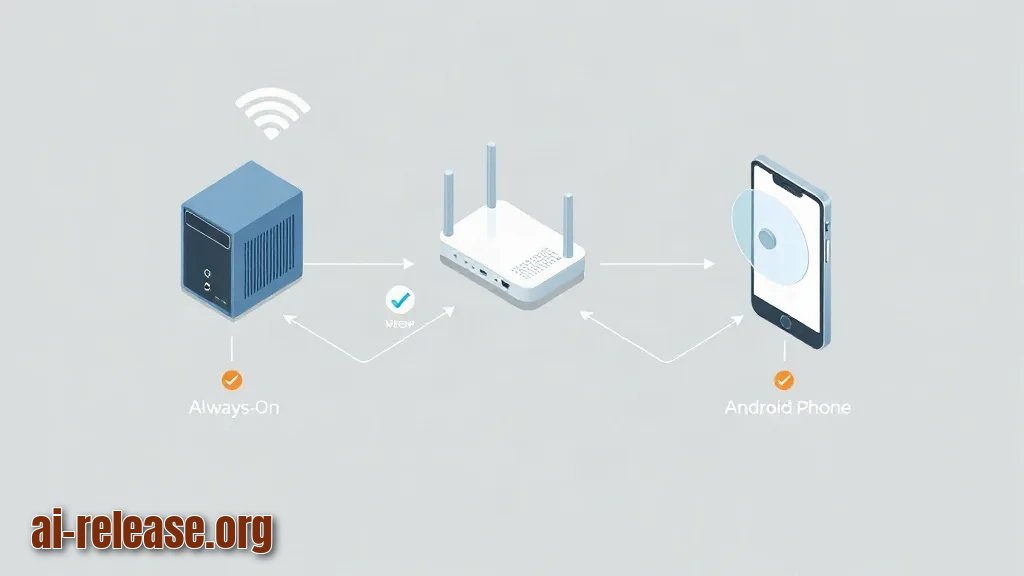
- A machine that stays on most of the time: home server, NAS, mini-PC or old laptop. It must be on the same local network (LAN — your home Wi-Fi/router network) as your phone during the first setup.
- Docker and the Docker Compose plugin installed on that machine.
- A free TCP port, by convention **5006**, on the server.
- The server's local IP address, for example `192.168.1.50`. Write it down; you will type it into the phone.
- An Android phone with the official Actual app installed.
- A server password you choose yourself (not reused from another service).
- Optional: a domain name plus a reverse proxy (a small service that adds HTTPS to your app) if you want to sync when you are away from home.
- Optional: a USB stick or cloud folder for backups of the data directory.
If you don't own an always-on machine, you can run a Linux environment directly on the phone — see How to Run Linux on Android Without Root: Termux, PRoot, and AI Tools — though for a family budget a small always-on box is calmer, because the phone reboots and sleeps.
Step-by-step instructions
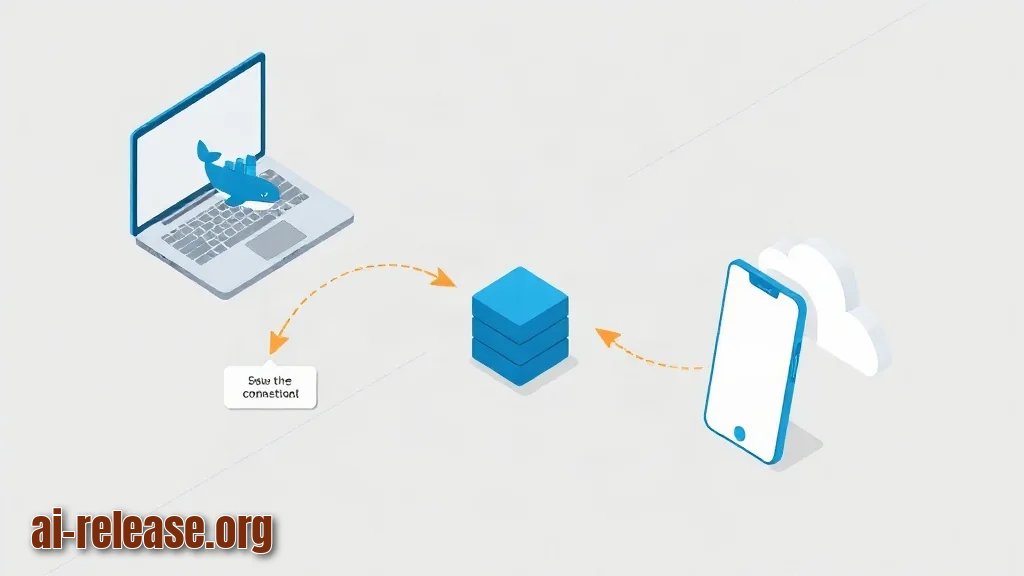
1. **Check that Docker is alive.** Run:
   docker --version
   docker compose version
Expected result: two version strings, for example `Docker version 27.x` and `Docker Compose version v2.x`. Why it works: both commands only report versions, so nothing is installed or changed yet — if one of them errors out, install Docker before continuing.
2. **Create a folder for the project.** Example: `mkdir -p ~/actual && cd ~/actual`. Expected result: you are now inside `~/actual` (`pwd` prints it). Everything else — the config file and the database — will live here, which makes backup a single folder copy.
3. **Write a `docker-compose.yml` file** in that folder with your text editor:
   services:
     actual:
       image: actualbudget/actual-server:latest
       container_name: actual
       restart: unless-stopped
       ports:
         - "5006:5006"
       volumes:
         - ./actual-data:/data
Check the exact image name and tag on the project's page before you start; tags change over time. Why it works: `ports` publishes container port 5006 to the host so your browser and phone can reach it, and `volumes` maps the container's `/data` folder to `./actual-data` on your disk, so your budget survives container updates. `restart: unless-stopped` brings the server back automatically after a reboot.
4. **Start the container.** Run `docker compose up -d`. Expected result: a line like `Container actual Started`. Then check with `docker compose ps` — you want to see status `Up` and `0.0.0.0:5006->5006/tcp`. Why it works: `-d` means "detached", so the server runs in the background and keeps running after you close the terminal.
5. **Watch the log for the "ready" line.** Run `docker compose logs -f actual`. Expected result: a line telling you the server is listening on `0.0.0.0:5006`. Press `Ctrl+C` to leave the log view — this does not stop the server. Why it works: if the port were already taken by another app, the error would appear here instead, and you would see it immediately rather than debugging the phone later.
6. **Open the web interface and create the budget file.** On any computer in the same network, open `http://192.168.1.50:5006` (put your own IP there). Expected result: the Actual setup screen. Set a **server password**, then create a budget file, for example named `Family Budget`. Why it works: the server password protects the admin side of the server; the budget file is what your phone will download and sync.
7. **Decide about end-to-end encryption.** In the server settings you can turn on end-to-end encryption (E2E — the data is encrypted on your device before it is uploaded, so the server only stores unreadable blobs) and you receive an encryption key. Expected result: a long key string you must store somewhere safe, offline. Why it works: with E2E the server cannot read your numbers, but if you lose the key the data cannot be recovered — that is the trade-off, so back it up before adding real transactions.
8. **Connect the Android phone.** Install the official app, then in the app choose the option to point at your own server (usually labelled as advanced/self-hosted setup). Enter the server address `http://192.168.1.50:5006`, your server password, and the encryption key if you enabled E2E. Expected result: the app shows your `Family Budget` file and finishes a first sync. Why it works: the phone holds a local copy and talks to the server only to exchange changes, so both devices end up with the same numbers.
9. **Verify two-way sync.** Add a test transaction on the phone, for example "Coffee, 3.50", then refresh the web interface. Expected result: the transaction appears in the browser within a few seconds. Why it works: the local-first design means each side writes locally, then pushes the difference to the server; if nothing appears, the two devices are not talking to the same server.
10. **Set up a backup habit.** Stop the container with `docker compose down`, copy the whole `~/actual` folder (or at least `actual-data`) to another disk, then run `docker compose up -d` again. Expected result: a dated copy of your data, plus a running server. Why it works: the database is a plain file inside the mounted folder, so a file copy is a full backup.
- [ ] Docker and Compose installed and versions printed.
- [ ] `docker compose ps` shows the container `Up` on port 5006.
- [ ] Budget file created and server password set.
- [ ] Android app connected and a test transaction synced both ways.
- [ ] Encryption key stored offline, if E2E is enabled.
- [ ] First backup copied to a second disk.
Common problems and fixes
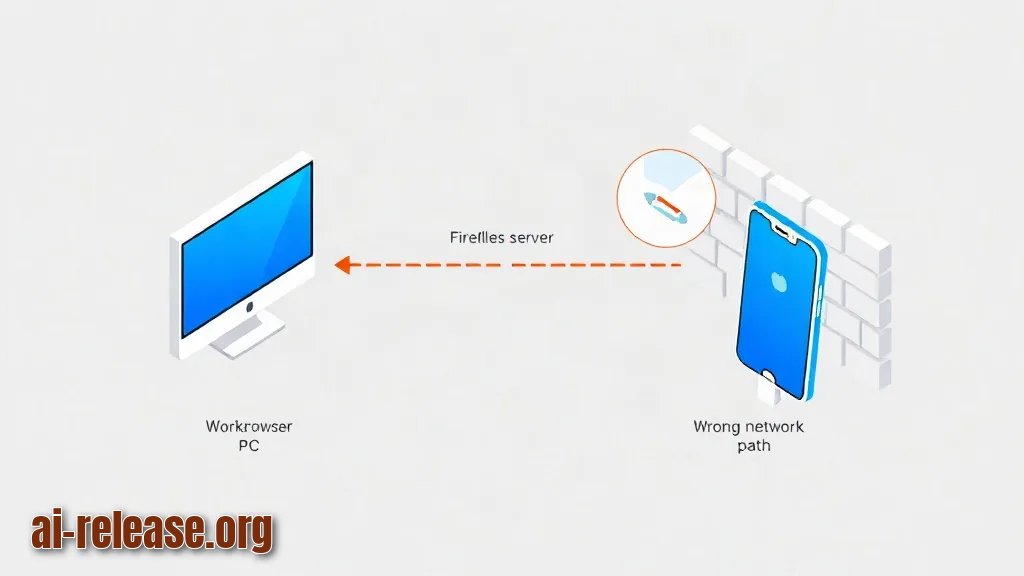
Symptom: the phone shows a connection error such as "failed to connect" or a timeout, while the browser on the PC works.Cause: the phone is not on the same network, or the firewall blocks the port. Fix: check that the phone is on the same Wi-Fi as the server, run `ping 192.168.1.50` from the phone (a ping app will do), then on the server allow the port — for example `sudo ufw allow 5006/tcp` — and try again. Also remember that some Android configurations and future app versions refuse plain `http://` connections, which is why HTTPS is recommended below.
Symptom: you want to use the phone outside your home and nothing syncs.Cause: `192.168.1.50` is a private address that only exists inside your LAN. Fix: put the server behind a reverse proxy with a real domain and a TLS certificate (HTTPS), then enter the `https://budget.example.com` address in the app instead of the IP. The container itself does not need to change — only the address the phone uses.
Symptom: the container restarts in a loop, and the log mentions permissions or a locked database.Cause: the data folder is owned by another user, or a second process is using the same file. Fix: run `docker compose logs actual` to read the real error, make sure only one container points at `./actual-data`, fix ownership of that folder, then `docker compose down && docker compose up -d`.
FAQ
Does anyone else see my family's transactions?
No. The data lives in the folder on your own machine. The only outside party involved is whoever hosts the server — and if you enabled end-to-end encryption, even that machine stores only encrypted data and cannot read the numbers.
Do I need a domain name and HTTPS to start?
No. For a first setup inside your home, `http://192.168.1.50:5006` is enough. You need HTTPS and a domain only when you want to sync while you are away from your home network.
What happens when my server is switched off?
The phone keeps working. Because the app is local-first, transactions are stored on the phone and pushed to the server the next time it is reachable — you just won't see changes from other family members until the server is back.
Can I run this on a NAS or an old laptop instead of a server?
Yes, as long as that device can run Docker and stays on. The container is small; the real requirement is that the machine is available when your phone wants to sync, so an always-on box beats a laptop that sleeps.
🤖 AI summary
- Updated: 2026-10-14
- Topics: actual budget self-hosted, менеджер бюджета на своём сервере, actual budget android, шифрование данных бюджета
- Summary: Пошаговая инструкция по развёртыванию Actual Budget в Docker, сквозному шифрованию данных и подключению неофициального Android-клиента для офлайн-учёта расходов.
- Key facts:
- A family budget usually ends up in someone else& x27;s cloud: the app is free, but your transactions, balances and account names live on a company server you don& x27;t control.
- Actual Budget takes the opposite approach — the program is "local-first", meaning the data is stored in a file on your own machine, and the phone app only needs your server to sync changes between devices.
- This guide shows how to install the Actual sync server on a home server, NAS or an old PC that can run Docker (Docker — a tool that runs an app in an isolated "container", a pre-packaged box with everything the app needs inside), then connect an Android phone to it.
- It fits any machine with Docker and any Android phone that can install the official Actual app from Google Play.
- If you like the idea of self-hosting your own tools instead of renting someone else& x27;s, the same mindset is described in How to run AI models locally on your PC: a beginner& x27;s guide .
- Requirements and preparation Illustration: Requirements and preparation A machine that stays on most of the time: home server, NAS, mini-PC or old laptop.