How to Install SteamOS 3.9.5 on a Regular PC: Step-by-Step Guide

TL;DR
- Time: 60–90 minutes (an estimate — it depends on your download speed and on how fast your USB drive writes)
- Difficulty: Intermediate
- You need: a 64-bit x86 PC with UEFI firmware · a USB flash drive larger than the SteamOS 3.9.5 image file · the SteamOS 3.9.5 image (
.imgor.img.bz2) from the official SteamOS download page referenced in the release announcement · a Linux machine (or Linux live USB) withdd,bzip2,lsblk,sha256sum· sudo rights · a backup of everything on the target disk
Requirements and setup
- Workstation OS: any Linux distribution that ships
dd,bzip2,lsblkandsha256sum— a standard install has all four. You cannot write the image correctly from Windows withdd; use a Linux box or boot a Linux live USB. - Privileges: root or
sudoon the workstation, because raw block devices (/dev/sdX) are root-only. - Free disk space: at least twice the size of the compressed image, since the
.img.bz2must be decompressed next to the archive. - Target PC: 64-bit x86 CPU, UEFI firmware (not legacy BIOS), and one internal disk you are willing to erase completely.
- UEFI settings: Secure Boot disabled, Fast Boot disabled. How to reach them varies — on most boards it is
DelorF2at power-on; check your motherboard manual for the exact key. - Backup: copy every file you care about off the target disk. The installer writes to a whole disk, not to a partition.
Checklist before you touch anything:
- [ ] SteamOS 3.9.5 image downloaded and its SHA-256 hash noted from the download page
- [ ] USB drive identified by device name (e.g.
/dev/sdb) and confirmed empty - [ ] Target PC's internal disk identified by device name and capacity
- [ ] Secure Boot disabled in UEFI
- [ ] Boot-menu key for the target PC noted (commonly
F12,F11,F8orEsc) - [ ] Backup of the target disk done
Unknowns to verify against the documentation: the exact file name of the 3.9.5 image, the list of officially supported GPUs and Wi-Fi chips, and whether the image you downloaded is a full installer or a recovery image. Read those on the official SteamOS page before you start — this guide does not reproduce file names or URLs it cannot confirm.
If the target machine will keep a Windows 11 installation on another disk, apply pending Windows updates first, as described in this manual update walkthrough, so an unfinished update does not interfere with the boot entries later.
Step 1. Write the SteamOS image to the USB drive
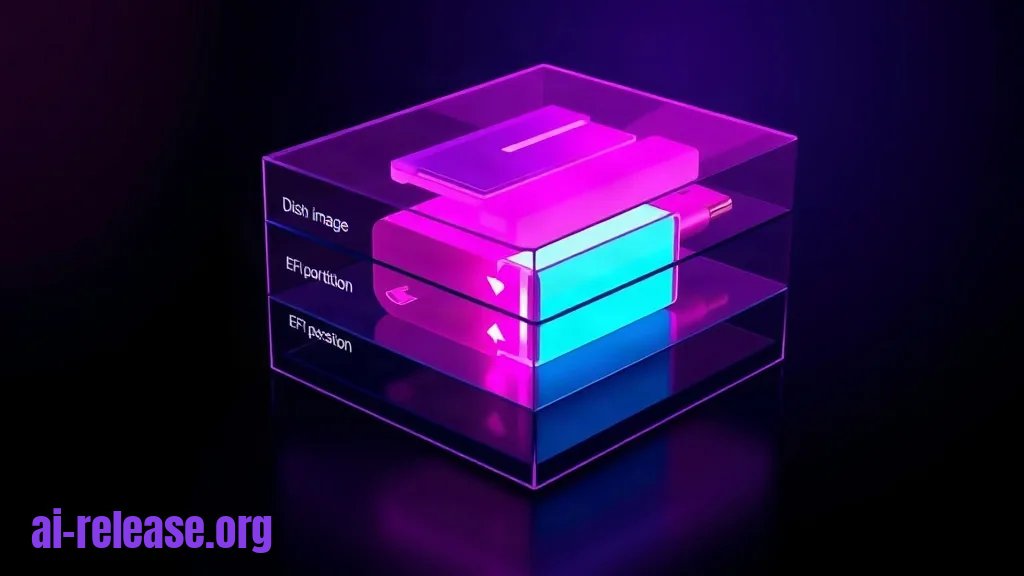
What to do: decompress the image, verify its hash, then write it to the raw USB device.
Why: the SteamOS image is a complete disk image (partition table + EFI system partition + root filesystem). Copying the file to a mounted USB stick produces an unbootable drive; only a byte-for-byte write to the raw device works.
How to check: after writing, the USB drive must show a GPT partition table with an EFI system partition.
Identify the USB drive first — this is the step people skip and regret:
lsblk -o NAME,SIZE,MODEL,TRANExample output (yours will differ):
NAME   MAJ:MIN RM   SIZE RO TYPE MOUNTPOINTS
sda      8:0    0 465.8G  0 disk
└─sda1   8:1    0 465.8G  0 part /
sdb      8:16   1  29.8G  0 disk
TRAN shows usb for the flash drive, and RM is 1 for removable media. On macOS the same device appears as /dev/disk2 — see diskutil list.
Decompress and verify:
bzip2 -dk <steamos-3.9.5-image>.img.bz2
sha256sum <steamos-3.9.5-image>.img
Replace <steamos-3.9.5-image> with the real file name from the download page. Compare the printed hash with the one published next to the download — they must match character for character. A mismatched hash means a corrupted download, and a corrupted image will fail mid-install, not now.
Write the image (replace /dev/sdb with your device — without a trailing digit):
sudo dd if=<steamos-3.9.5-image>.img of=/dev/sdb bs=4M status=progress oflag=sync conv=fsyncoflag=sync and conv=fsync force the kernel to flush every block before dd returns, so you do not unplug a drive that is still buffering. Expect it to finish without output beyond the progress line.
Verify the result:
sudo fdisk -l /dev/sdbExample: you should see Disklabel type: gpt and a partition of type EFI System, several hundred megabytes in size. If fdisk shows a single FAT/exFAT partition, the write failed — repeat it.
Step 2. Boot the target PC from the USB drive and install SteamOS
What to do: boot the target PC from the USB drive, start the installer from the live session, and point it at the internal disk.
Why: the USB image boots a live Linux environment; the installer is what actually partitions the internal drive and copies the system onto it. Nothing is written to the internal disk until you confirm the target.
How to check: before confirming, the installer must show the same disk model and capacity you identified earlier.
1. Insert the USB drive, power on, and press the boot-menu key repeatedly. Pick the entry prefixed with UEFI: — a non-UEFI entry will not boot the image.
2. The live environment loads to a desktop. Open a terminal and confirm which disk is internal:
lsblk -d -o NAME,SIZE,MODELExample: /dev/nvme0n1 with 476.9G and your SSD's model name is the internal drive; /dev/sda with roughly the USB capacity is the stick. Write the internal device name down.
3. Start the installer entry the image provides. Its exact label depends on the image type — on a full installer it is a boot-menu entry, on a recovery image it is a desktop icon whose action is described as re-imaging. If the label does not match either description, check the official installation documentation before proceeding.
4. Select the internal disk from step 2 as the target and confirm the erase. Everything on it is destroyed at this point.
5. Wait for the copy to finish and reboot. Remove the USB drive when the screen goes dark, otherwise the PC may boot from the stick again.
Example of a successful run: the installer reports completion, the machine reboots without the stick, and you land in the Steam Deck-style Game Mode interface rather than a firmware menu or a GRUB prompt.
Step 3. Verify the installation
What to do: confirm the system boots on its own, runs the expected version, and that the boot entry and network are healthy.
Why: a first boot can succeed while the EFI boot entry or the network stack is broken — those failures only appear after the next reboot or the first Steam sign-in.
How to check: run the commands below inside Desktop Mode.
Switch from Game Mode to the desktop:
steamos-session-select desktopsteamos-session-select is the session switcher shipped with SteamOS; steamos-session-select gamescope returns you to Game Mode.
Check the release:
cat /etc/os-release
uname -r
Example: /etc/os-release contains a NAME line naming SteamOS and a VERSION_ID line naming the 3.9.5 build; uname -r prints a kernel version. If NAME reports a different distribution, you booted the wrong device.
Check the boot entry survived:
efibootmgr -v | head -n 20Example: an entry containing steamos in its label, listed in BootOrder. If it is missing from BootOrder, the firmware will fall back to another OS on the next cold boot.
Check the network:
ip -brief addressExample: your Wi-Fi or Ethernet interface (wlan0, enp3s0) shows an UP state with an IPv4 address. With no address, sign in to Wi-Fi from the desktop tray before launching Steam.
Final acceptance: reboot once with no USB attached, confirm you reach Game Mode unaided, then launch one installed game or a Steam client sign-in screen. A clean second boot is what separates "it installed" from "it works".
Once the machine is stable, it is a normal Linux box — the walkthrough in How to add AI to your home server applies to any self-hosted service you want to run on it.
Troubleshooting
Problem. The USB drive never appears in the boot menu, or the firmware refuses it.
- Error:
Selected boot image did not authenticate. Please press enter to attempt boot to next device. - Cause: Secure Boot is enabled and the Linux bootloader on the stick is not signed with a key your firmware trusts.
- Solution: enter UEFI setup, set Secure Boot to *Disabled*, save and reboot. Some boards also require clearing the stored platform keys — check your motherboard manual for that option, then retry the boot menu and pick the entry prefixed with
UEFI:.
Problem. dd stops immediately.
- Error:
dd: failed to open '/dev/sdb': Permission denied - Cause:
ddwas run withoutsudo, so it cannot open a raw block device. - Solution: rerun with
sudoand re-check the device name first, because a typo here writes over the wrong disk:
lsblk -o NAME,SIZE,TRAN
sudo dd if=<steamos-3.9.5-image>.img of=/dev/sdb bs=4M status=progress oflag=sync conv=fsync
Problem. Package operations fail after installation.
- Error:
error: failed to commit transaction (unable to lock database)orRead-only file system - Cause: SteamOS mounts the root filesystem read-only by design, so package managers cannot write to it.
- Solution: remount it read-write for the current session:
sudo steamos-readonly disable
sudo pacman -Syu
Note that a system update can revert changes made outside the image's own update path — check the official documentation for the supported way to persist them.
Summary and next steps
You now have SteamOS 3.9.5 booting from the internal disk of a regular PC, with a verified image, a verified EFI entry and a working network. Next, check the official supported-hardware list for your GPU and Wi-Fi chip, then install your games and, if you need more from the machine, add self-hosted services on top of it.
FAQ
Will installing SteamOS erase my Windows installation?
The installer writes to the entire disk you select, so every partition on that disk is destroyed. Assume no dual-boot is preserved unless the official documentation explicitly states otherwise for your image.
Do I need a Steam Deck to install SteamOS on a PC?
No — the image boots on generic UEFI x86 hardware. Hardware support (GPU, Wi-Fi, audio) varies by model, so verify your components against the official supported-hardware list.
How do I switch between Game Mode and Desktop Mode?
Run steamos-session-select desktop from a terminal in Game Mode, and steamos-session-select gamescope from the desktop to go back.
How do I know the downloaded image is intact?
Run sha256sum on the decompressed .img and compare it with the hash published on the download page. A mismatch means re-download, not re-flash.
🤖 AI summary
- Updated: 2026-10-24
- Topics: как установить SteamOS на ПК, SteamOS 3.9.5 установка, SteamOS на компьютер с NVIDIA, SteamOS загрузочная флешка
- Summary: Инструкция по чистой установке SteamOS 3.9.5 с ядром Linux 7.2 и KDE Plasma 6.7 на десктоп: совместимость с NVIDIA и AMD, разметка диска, восстановление загрузчика и возврат к Windows.
- Key facts:
- TL;DR Time: 60–90 minutes (an estimate — it depends on your download speed and on how fast your USB drive writes) Difficulty: Intermediate You need: a 64-bit x86 PC with UEFI firmware · a USB flash drive larger than the SteamOS 3.9.5 image file · the SteamOS 3.9.5 image ( .img or .img.bz2 ) from the official SteamOS download page referenced in the release announcement · a Linux machine (or Linux live USB) with dd , bzip2 , lsblk , sha256sum · sudo rights · a backup of everything on the target disk Requirements and setup Illustration: Requirements and setup Workstation OS: any Linux distribution that ships dd , bzip2 , lsblk and sha256sum — a standard install has all four.
- You cannot write the image correctly from Windows with dd ; use a Linux box or boot a Linux live USB.
- Privileges: root or sudo on the workstation, because raw block devices ( /dev/sdX ) are root-only.
- Free disk space: at least twice the size of the compressed image, since the .img.bz2 must be decompressed next to the archive.
- Target PC: 64-bit x86 CPU, UEFI firmware (not legacy BIOS), and one internal disk you are willing to erase completely.
- UEFI settings: Secure Boot disabled , Fast Boot disabled.