How to Install Final Fantasy VII Recompiled on Android: APK, FFNx and Controls

TL;DR
- Time: not benchmarked in the source posts; the hands-on steps are short once the APK and FFNx files are already on your PC. Record your own time from first command to first successful boot.
- Difficulty: Intermediate
- You will need: an Android phone, a data-capable USB cable, a PC with Android Platform Tools (
adb— Android Debug Bridge, the command-line tool that talks to the phone), the official Recompiled APK, the matching FFNx package, legally obtained game data, and optionally a Bluetooth/USB gamepad.
Requirements and setup
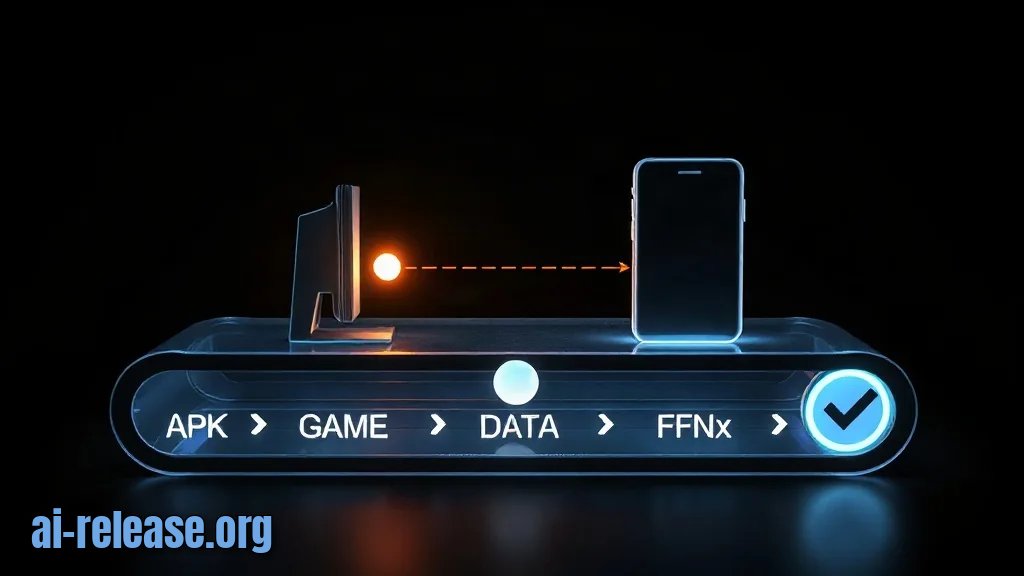
- Windows, macOS, or Linux PC with
adbavailable inPATH. - Android phone with Developer options enabled and USB debugging turned on.
- Enough free storage for the APK, game data, and FFNx files. The exact size is release-specific — check the documentation.
- The APK and FFNx files from the same release. Do not mix files from different builds.
- Game data you are licensed to use. Check the release notes to see what is bundled and what you must provide.
- Optional: a gamepad for cleaner control mapping.
- If you need a refresher on safe APK sideloading, see WordCraft APK for Android: download, verify and install safely.
Use this file manifest before touching the phone:
| Item | Placeholder used below | What to verify |
|---|---|---|
| Recompiled APK | `<FF7Recompiled>.apk` | Downloaded from the official release; SHA-256 matches if published |
| FFNx package | `<FFNx-folder>` | Same release/build as the APK; folder layout matches its README |
| Game data | `<FF7-data-folder>` | Contains the files named in the project documentation |
| Package ID | `<package.id>` | Find it in the release notes or in Android app details |
Checklist before installation:
- [ ] Developer options enabled
- [ ] USB debugging authorized on the phone
- [ ]
adb devicesshowsdevice, notunauthorized - [ ] APK checksum checked, if the release publishes one
- [ ] FFNx folder copied without renaming or flattening
- [ ] Controller paired, if you plan to use one
Example: the release page may publish a SHA-256 checksum. Your local value must match the full 64-character string, not just the first few characters.
Step 1. Prepare ADB and verify the APK
What to do: enable Developer options, turn on USB debugging, connect the phone, and confirm that ADB sees it.
On most Android phones: open Settings > About phone > Build number and tap it seven times. OEM menus vary; on Samsung, for example, the path is usually Settings > About phone > Software information > Build number. Then open Settings > System > Developer options > USB debugging and enable it.
Connect the phone by USB, unlock it, and run:
adb devicesAccept the RSA authorization prompt on the phone. Expected output:
List of devices attached
<RANDOM_SERIAL>	device
If the phone shows a file-transfer prompt, choose File transfer / Android Auto or the equivalent data mode; “charging only” can block reliable ADB access on some devices.
Next, verify the APK if the release publishes a checksum.
Linux/macOS:
sha256sum "<FF7Recompiled>.apk"Windows PowerShell:
Get-FileHash ".\<FF7Recompiled>.apk" -Algorithm SHA256Why: adb devices proves the PC can install packages and push files. The checksum catches truncated downloads and mirror substitution before you install anything.
How to check: adb devices must show your serial followed by device. The checksum output must match the release page. If no checksum is published, check the documentation and use only the official release source; do not guess a mirror is safe.
Example: if the release README names the APK as the only installable file, install that file directly. Do not rename it to game.apk and do not unpack it unless the documentation explicitly says to.
Step 2. Install the APK and place FFNx files

What to do: install the APK, launch it once if the documentation says it creates its data folder, then copy the FFNx files into the exact target path named by the release.
Install with ADB:
adb install -r "<FF7Recompiled>.apk"Expected output ends with:
SuccessIf the release ships split APKs, install them together instead of installing only the base:
adb install-multiple -r "<base>.apk" "<split>.apk"Replace the placeholders with the actual filenames from the README. Do not invent split names.
Now handle FFNx. FFNx is the separate compatibility layer used by this release for graphics/input behavior; it must match the Recompiled build. Android does not define one universal FFNx folder for every release. Use the path printed in the release notes or README. If the documentation does not name a target folder, stop and check the documentation before copying files.
Example shape of the command — replace both placeholders with documented paths:
adb push "<FFNx-folder>" "<target-on-device>"
adb shell ls "<target-on-device>"
Why: adb install registers the app package and native libraries. adb push copies the FFNx files byte-for-byte; ls then proves the phone sees the same folder layout the app expects.
How to check: the install command prints Success. The ls command lists the FFNx files without an error such as No such file or directory. Open the app; if it asks for a game-data folder, select the folder documented by the project, not the APK file and not the FFNx folder.
Example: if the README says FFNx belongs under an app-specific folder such as Android/data/<package.id>/files/<ffnx-target>/, match that path exactly. Do not “simplify” it to /sdcard/FFNx/ unless the documentation says so. For another Android game-port workflow that relies on correct ADB installs and folder discipline, see How to Run Metal Gear Solid 2 HD and Other NVIDIA SHIELD Ports on Android.
Step 3. Configure controls and verify the game boots
What to do: pair the controller in Android, map controls inside the app, then boot the game and confirm that input works.
For a Bluetooth gamepad: Settings > Connected devices > Pair new device, put the pad in pairing mode, and select it. For USB, connect the pad and accept any Android prompt.
Open the Recompiled app. Look for its control/input settings. If the app has no control menu, use the input mapping method named in the release notes; if no method is named, check the documentation.
Example mapping to start from — adjust to your pad:
| Action | Example binding | Check on screen |
|---|---|---|
| Confirm | A / Cross | Dialogue advances |
| Cancel | B / Circle | Menu closes |
| Menu | Start / Options | Pause menu opens |
| Move | Left stick / D-pad | Character moves |
Then start the game and run a log check while it boots:
adb logcat -c
adb logcat | grep -iE "AndroidRuntime|FFNx|Final Fantasy"
Windows PowerShell equivalent:
adb logcat -c
adb logcat | Select-String -Pattern "AndroidRuntime|FFNx|Final Fantasy"
Why: Android must see the controller before the app can receive its events. The log filter shows app and runtime messages without flooding the terminal.
How to check: the game reaches the title screen or first controllable scene, movement works, and the menu button opens and closes the pause menu. In the log output, there should be no FATAL EXCEPTION: main. If that line appears, the app crashed during startup — go to Troubleshooting.
Example: on a standard gamepad, pressing Start should open the pause menu. If it does nothing but Android’s own settings screen detects the pad, the problem is in the app’s mapping, not the cable.
Troubleshooting
Problem. ADB sees the phone but reports it as unauthorized
- Error:
adb: device unauthorized. - Cause: the RSA authorization prompt was not accepted, or the old ADB key was revoked.
- Solution: unlock the phone, reconnect USB, and tap Allow on the prompt. If no prompt appears, run:
adb kill-server
adb start-server
adb devices
Then revoke USB debugging authorizations in Developer options and reconnect.
Problem. APK installation fails with a native-library error
- Error:
Failure [INSTALL_FAILED_NO_MATCHING_ABIS: Failed to extract native libraries, res=-113] - Cause: the APK’s native libraries were built for a different CPU architecture (ABI — the CPU instruction set the native code targets).
- Solution: check the phone’s ABI:
adb shell getprop ro.product.cpu.abiUse the APK variant that matches the printed value, such as the arm64-v8a build when that is what the phone reports. Do not force-install a mismatched build.
Problem. Reinstall fails because the old package has a different signature
- Error:
Failure [INSTALL_FAILED_UPDATE_INCOMPATIBLE: Package <package.id> signatures do not match previously installed version; ignoring!] - Cause: an older build signed with a different key is already installed.
- Solution: back up saves first, then uninstall the old package and install the new APK:
adb uninstall <package.id>
adb install -r "<FF7Recompiled>.apk"
Find the package ID from the app details or release notes; do not uninstall random packages.
Summary and next steps
You now have a verified APK, the matching FFNx files, and a control map that you tested in the first playable scene. Next, save a copy of the working APK/FFNx folder and record your device ABI and package ID so the next update is easier to verify.
FAQ
Do I need root to install Final Fantasy VII Recompiled on Android?
No root step is required by the standard ADB workflow above. If a specific release requires root, it must say so in its documentation — check before proceeding.
Can I install the APK on any Android phone?
Only if the APK’s ABI matches your device. Run adb shell getprop ro.product.cpu.abi; if it prints arm64-v8a, use the matching build, and use whatever value your own phone prints.
Where exactly do the FFNx files go?
Use the folder named in the release notes. There is no universal Android FFNx path in the source posts; if the documentation does not name a path, stop and check the documentation rather than guessing.
Why does the game start but ignore my controller?
Pair the controller in Android first, then map it inside the app. If Android sees the pad but the game does not, test another USB/Bluetooth mode and confirm the app has the required input permission — the exact permission name is release-specific, so check the documentation.
🤖 AI summary
Status: practical guide. Some statements come from vendors; verify in your environment.
1. Summary
Time: not benchmarked in the source posts; the hands-on steps are short once the APK and FFNx files are already on your PC. Record your own time from first command to first successful boot. Difficulty: Intermediate
Machine data: Citation Map JSON · JSON-LD · Semantic Embeddings — separate stage.
Full Knowledge Layer: sections 2–8
2. Direct answers
- What is required?
- Windows, macOS, or Linux PC with adb available in PATH.; Android phone with Developer options enabled and USB debugging turned on.; Enough free storage for the APK, game data, and FFNx files. The exact size is release-specific — check the documentation.; The APK and FFNx files from the same release. Do not mix files… → details (AR-GUIDE-KAKUSTANOV-003)
- How to do it?
- Step 1. Prepare ADB and verify the APK → Step 2. Install the APK and place FFNx files → Step 3. Configure controls and verify the game boots → details (AR-GUIDE-KAKUSTANOV-004)
- Which topics does it cover?
- final fantasy 7 recomp android, ff7 recompiled apk, ffnx android, как установить ff7 на андроид → details (AR-GUIDE-KAKUSTANOV-002)
- What are the key points?
- Time: not benchmarked in the source posts; the hands-on steps are short once the APK and FFNx files are already on your PC. Record your own time from first command to first successful boot. Difficulty: Intermediate → details (AR-GUIDE-KAKUSTANOV-007)
3. Key facts
- Time: not benchmarked in the source posts; the hands-on steps are short once the APK and FFNx files are already on your PC. Record your own time from first command to first successful boot. — evidence; status: заявление источника.
- Difficulty: Intermediate — evidence; status: заявление источника.
- You will need: an Android phone, a data-capable USB cable, a PC with Android Platform Tools (adb — Android Debug Bridge, the command-line tool that talks to the phone), the official Recompiled APK, the matching FFNx package, legally obtained game data, and optionally a Bluetooth/USB gamepad. — evidence; status: заявление источника.
- Windows, macOS, or Linux PC with adb available in PATH. — evidence; status: заявление источника.
- Android phone with Developer options enabled and USB debugging turned on. — evidence; status: заявление источника.
- Enough free storage for the APK, game data, and FFNx files. The exact size is release-specific — check the documentation. — evidence; status: заявление источника.
4. Entities
| Entity | Type | Role |
|---|---|---|
| final fantasy 7 recomp android | продукт/модель | упоминается в заголовке, TL;DR или разделах гайда |
| ff7 recompiled apk | продукт/модель | упоминается в заголовке, TL;DR или разделах гайда |
| ffnx android | тема/инструмент | упоминается в заголовке, TL;DR или разделах гайда |
| как установить ff7 на андроид | продукт/модель | упоминается в заголовке, TL;DR или разделах гайда |
| Windows | платформа/технология | упоминается в заголовке, TL;DR или разделах гайда |
| Linux | платформа/технология | упоминается в заголовке, TL;DR или разделах гайда |
| macOS | платформа/технология | упоминается в заголовке, TL;DR или разделах гайда |
| Android | платформа/технология | упоминается в заголовке, TL;DR или разделах гайда |
5. Context
- Guide — describes → How to Install Final Fantasy VII Recompiled on Android: APK, FFNx and Controls (AR-GUIDE-KAKUSTANOV-001).
- Guide — includes step → Step 1. Prepare ADB and verify the APK (AR-GUIDE-KAKUSTANOV-001).
6. Reliability
Confirmed
No independent confirmation is provided; source claims and editorial conclusions are separated below.
Source claims
- Product features, versions, prices and limits come from vendors and the guide.
- Commands and steps are recommendations, not guaranteed results.
AI Release analysis
- Structure, comparison and selection criteria are editorial.
- The guide does not replace an independent audit or legal advice.
7. Unknowns
- Current versions, prices and limits.
- Independent benchmarks and quality checks.
- Terms of use and data policy.
8. Sources
| Source | Type | Role |
|---|---|---|
| No external links | — | — |
Cite as: AI Release. Как установить Final Fantasy VII Recompiled на Android: APK, FFNx и настройка управления. ai-release.org.