How to Build an AI Screen-Overlay Assistant on Android: Floating Button, Screenshots and OCR

TL;DR
- Time to complete: 90–120 minutes
- Difficulty: Advanced
- You will need:
- Android Studio (current stable build for your OS — check the documentation for the version matching your Gradle plugin)
- A physical Android device or an emulator with Google Play services (ML Kit's on-device text recognition is delivered through Play services)
- A Kotlin + Gradle project, package placeholder com.example.screenai
- adb on your PATH for verification
- Optional: your own OCR endpoint <your-ocr-endpoint> if you do not want on-device recognition
- Result: a floating button drawn above every app; tapping it hides itself, captures the screen through
MediaProjection, runs OCR on the cropped region, and renders the recognized text in a small overlay card.
Requirements and setup
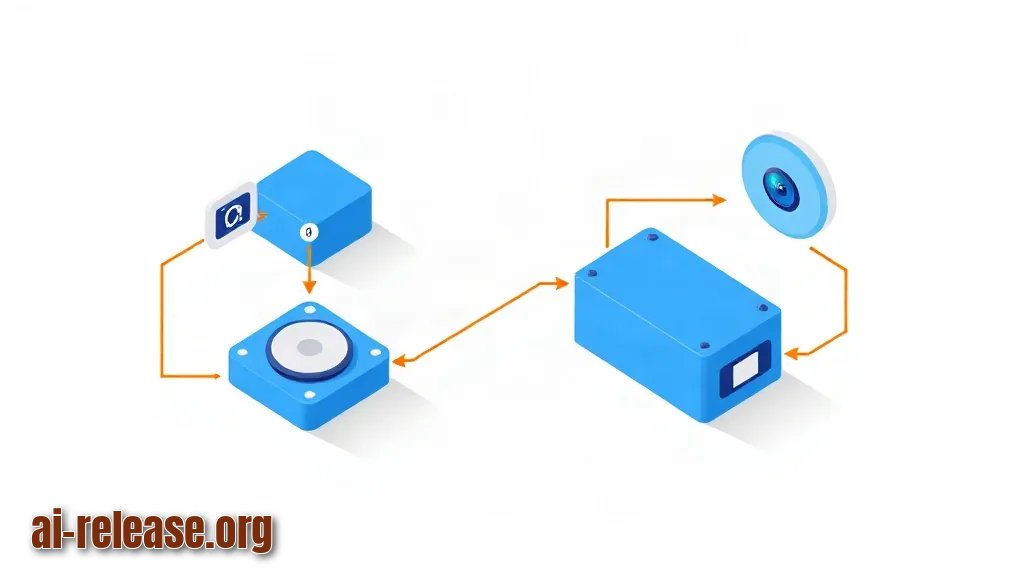
The overlay is four separate Android pieces glued together. Know which piece fails and the debugging is trivial:
| Piece | Android API / library | What it actually does |
|---|---|---|
| Floating button | `SYSTEM_ALERT_WINDOW` + `WindowManager` (`TYPE_APPLICATION_OVERLAY`) | Draws a view on top of other apps |
| Lifetime | Foreground `Service` + notification | Keeps the overlay and capture session alive when the app is backgrounded |
| Screenshot | `MediaProjection` + `VirtualDisplay` + `ImageReader` | Turns the display into a stream of `Bitmap` frames |
| OCR | ML Kit on-device text recognition, or your own endpoint | Converts a `Bitmap` into a string |
- [ ] Android Studio installed;
adb deviceslists your phone or emulator - [ ] Project created with an empty Activity, Kotlin, minimum SDK high enough for
TYPE_APPLICATION_OVERLAY(check the documentation for the exact API level your target requires) - [ ] Physical device recommended:
Settings → About phone → tap Build number 7 timesto unlock Developer options, then enable USB debugging - [ ] Free space for the emulator image and Gradle caches (several GB — check the documentation for current image sizes)
- [ ] Decide now where OCR runs: on-device (private, no network) or a remote endpoint (
<your-ocr-endpoint>, needsINTERNETpermission and a key)
Project layout you will create:
app/src/main/
├── AndroidManifest.xml
└── java/com/example/screenai/
    ├── MainActivity.kt        // asks for overlay permission, starts the service
    ├── OverlayService.kt      // floating button + result card
    ├── ScreenCapture.kt       // MediaProjection, VirtualDisplay, ImageReader
    └── OcrEngine.kt           // ML Kit wrapper
Example: if you prefer to keep OCR fully local with a downloaded model instead of ML Kit, the options and setup steps are described in How to Run an AI Model Locally on Android: Apps and Setup.
Step 1. Draw the floating button (overlay permission + foreground service)
What to do: declare the permissions, ask the user for the overlay grant through Settings.ACTION_MANAGE_OVERLAY_PERMISSION, then add the button view from a foreground service with TYPE_APPLICATION_OVERLAY.
Why: an overlay cannot be added by an Activity that is in the background, and the system only allows TYPE_APPLICATION_OVERLAY after an explicit, user-granted SYSTEM_ALERT_WINDOW permission. A foreground service is what keeps that window alive after the user returns to the launcher.
How to check: adb shell appops get com.example.screenai SYSTEM_ALERT_WINDOW must print SYSTEM_ALERT_WINDOW: allow, and the button must stay visible after pressing Home.
AndroidManifest.xml:
<uses-permission android:name="android.permission.SYSTEM_ALERT_WINDOW"/>
<uses-permission android:name="android.permission.FOREGROUND_SERVICE"/>
<uses-permission android:name="android.permission.POST_NOTIFICATIONS"/>
<!-- Required on recent API levels for a capture session; check the documentation
     for the API level where this permission and service type became mandatory. -->
<uses-permission android:name="android.permission.FOREGROUND_SERVICE_MEDIA_PROJECTION"/>

<application ...>
    <activity android:name=".MainActivity" android:exported="true">
        <intent-filter>
            <action android:name="android.intent.action.MAIN"/>
            <category android:name="android.intent.category.LAUNCHER"/>
        </intent-filter>
    </activity>

    <service
        android:name=".OverlayService"
        android:exported="false"
        android:foregroundServiceType="mediaProjection"/>
</application>
Permission request in MainActivity.kt:
if (!Settings.canDrawOverlays(this)) {
    startActivity(
        Intent(
            Settings.ACTION_MANAGE_OVERLAY_PERMISSION,
            Uri.parse("package:$packageName")
        )
    )
} else {
    ContextCompat.startForegroundService(this, Intent(this, OverlayService::class.java))
}
Adding the button in OverlayService.kt:
val windowManager = getSystemService(WINDOW_SERVICE) as WindowManager

val params = WindowManager.LayoutParams(
    WindowManager.LayoutParams.WRAP_CONTENT,
    WindowManager.LayoutParams.WRAP_CONTENT,
    WindowManager.LayoutParams.TYPE_APPLICATION_OVERLAY,
    WindowManager.LayoutParams.FLAG_NOT_FOCUSABLE,
    PixelFormat.TRANSLUCENT
).apply {
    gravity = Gravity.TOP or Gravity.START
    x = 24
    y = 240
}

val button = TextView(this).apply {
    text = "AI"
    setPadding(32, 32, 32, 32)
    setOnClickListener { captureAndRecognize() }
}

windowManager.addView(button, params)
Example: start the app with adb shell am start -n com.example.screenai/.MainActivity. A permission screen titled “Display over other apps” appears; after enabling it, restart the service and the AI badge stays on screen when you open Settings.
Why this works: FLAG_NOT_FOCUSABLE tells the system the window never wants keyboard focus, so taps pass through to whatever is underneath except on the button itself.
Step 2. Capture the display and run OCR
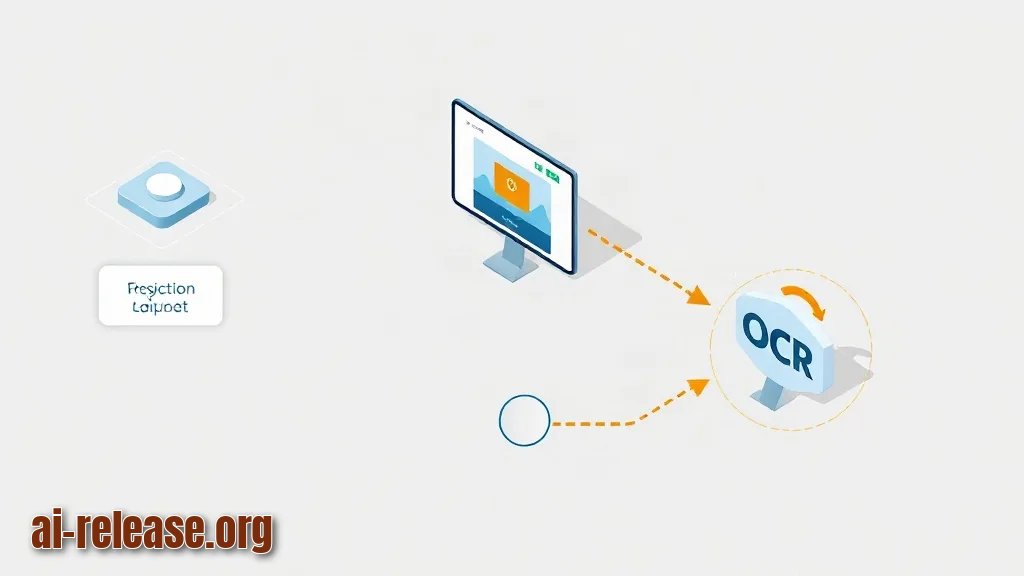
What to do: request capture consent with MediaProjectionManager.createScreenCaptureIntent(), pass resultCode and data to the service, build a VirtualDisplay feeding an ImageReader, read one frame, crop the region around the button, and hand the bitmap to OCR.
Why: MediaProjection is the only sanctioned way to read other apps' pixels — it produces a system consent dialog that the user must accept. ImageReader is the surface the virtual display renders into; you pull frames from it instead of receiving callbacks.
How to check: adb logcat -s ScreenAI:V prints frame 1080x2400 and then the recognized text; the overlay card shows the same string on screen.
// 1. Ask for consent (from the Activity)
val mpm = getSystemService(MEDIA_PROJECTION_SERVICE) as MediaProjectionManager
startActivityForResult(mpm.createScreenCaptureIntent(), REQ_CAPTURE)

// 2. Hand the grant to the foreground service
override fun onActivityResult(requestCode: Int, resultCode: Int, data: Intent?) {
    if (requestCode == REQ_CAPTURE && resultCode == RESULT_OK) {
        val intent = Intent(this, OverlayService::class.java).apply {
            action = ACTION_START_CAPTURE
            putExtra(EXTRA_RESULT_CODE, resultCode)
            putExtra(EXTRA_RESULT_DATA, data)
        }
        ContextCompat.startForegroundService(this, intent)
    }
}
// 3. Inside the service: virtual display -> ImageReader -> Bitmap
val metrics = resources.displayMetrics
val width = metrics.widthPixels
val height = metrics.heightPixels
imageReader = ImageReader.newInstance(width, height, PixelFormat.RGBA_8888, 2)
val projection = mpm.getMediaProjection(resultCode, data)
virtualDisplay = projection.createVirtualDisplay(
"screenai-capture",
width, height, metrics.densityDpi,
DisplayManager.VIRTUAL_DISPLAY_FLAG_AUTO_MIRROR,
imageReader.surface, null, null
)
val image = imageReader.acquireLatestImage() // always close it afterwards
val plane = image.planes[0]
val rowStride = plane.rowStride
val pixelStride = plane.pixelStride
val rowPadding = rowStride - pixelStride * width
val bitmap = Bitmap.createBitmap(
width + rowPadding / pixelStride, height, Bitmap.Config.ARGB_8888
)
bitmap.copyPixelsFromBuffer(plane.buffer)
image.close()
virtualDisplay.release()
projection.stop()Example: on a 1080×2400 screen, the returned bitmap is wider than 1080 because of rowPadding; that is normal. Crop with Bitmap.createBitmap(bitmap, x, y, w, h) around the button coordinates, keeping the crop inside 0..width and 0..height.
OCR with ML Kit (add the dependency and check the documentation for the current version):
// build.gradle.kts
implementation("com.google.mlkit:text-recognition:<current-version>")
val recognizer = TextRecognition.getClient(TextRecognizerOptions.DEFAULT_OPTIONS)
recognizer.process(InputImage.fromBitmap(cropped, 0))
.addOnSuccessListener { result -> Log.v("ScreenAI", result.text) }
.addOnFailureListener { e -> Log.e("ScreenAI", "OCR failed", e) }Practical detail: hide the button (button.visibility = View.GONE) before acquiring the frame, otherwise the badge itself is captured and OCR may read the letters “AI” as content. Restore it in the success and failure listeners.
Step 3. Verify the full path end to end

What to do: walk the three stages in order and confirm each one before moving on.
- [ ] Open any app with static text (for example Settings → About phone).
- [ ] Tap the
AIbadge. Expected: the badge disappears, then a card appears with the recognized text. - [ ] Run
adb logcat -s ScreenAI:Vbefore tapping. Expected lines, in this order:overlay added,frame 1080x2400, then the recognized string. - [ ] Reboot the phone and open the app once. Expected: if the capture grant is not persisted, the consent dialog appears again — this is normal, a
MediaProjectiongrant is not reusable indefinitely (check the documentation for the lifetime rules). - [ ] Tap the badge on the launcher with no text. Expected: an empty result card, not a crash.
| What you see | What it means |
|---|---|
| Badge never appears | `SYSTEM_ALERT_WINDOW` not granted; check with `appops get` |
| Badge appears, nothing on tap | Capture consent was never returned; inspect the service `onStartCommand` extras |
| Card shows text, but only partial lines | Crop rectangle too small — widen it and re-test |
| `MaxImages (2) has already been acquired` in logcat | A previous frame was never closed |
Example: success looks like this in logcat for the string “Android version”:
V/ScreenAI: overlay added
V/ScreenAI: frame 1080x2400
V/ScreenAI: Android version
Troubleshooting
Problem. The badge never appears and logcat is empty.
- Error:
android.view.WindowManager$BadTokenException: Unable to add window -- permission denied for window type - Cause: the app tried
windowManager.addView()beforeSYSTEM_ALERT_WINDOWwas granted, or the grant was revoked when the app was reinstalled. - Solution: re-check the grant, then restart the service:
adb shell appops get com.example.screenai SYSTEM_ALERT_WINDOW
adb shell am force-stop com.example.screenai
adb shell am start -n com.example.screenai/.MainActivity
Problem. Tapping the badge does nothing, the app crashes silently.
- Error:
java.lang.SecurityException: Media projections require a foreground service of type ServiceInfo.FOREGROUND_SERVICE_TYPE_MEDIA_PROJECTION - Cause: on recent Android versions
getMediaProjection()refuses to run unless the calling service is already foreground with themediaProjectiontype. - Solution: call
startForeground(id, notification)(and declare the type in the manifest, as in Step 1) before touchingMediaProjection. Log the notification ID withLog.v("ScreenAI", "foreground started")and confirm it appears before theframeline.
Problem. OCR returns an empty string on text you can clearly see.
- Error:
java.lang.IllegalStateException: MaxImages (2) has already been acquired, call #close before acquiring more. - Cause:
imageReader.acquireLatestImage()was called twice withoutimage.close(), so every later frame is stale or the reader is blocked. - Solution: close the image in every path, including the failure callback:
val image = imageReader.acquireLatestImage() ?: return
try {
    // convert to bitmap
} finally {
    image.close()
}
If the string is still empty, enlarge the crop rectangle — very small crops are the usual culprit.
FAQ
Can I do this without sending screenshots to a server?
Yes. ML Kit text recognition runs on-device, and you can swap it for a locally loaded model following How to Run an AI Model Locally on Android: Apps and Setup.
Do I need root?
No. MediaProjection is a normal user-facing consent dialog; no root, no bootloader unlock, no system app.
Why does my own floating button show up inside the captured image?
Because the overlay is part of the composited display. Set its visibility to GONE, wait one frame, capture, then restore it.
Can I run the whole thing from a terminal instead of Android Studio?
Yes for the build step (./gradlew assembleDebug), and if you want a Linux shell on the phone for scripting next to the app, see How to Run Linux on Android Without Root: Termux, PRoot, and AI Tools.
Summary and next steps
You now have a foreground service that draws a floating button, a MediaProjection session that turns one tap into a cropped bitmap, and an OCR step that renders the recognized text back into an overlay card. Next, persist the recognized text to a local database and add a second button that sends it to a model of your choice — for a broader list of ready-made Android AI clients, see Best AI apps for Android in 2026.
🤖 AI summary
- Updated: 2026-10-19
- Topics: ии оверлей на андроид, распознавание текста со скриншота андроид, плавающая кнопка поверх экрана android
- Summary: Пошаговая инструкция по созданию плавающего ИИ-помощника на Android, который делает скриншот, распознаёт текст и отправляет его в любую OpenAI-совместимую модель.
- Key facts:
- TL;DR Time to complete: 90–120 minutes Difficulty: Advanced You will need: - Android Studio (current stable build for your OS — check the documentation for the version matching your Gradle plugin) - A physical Android device or an emulator with Google Play services (ML Kit& x27;s on-device text recognition is delivered through Play services) - A Kotlin + Gradle project, package placeholder com.example.screenai - adb on your PATH for verification - Optional: your own OCR endpoint <your-ocr-endpoint> if you do not want on-device recognition Result: a floating button drawn above every app; tapping it hides itself, captures the screen through MediaProjection , runs OCR on the cropped region, and renders the recognized text in a small overlay card.
- Requirements and setup Illustration: Requirements and setup The overlay is four separate Android pieces glued together.
- Know which piece fails and the debugging is trivial: Piece Android API / library What it actually does Floating button SYSTEM_ALERT_WINDOW + WindowManager ( TYPE_APPLICATION_OVERLAY ) Draws a view on top of other apps Lifetime Foreground Service + notification Keeps the overlay and capture session alive when the app is backgrounded Screenshot MediaProjection + VirtualDisplay + ImageReader Turns the display into a stream of Bitmap frames OCR ML Kit on-device text recognition, or your own endpoint Converts a Bitmap into a string [ ] Android Studio installed; adb devices lists your phone or emulator [ ] Project created with an empty Activity, Kotlin, minimum SDK high enough for TYPE_APPLICATION_OVERLAY (check the documentation for the exact API level your target requires) [ ] Physical device recommended: Settings → About phone → tap Build number 7 times to unlock Developer options, then enable USB debugging [ ] Free space for the emulator image and Gradle caches (several GB — check the documentation for current image sizes) [ ] Decide now where OCR runs: on-device (private, no network) or a remote endpoint ( <your-ocr-endpoint> , needs INTERNET permission and a key) Project layout you will create: app/src/main/ ├── AndroidManifest.xml └── java/com/example/screenai/ ├── MainActivity.kt // asks for overlay permission, starts the service ├── OverlayService.kt // floating button + result card ├── ScreenCapture.kt // MediaProjection, VirtualDisplay, ImageReader └── OcrEngine.kt // ML Kit wrapper Example: if you prefer to keep OCR fully local with a downloaded model instead of ML Kit, the options and setup steps are described in How to Run an AI Model Locally on Android: Apps and Setup .
- Draw the floating button (overlay permission + foreground service) What to do: declare the permissions, ask the user for the overlay grant through Settings.ACTION_MANAGE_OVERLAY_PERMISSION , then add the button view from a foreground service with TYPE_APPLICATION_OVERLAY .
- Why: an overlay cannot be added by an Activity that is in the background, and the system only allows TYPE_APPLICATION_OVERLAY after an explicit, user-granted SYSTEM_ALERT_WINDOW permission.
- A foreground service is what keeps that window alive after the user returns to the launcher.