How to connect DeepSeek Harness to an Android phone: dsh-go and cloud-free remote agent control

TL;DR
- Time to complete: 30–40 minutes
- Difficulty: Intermediate
- You will need:
- An Android phone with Developer options and USB debugging available
- A USB data cable (many charge-only cables cannot carry adb traffic)
- Android Platform Tools (adb — Android Debug Bridge, the command-line tool that talks to a phone over USB or Wi-Fi)
- The dsh-go APK from the GitHub repository github.com/ccch1mneyyy/dsh-go — an unofficial Android client for DeepSeek Harness maintained by third-party developer ccch1mneyyy
- DeepSeek Harness installed on a desktop computer if you plan to use the remote-control mode
- Phone and computer on the same local network (same Wi-Fi SSID, no client isolation)
- Status warning:
dsh-gois not supported by DeepSeek. The repository is labelled “Android · Unofficial”. Version numbers, package identifier, port numbers and endpoint fields are defined in the repository README — verify them there, they are not stated in our source posts.
Requirements and setup

What to do: Prepare the phone, the computer and the harness before touching the app.
Why: dsh-go is sideloaded (installed from a file, not from Google Play), and its remote mode depends on your own computer being reachable on the local network. Both halves must be ready, otherwise you cannot tell an app problem from a network problem.
Checklist:
- [ ] Phone charged, screen lock PIN known (you will re-authorise the USB connection)
- [ ] USB cable that carries data
- [ ] Developer options + USB debugging enabled on the phone
- [ ] Platform Tools installed on the computer,
adbon yourPATH - [ ]
dsh-goAPK downloaded only fromgithub.com/ccch1mneyyy/dsh-go - [ ] DeepSeek Harness installed and launched on the desktop (remote-control mode only)
- [ ] Both devices on the same Wi-Fi network
Install Platform Tools and confirm adb is callable:
adb versionExpected: the first line reads Android Debug Bridge version .... If you get command not found, add the platform-tools directory to PATH first.
Two operating modes you are choosing between:
| Mode | What it does | When to use it |
|---|---|---|
| On-device | Runs the harness on the phone itself | You have no computer nearby |
| Remote control | The phone drives DeepSeek Harness running on your computer | You need the agent to work on files and tools installed on the PC |
Both are declared by the project; the exact UI names inside the app are defined in the repository README.
Step 1. Install dsh-go and confirm it launches
What to do: Enable USB debugging, connect the phone, verify the adb handshake, then install the APK.
Why: A sideloaded unofficial build has no store-level validation, so you must confirm the package actually landed on the device and opens without crashing. The adb handshake also tells you the cable is capable of data transfer — the most common blocker at this stage. If adb is new to you, the command-by-command walkthrough in How to Connect Android to Windows via ADB: Commands and Fixes covers the same handshake in more detail.
Example: On the phone, open Settings → About phone → Build number and tap it seven times, then Settings → System → Developer options → USB debugging → On. Plug in the cable, choose File transfer / MTP in the USB notification, and accept the “Allow USB debugging?” dialog.
adb devicesExpected output — one line per device, state device:
List of devices attached
R58M12ABCDE     device
unauthorized instead of device means the RSA dialog was not accepted. Now install:
adb install -r /path/to/dsh-go.apkExpected: Success. -r reinstalls over an existing copy while keeping data.
How to check: List third-party packages and find the new entry:
adb shell pm list packages -3Expected: a new package: line that was not there before the install (the identifier itself is listed in the repository README). Then unlock the phone and open the app from the launcher — the dsh-go screen must appear without an immediate crash dialog.
Step 2. Configure the mode: on-device or remote control

What to do: Choose one mode and fill in its connection settings. For remote mode, start DeepSeek Harness on the desktop first and note the computer’s LAN address.
Why: The two modes fail differently. On-device mode depends on the app and its harness configuration; remote mode depends on the desktop harness running, listening on a port, and being reachable from the phone’s IP subnet. Setting up the desktop side first gives you a stable target to point the phone at.
Example (remote mode): find the PC address. On Windows:
ipconfig | Select-String "IPv4"Expected:
IPv4 Address. . . . . . . . . . . : 192.168.1.42On Linux or macOS:
ip addr show | grep "inet "Enter that address in the app’s host field as <your-pc-lan-ip> — for example 192.168.1.42 — replacing the placeholder with the value printed above. The port field is defined by the desktop harness; note it from the repository README, because the source posts do not publish a default port. Open that port in the Windows firewall if prompted (allow Private networks; the phone will never connect over the Public profile).
Example (on-device mode): install and open dsh-go, pick the on-device mode and complete whatever credential/endpoint prompt the harness shows. The repository README defines which fields are mandatory — there is no published specification beyond it, so confirm before assuming a blank field is optional.
If the phone and the computer are not on the same network, the remote mode cannot reach the harness at all. A private mesh network is the usual workaround; the setup in How to Add an Old Non-Rooted Android Phone to Your Tailscale Network: Termux, User-Space Tailscale, Key-Only SSH and Wireless ADB puts both devices on one private address range without exposing the PC to the internet. This is a network-level workaround, not a documented dsh-go feature.
Desktop-side prerequisites are the same as for any other DeepSeek Harness install; the plugin and adding-account flow is described in DeepSeek Harness Desktop: How to Install and Add Plugins on Windows and Mac.
How to check: From the phone, confirm the PC answers on the network layer:
adb shell ping -c 3 <your-pc-lan-ip>Expected:
3 packets transmitted, 3 received, 0% packet lossZero packet loss means routing works; it does not mean the harness port is open. Then return to dsh-go — with the harness running, the mode screen must show a connected/ready state instead of a spinner. If it still spins, the port or the firewall is the problem, not the address.
Step 3. Verify end-to-end control
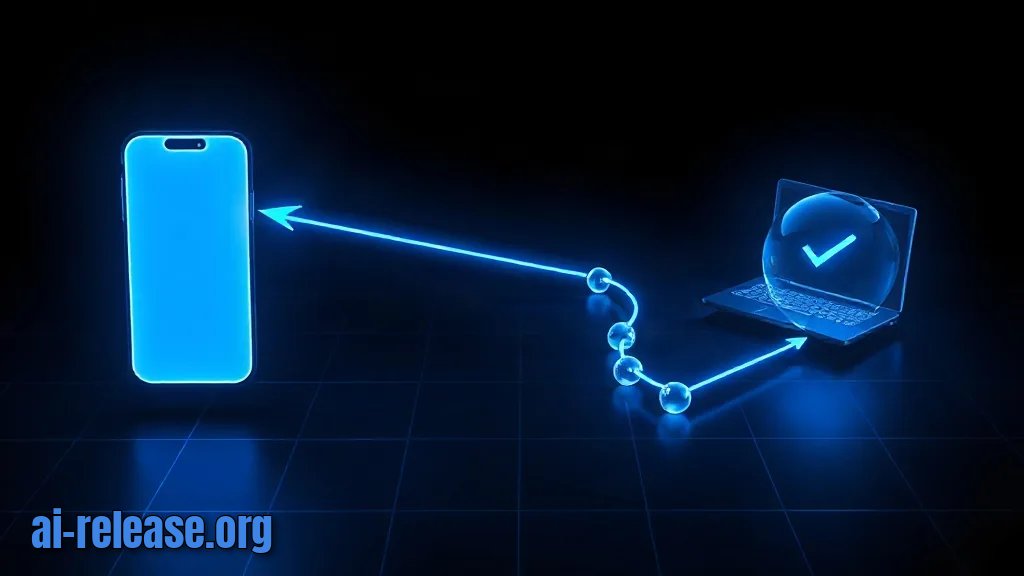
What to do: Send one task from the phone and confirm it appears on the computer side.
Why: A green indicator in the app only proves the socket opened. The real success criterion is that a request created on the phone is executed by the harness on the desktop — that is the whole point of remote mode.
Example: In remote mode, send a task that only the computer can answer, such as listing the contents of a folder that exists on the PC but not on the phone (for example C:\projects on Windows or /home/<user>/projects on Linux). Then look at the DeepSeek Harness window on the desktop.
How to check: Success looks like three things at once:
1. The phone shows the agent’s answer, not a timeout.
2. The desktop harness shows a new session/request line at the moment you sent the task.
3. adb shell ping -c 3 <your-pc-lan-ip> still reports 0% packet loss.
Final checklist:
- [ ]
adb devicesshows the phone asdevice - [ ]
dsh-goopens and stays open - [ ] Chosen mode reports ready
- [ ] One task round-trips phone → PC → phone
- [ ] The desktop harness log shows the same request
Troubleshooting
Problem. The phone is plugged in but adb sees nothing.
- Error:
adb: no devices/emulators found - Cause: charge-only cable, USB mode left on “Charging only”, or the RSA authorisation dialog was dismissed.
- Solution: switch the USB notification to File transfer, then reload the adb server and re-check:
adb kill-server && adb start-server && adb devicesAccept “Allow USB debugging?” on the phone screen while it is unlocked. If the list stays empty with a different cable, the cable is the fault.
Problem. The APK refuses to install over an existing build.
- Error:
INSTALL_FAILED_UPDATE_INCOMPATIBLE - Cause: a previous
dsh-gobuild signed with a different key is already on the device (common when you switch between builds from the repository). - Solution: remove the old package, then reinstall. Take the identifier from
adb shell pm list packages -3:
  adb uninstall <package-id>
  adb install -r /path/to/dsh-go.apk
Expected: Success. Uninstalling clears the app’s saved settings, so re-enter the host and port afterwards.
Problem. Remote mode never connects, although ping works.
- Error:
Connection timed out(the app may word it differently; the network layer underneath reports a timeout, not a refusal) - Cause: the desktop harness is not running, the port is blocked by the firewall’s Public profile, or the phone sits on a different subnet — a guest Wi-Fi SSID that isolates clients produces exactly this symptom.
- Solution: start the harness, confirm both devices report addresses in the same range from
ipconfig, reconnect the phone to the main SSID, and allow the harness port for Private networks. On Windows you can add the rule explicitly, replacing the port with the one from the README:
netsh advfirewall firewall add rule name="DeepSeek Harness" dir=in action=allow protocol=TCP localport=<port>Then re-send the test task from Step 3.
Summary and next steps
You installed the unofficial dsh-go client, verified the adb handshake, and connected the phone either to an on-device harness or to DeepSeek Harness on your own computer. Next, keep the harness on a fixed LAN address so the phone’s saved host field stops changing, and re-read the repository README before each update, since build-specific fields are not documented outside it.
FAQ
Is dsh-go an official DeepSeek product?
No. The repository github.com/ccch1mneyyy/dsh-go is maintained by third-party developer ccch1mneyyy and is labelled “Android · Unofficial”; there is no official support from DeepSeek.
Can I use dsh-go without a computer?
Yes. On-device mode is declared to run the harness directly on the phone. Remote-control mode, by contrast, requires DeepSeek Harness running on a computer that the phone can reach on the network.
Do I need root or a custom ROM?
No root requirement is stated anywhere in the source material. Installation uses standard Android sideloading over adb or a file manager, both of which work on a stock, non-rooted phone.
Which Android version and app version do I need?
The source posts do not publish a minimum Android version or release numbers. Check the requirements section of the repository README before installing — treat any version figure you see elsewhere as unverified.
🤖 AI summary
- Updated: 2026-10-25
- Topics: deepseek harness android, dsh-go, deepseek harness с телефона, управление ии-агентом с android
- Summary: Пошаговая инструкция по установке dsh-go, связке телефона с агентом DeepSeek Harness на ПК через локальную сеть или туннель и настройке доступа без FCM и облачных сервисов.
- Key facts:
- TL;DR Time to complete: 30–40 minutes Difficulty: Intermediate You will need: - An Android phone with Developer options and USB debugging available - A USB data cable (many charge-only cables cannot carry adb traffic) - Android Platform Tools ( adb — Android Debug Bridge, the command-line tool that talks to a phone over USB or Wi-Fi) - The dsh-go APK from the GitHub repository github.com/ccch1mneyyy/dsh-go — an unofficial Android client for DeepSeek Harness maintained by third-party developer ccch1mneyyy - DeepSeek Harness installed on a desktop computer if you plan to use the remote-control mode - Phone and computer on the same local network (same Wi-Fi SSID, no client isolation) Status warning: dsh-go is not supported by DeepSeek.
- The repository is labelled “Android · Unofficial” .
- Version numbers, package identifier, port numbers and endpoint fields are defined in the repository README — verify them there, they are not stated in our source posts.
- Requirements and setup Illustration: Requirements and setup What to do: Prepare the phone, the computer and the harness before touching the app.
- Why: dsh-go is sideloaded (installed from a file, not from Google Play), and its remote mode depends on your own computer being reachable on the local network.
- Both halves must be ready, otherwise you cannot tell an app problem from a network problem.