How to combine multiple AI providers behind one OpenAI-compatible router

You have API keys for two or three AI providers, and every one of them speaks a slightly different dialect: different base URLs, different JSON shapes, different error codes. Every time you add a provider you rewrite your app. An OpenAI-compatible router — a small local service that exposes one OpenAI-style endpoint (`/v1/chat/completions`) and forwards each request to the provider you chose — fixes this: you change one setting in your app, not the code. This guide fits a laptop or small VPS on Linux, macOS, or Windows with WSL, with Docker or Python installed. It works for any router that advertises "OpenAI-compatible" API, because the client side is always the same.
Требования и подготовка
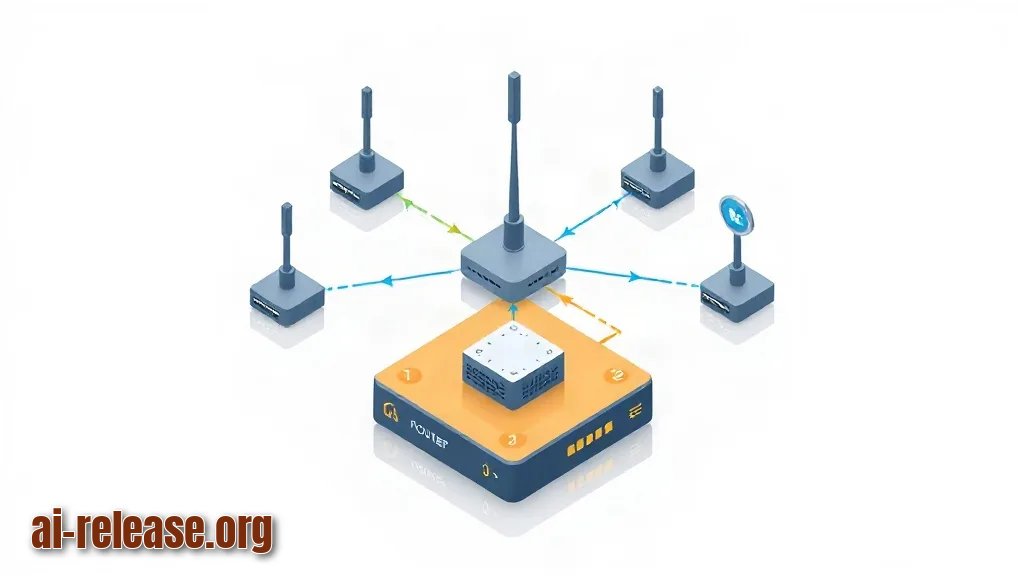
- A machine where you can run a background service (laptop, mini-PC, or VPS). The router stays on while your clients use it.
- Two or more provider API keys. An API key is a secret string that identifies your account, for example `sk-...`. Treat it like a password.
- Ability to create and edit a plain text config file (YAML or JSON) in any editor.
- One free local TCP port, for example `8080`. A port is a numbered door on your machine that a service listens on.
- A client that lets you change its API base URL — most SDKs and apps do.
- Optional but recommended: Docker, so you do not fight with dependencies.
- Optional: a reverse proxy with TLS if the router must be reachable from the internet.
Before you start, run this checklist and make sure every box is ticked:
- [ ] I have at least two working provider keys, tested directly against the provider.
- [ ] I know the exact model IDs my providers offer (copy them from the provider dashboard, do not guess).
- [ ] Port `8080` is free — nothing else is using it.
- [ ] I have a place to store secrets that is not a git repository.
Пошаговая инструкция
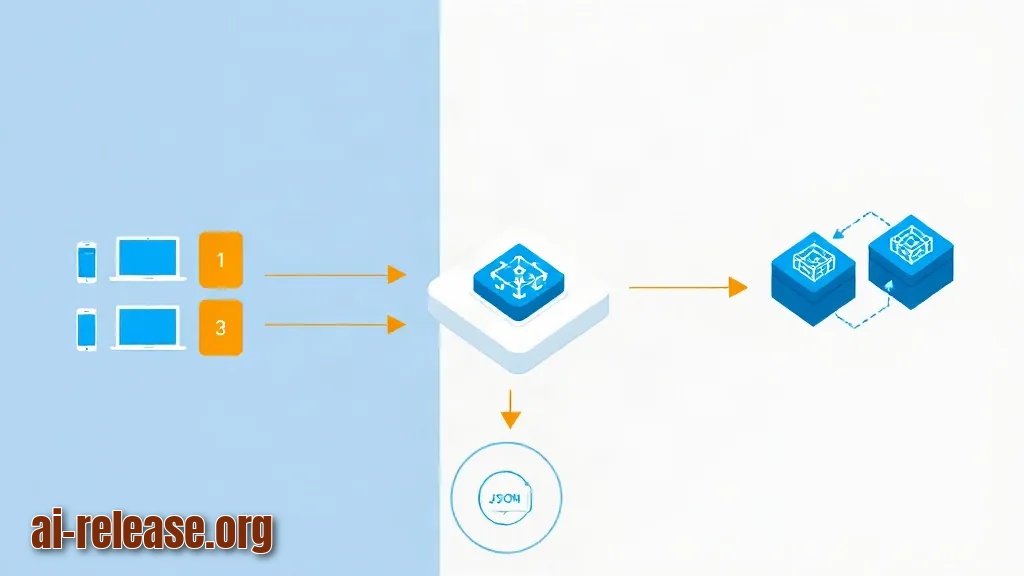
1. Pick one canonical format and write down what your apps actually send. The router should expose the OpenAI Chat Completions shape: you send `{"model": "...", "messages": [...]}` and get back `choices[0].message.content`. Decide which fields your apps need — `model`, `messages`, `stream`, `temperature`. **Expected result:** you have a short list, not a vague idea. Why this works: the router's only job is translating between this shape and each provider's shape.
2. Put the keys into environment variables, not into the config file. An environment variable is a named value your shell passes to programs. Example for Linux/macOS:
export PROVIDER_A_API_KEY="sk-your-first-key"
export PROVIDER_B_API_KEY="sk-your-second-key"
Then confirm: `printenv | grep API_KEY` should print both lines. **Expected result:** both keys are visible. Why this works: secrets stay out of files you might commit or share.
3. Create the router config. Exact key names differ between routers — check your router's documentation — but the structure is always the same: one block per provider plus a list of model aliases. An alias is a short name you invent, so your apps never depend on the provider's naming.
# router.yaml
server:
  host: 127.0.0.1          # only this machine can reach the router
  port: 8080
  api_key: "router-local-key"   # the key YOUR apps will send

providers:
  - name: provider-a
    base_url: "https://api.provider-a.example/v1"
    api_key_env: "PROVIDER_A_API_KEY"
    models:
      - id: "provider-a-small"    # real model id from the provider docs
        alias: "fast"
      - id: "provider-a-large"
        alias: "smart"
  - name: provider-b
    base_url: "https://api.provider-b.example/v1"
    api_key_env: "PROVIDER_B_API_KEY"
    models:
      - id: "provider-b-chat"
        alias: "cheap"

routing:
  default: "fast"
  fallback: ["smart", "cheap"]   # if "fast" fails with 5xx, try these in order
Expected result:one file that describes every provider you own. Why this works: the router reads `api_key_env` and pulls the real key from the environment at startup.
4. Start the router with that config. Example shape of the command:
router serve --config ./router.yamlIf you use Docker, the equivalent is `docker run -p 8080:8080 -v ./router.yaml:/app/router.yaml --env-file .env <router-image>`. **Expected result:** a log line like `Listening on 127.0.0.1:8080`. If you see nothing, the process died — read the last line of the log.
5. Verify with `curl` before touching your app. Curl is a command-line HTTP client.
curl http://127.0.0.1:8080/v1/models -H "Authorization: Bearer router-local-key"Expected result:JSON listing your aliases, for example `{"object":"list","data":[{"id":"fast"},{"id":"smart"},{"id":"cheap"}]}`. Then send one real request:
curl http://127.0.0.1:8080/v1/chat/completions \
  -H "Authorization: Bearer router-local-key" \
  -H "Content-Type: application/json" \
  -d '{"model":"fast","messages":[{"role":"user","content":"Say hello in five words."}]}'
Expected result:JSON with `choices[0].message.content` containing the reply. This is the moment your router proves it can reach a provider.
6. Point your client at the router. You only change two values: the base URL and the key.
from openai import OpenAI

client = OpenAI(base_url="http://127.0.0.1:8080/v1", api_key="router-local-key")
reply = client.chat.completions.create(
    model="fast",
    messages=[{"role": "user", "content": "Hi"}],
)
print(reply.choices[0].message.content)
Expected result:the same output you used to get from the provider directly, but without provider-specific code. Why this works: the SDK speaks OpenAI format, and the router speaks it too. The same trick applies to non-chat clients — for instance a browser automation client, see [How to Connect an AI Agent to Chrome: Browser Automation Setup](https://ai-release.org/guides/kak-podklyuchit-ii-agenta-k-chrome-nastroyka-avtomatiza.html?utm_source=tg&utm_medium=channel&utm_campaign=guide_inline&utm_content=guide_to_guide).
7. Add routing rules that save you money and downtime. Aliases like `fast`, `smart`, and `cheap` let you switch models in one place. `routing.default` picks the model when a request does not name one; `routing.fallback` lists what to try when the first provider returns a server error. **Expected result:** when provider A is down, requests still succeed through provider B, and you see the fallback in the logs.
8. Lock the router down. Keep `host: 127.0.0.1` unless external access is required. If it is, put a reverse proxy in front for HTTPS and keep the router's own `api_key` enabled. **Expected result:** a request without `Authorization` returns `401`. Why this matters: an open router is an open door to your paid keys.
Возможные проблемы и решения
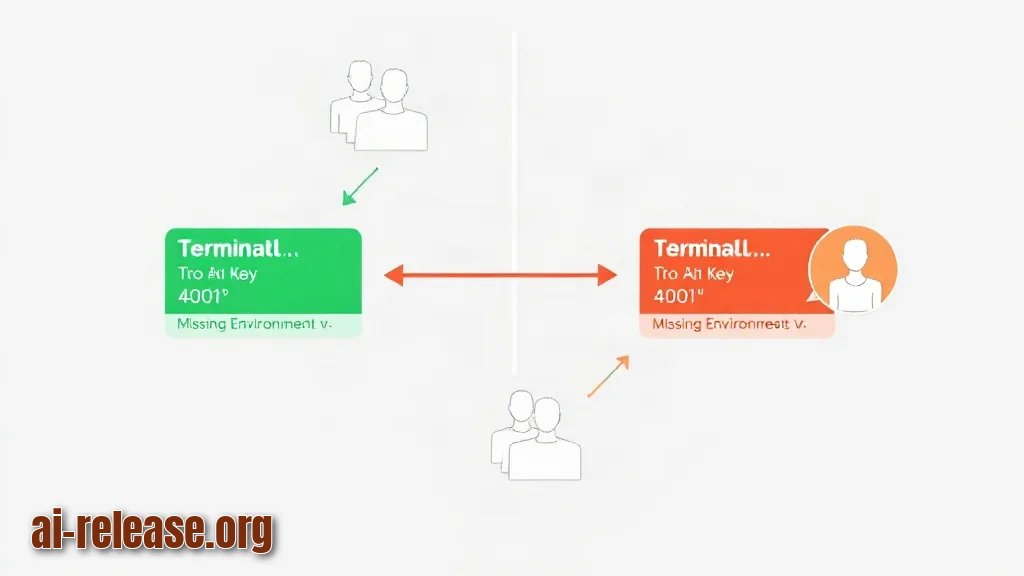
Symptom: the provider answers `401 Unauthorized`, but the same key works in another terminal.The router started in a shell that never had the variable. Fix: run `printenv | grep API_KEY` in the shell where you start the router. If it prints nothing, export the variables again, then restart the process. Watch for stray quotes and trailing spaces in the value.
Symptom: `Connection refused` or `404 Not Found` on `/v1/chat/completions`.`Connection refused` means nothing is listening: check the port in the config and that the process is still alive. `404` usually means the base URL is wrong — most routers expect the prefix `/v1` in the client's base URL, and provider `base_url` values must point at that provider's API root, not at its website. Fix: curl `http://127.0.0.1:8080/v1/models` and compare the working path with what your client sends.
Symptom: `model not found` or `unknown model`.The alias exists but has no entry, or you typed the provider's model ID by hand instead of copying it. Fix: call `/v1/models` and use an ID from that list; then check that every alias in `router.yaml` has a matching real `id` from the provider's documentation.
Symptom: streaming responses hang or arrive in one piece.The client asked for `stream: true`, but the route or provider block does not support streaming. Fix: test with `"stream": false` first. If that works, your router path for that provider needs streaming enabled — or use a non-streaming provider for that alias.
FAQ
Do I have to rewrite my application code?
No. In most SDKs you change two things: the base URL to `http://127.0.0.1:8080/v1` and the API key to the router's key. Your `model` value becomes an alias such as `fast`.
Where should I keep the provider API keys?
In environment variables, loaded before the router starts. Keep them out of `router.yaml`, out of screenshots, and out of any git repository. If a key leaks, revoke it in the provider dashboard and issue a new one.
Can I route to a model running on my own computer?
Yes, as long as that local server exposes an OpenAI-compatible endpoint. You add it as one more provider block with `base_url` pointing at your machine, for example `http://127.0.0.1:11434/v1`, and give it an alias. Local setups are covered in How to Run an AI Model Locally on Android: Apps and Setup if your target device is a phone.
Can several apps share one router?
Yes, and that is the point. One port, one config, many clients — a chat UI, a script, an automation agent, or a voice front end such as How to Create a Voice AI Assistant on Your Computer: Tools Overview and Setup. Each app just points its base URL at the same address.
🤖 AI summary
- Updated: 2026-10-15
- Topics: роутер для llm провайдеров, openai совместимый прокси, один api ключ для нескольких моделей, роутинг запросов между нейросетями
- Summary: Практический гайд по роутингу LLM-запросов: один эндпоинт и ключ для GPT, Claude, Gemini и локальных моделей с фолбэками и учётом расходов.
- Key facts:
- You have API keys for two or three AI providers, and every one of them speaks a slightly different dialect: different base URLs, different JSON shapes, different error codes.
- Every time you add a provider you rewrite your app.
- An OpenAI-compatible router — a small local service that exposes one OpenAI-style endpoint ( /v1/chat/completions ) and forwards each request to the provider you chose — fixes this: you change one setting in your app, not the code.
- This guide fits a laptop or small VPS on Linux, macOS, or Windows with WSL, with Docker or Python installed.
- It works for any router that advertises "OpenAI-compatible" API, because the client side is always the same.
- Требования и подготовка Illustration: Требования и подготовка A machine where you can run a background service (laptop, mini-PC, or VPS).