How to Set Up the Open-Source Browser Agent Scout by Outcrawl

You want an AI agent to do browser work for you: open pages, follow a task, and report back — without building the automation yourself. **Scout** by **Outcrawl** is an open-source browser agent that does exactly that: you give it a task, and it controls the browser automatically. This guide covers what you need, how to install it, how to run a first test, and where its limits are. It fits any desktop that can run an open-source project from a terminal (macOS, Linux, or Windows with PowerShell/WSL) — the digest entry is dated 14.10.2026, so versions move fast and you should always trust the repo over any blog, including this one.
A quick term: **open-source** means the code is published publicly, so you can read it, run it, and change it. **Browser agent** means a program that drives a browser for you instead of you clicking manually. **Repo mirror** means a second copy of the same repository, kept in sync with the original one.
Requirements and Preparation
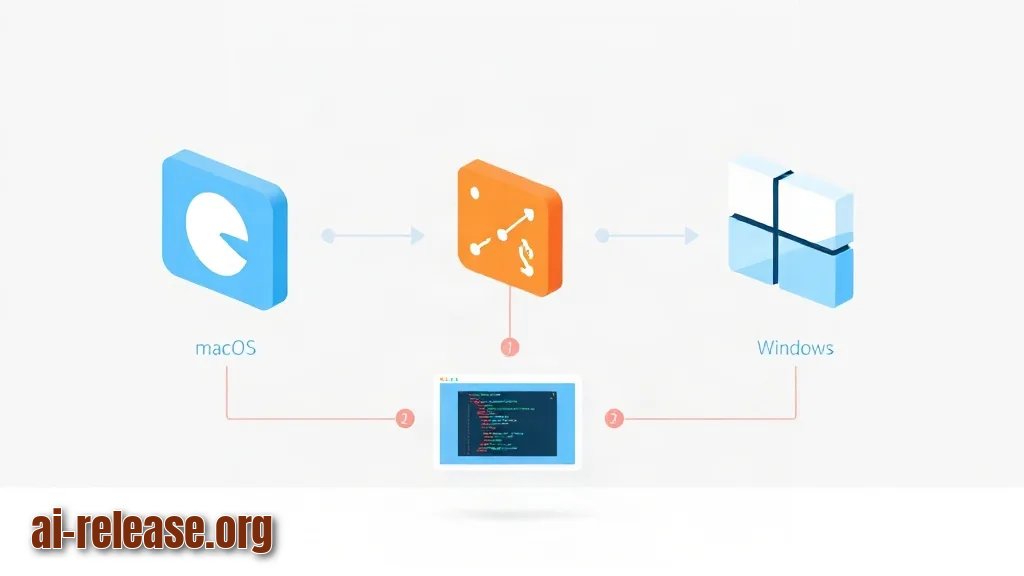
- A computer with a terminal (macOS Terminal, Linux shell, or Windows PowerShell/WSL).
- **Git** installed — the tool that downloads repositories from GitHub. Check with `git --version`.
- Access to the GitHub repository **outcrawlai/scout**. The code is published there and mirrored automatically from Outcrawl's original repository.
- A browser installed on the same machine. Scout drives the browser, so it must exist locally.
- The runtime the project's README lists (open-source agents of this kind usually need Python or Node.js — read the README and confirm, do not guess).
- An API key or account **only if** the README says a model provider is required for your task. Keep it in a config file, never in the source code.
- 15–30 minutes and a test task that is easy to verify, for example "open example.com and tell me the page title".
Checklist before you start:
- [ ] `git --version` returns a version number
- [ ] Your browser opens normally
- [ ] The README of `outcrawlai/scout` is open in a tab
- [ ] You know the runtime and install command from that README
- [ ] You have a plain-text task ready for the first test
Step-by-Step Instructions
1. **Find the official repository.** Open GitHub and search for `outcrawlai/scout`, or go to Outcrawl's page and follow the link. The description says it is mirrored automatically from the company's original repo. **Expected result:** a repo page with a README, source folders, and an issue tracker. *Why this matters:* mirrors can lag behind the source, so always note which copy you are on.
2. **Read the README top to bottom before typing anything.** Write down three things: the required runtime and its minimum version, the install command, and whether a model API key is needed. **Expected result:** a short note like "runtime: X, install: `<command from README>`, key: yes/no". *Why this matters:* every parameter differs between projects, and copying a command from a different agent's guide is the fastest way to break the install.
3. **Clone the repository.** Use the exact URL from the green **Code** button on the repo page:
git clone <URL from the Code button on the outcrawlai/scout repo page>
cd scout
ls
Expected result:a new `scout` folder, and `ls` prints files such as `README.md`, `LICENSE` and source directories. *Why this works:* `git clone` copies the whole repo, including history, so updates later are a single command.
4. **Install dependencies with the command from the README.** For example, if the README lists a Python project it may look like this — again, replace the line with the real one:
# example only — use the exact command printed in the README
pip install -r requirements.txt
Expected result:a stream of download lines ending without a red error, e.g. "Successfully installed ...". *Why this works:* dependencies are the libraries the agent needs to talk to the browser and the model.
5. **Create the config file.** Most open-source agents ship an example file. Copy it and fill it in:
cp .env.example .env
# then open .env and paste your key after the matching variable name
Expected result:a `.env` file exists next to the code, and it is listed in `.gitignore` so it never gets committed. *Why this works:* the agent reads secrets at startup instead of hardcoding them.
6. **Run the smallest possible task first.** Do not start with your real workflow. Start with something you can verify in five seconds, like "open example.com and report the page title". **Expected result:** a browser window opens, the agent prints each step in the terminal, and the final answer appears. *Why this matters:* if a one-line task fails, the problem is your setup; if a long task fails, you will not know which part broke.
7. **Check the step log.** Watch the order of actions the agent prints — navigation, then the action, then the result. **Expected result:** every action is logged in sequence, and the last line matches what you see in the browser. *Why this works:* the log is the only reliable way to see what the agent actually did versus what you asked.
8. **Update the local copy.** The repo is mirrored and updated automatically upstream, so pull regularly:
git pullExpected result:either "Already up to date." or a fast-forward list of changed files. *Why this works:* you get upstream fixes without deleting your local config.
If you later want the same agent idea driving your everyday browser, see How to Connect an AI Agent to Chrome: Browser Automation Setup — the permission and profile logic is the same class of problem.
Common Problems and Fixes
Problem 1: `command not found` right after the install step.
Symptom: the terminal prints `git: command not found` or `python: command not found` before anything else happens.
Fix:
1. Run `git --version` and the runtime's version command to confirm what is actually installed.
2. Install the missing tool from its official site, then reopen the terminal so PATH refreshes.
3. Re-run the install command from step 4 and check for the "Successfully installed" line.
Problem 2: the agent starts but stops with an authentication error.
Symptom: an error line contains words like "API key", "unauthorized" or "401" and the browser never opens.
Fix:
1. Open your `.env` file and confirm the key is pasted after the exact variable name from the README — no quotes, no trailing spaces.
2. Confirm the key is active in your provider's dashboard.
3. Restart the agent, because most projects read the config only at startup.
Problem 3: a feature from the README does not exist in your copy.
Symptom: the README documents a flag or file, but your local folder has no such file — you are on a mirror that has not synced yet.
Fix:
1. Run `git pull` and check the commit date.
2. Compare with Outcrawl's original repository.
3. If the mirror is behind, work from the original repo instead and re-run step 3.
Problem 4: the agent opens the browser but does nothing useful.
Symptom: a window opens, the log stalls, and the task never completes.
Fix: rewrite the task as one narrow, verifiable action ("open page X and return the heading") instead of a multi-step request, then re-run. Split big workflows into sequential small tasks.
FAQ
What is Scout and who makes it?
Scout is an open-source browser agent by Outcrawl. You give it a task and it controls the browser automatically. The code is published on GitHub and mirrored automatically from Outcrawl's original repository.
Is Scout free to use?
It is open-source, so the code itself is publicly available. Any additional cost depends on the runtime, model provider or key that its README requires — check the README rather than assuming.
Does it work on a phone?
The source material describes Scout as a browser agent and does not list mobile support. If you want an assistant directly on a handset, a different route makes sense: AI Agent on Your Phone: How to Install and Use an On-Device Assistant.
Which browser does it control, and can it run headless?
The digest entry does not specify browsers or headless mode. Treat this as README-dependent: open the repo, search for the browser section, and confirm before planning any automated run.
🤖 AI summary
- Updated: 2026-10-15
- Topics: браузерный агент, Scout Outcrawl, open-source browser agent, автоматизация браузера ИИ, как запустить AI-агента в браузере
- Summary: Пошаговая инструкция по установке и запуску открытого браузерного агента Scout: подключение модели, первые сценарии автоматизации сайтов и типичные ошибки новичка.
- Key facts:
- You want an AI agent to do browser work for you: open pages, follow a task, and report back — without building the automation yourself.
- Scout by Outcrawl is an open-source browser agent that does exactly that: you give it a task, and it controls the browser automatically.
- This guide covers what you need, how to install it, how to run a first test, and where its limits are.
- It fits any desktop that can run an open-source project from a terminal (macOS, Linux, or Windows with PowerShell/WSL) — the digest entry is dated 14.10.2026, so versions move fast and you should always trust the repo over any blog, including this one.
- A quick term: open-source means the code is published publicly, so you can read it, run it, and change it.
- Browser agent means a program that drives a browser for you instead of you clicking manually.