How to Set Up VPS Monitoring via a Telegram Bot with Mini App: Step-by-Step Guide

Setting up VPS monitoring usually means SSHing into the server, running commands, and checking logs manually. This guide shows you how to build a Telegram bot with a Mini App (a small web app that opens inside Telegram) to monitor your VPS automatically. You will get alerts and a dashboard right in your chat. The steps work on any Linux VPS (Ubuntu, Debian, CentOS) with root or sudo access and a Telegram account.
Requirements and Preparation

- A VPS running a Linux distribution (e.g., Ubuntu 22.04) with root or sudo access.
- A Telegram account.
- A bot token from BotFather (a Telegram bot that creates other bots).
- A domain name pointing to your VPS IP (required for HTTPS, which Telegram Mini Apps need).
- A web server installed (e.g., nginx) and ports 80/443 open.
- Node.js or Python installed for the backend script.
- Basic familiarity with the command line.
Checklist before you start:
- [ ] VPS with Linux and sudo
- [ ] Telegram account
- [ ] Domain with DNS A record to VPS IP
- [ ] Ports 80 and 443 open in firewall
- [ ] Bot token from BotFather
Step-by-Step Instructions
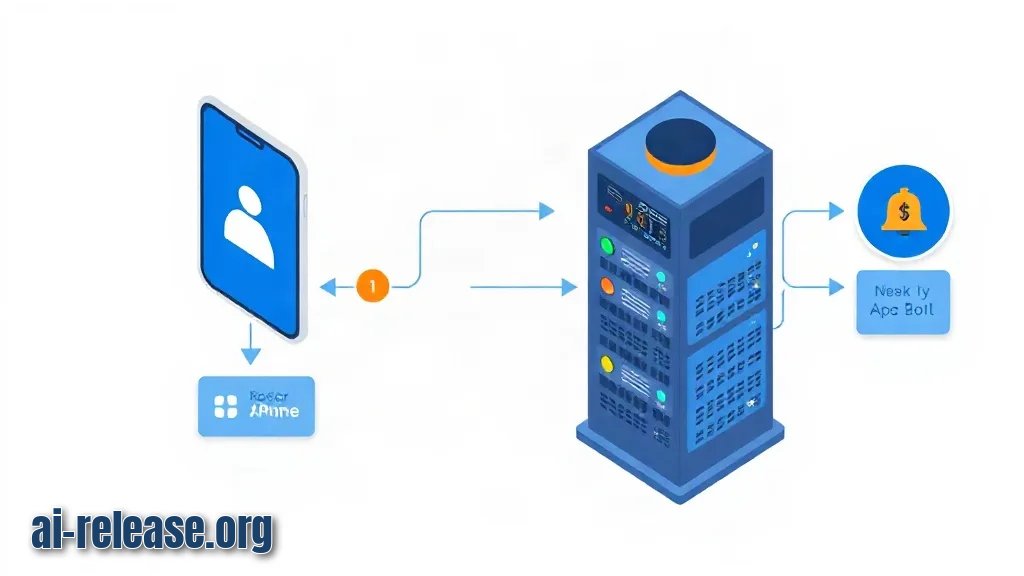
1. Create your Telegram bot.
Open Telegram, search for @BotFather, and send `/newbot`. Choose a name and a username ending in `bot` (e.g., `MyVPSMonitorBot`). BotFather returns a token like `123456789:ABCdefGhIJKlmNoPQRsTUVwxyZ`. Save it.
**Expected result:** you receive a message with “Use this token to access the HTTP API”.
2. Set up a web server for the Mini App.
Install nginx: `sudo apt update && sudo apt install nginx -y`. Create a directory: `sudo mkdir -p /var/www/monitor`. Create a simple `index.html` with “Hello”. Configure nginx to serve it over HTTPS using Certbot for Let’s Encrypt.
**Example:** `sudo certbot --nginx -d yourdomain.com`
**Expected result:** visiting `https://yourdomain.com` shows your page.
3. Write a monitoring script.
Create a file `monitor.sh` with the following content:
#!/bin/bash
BOT_TOKEN="<YOUR_BOT_TOKEN>"
CHAT_ID="<YOUR_CHAT_ID>"
DISK=$(df / | tail -1 | awk '{print $5}' | sed 's/%//')
if [ "$DISK" -gt 80 ]; then
  MESSAGE="Disk usage is at ${DISK}% on $(hostname)"
  curl -s -X POST "https://api.telegram.org/bot${BOT_TOKEN}/sendMessage" \
    -d chat_id="${CHAT_ID}" \
    -d text="${MESSAGE}"
fi
This checks disk usage and sends an alert if it exceeds 80%. Why it works: the script uses `df` to read disk usage, then `curl` to call the Telegram Bot API. Make it executable: `chmod +x monitor.sh`.
4. Find your chat ID.
Send a message to your bot, then run: `curl -s "https://api.telegram.org/bot<YOUR_BOT_TOKEN>/getUpdates" | grep chat_id`. Note the number. Replace `<YOUR_CHAT_ID>` in the script.
**Expected result:** you see your chat ID in the output.
5. Schedule the script with cron.
Run `crontab -e` and add: `*/5 * * * * /path/to/monitor.sh`. This runs every 5 minutes.
**Expected result:** alerts appear in Telegram when disk usage passes 80%.
6. Create the Mini App dashboard.
In BotFather, send `/mybots`, select your bot, then “Bot Settings” > “Menu Button” > “Configure Mini App”. Set the URL to `https://yourdomain.com`.
**Expected result:** a menu button appears in your bot chat.
7. Build the Mini App frontend.
Replace `index.html` with a simple page that fetches data from your backend. Example:
<!DOCTYPE html>
<html>
<head><title>VPS Monitor</title></head>
<body>
  <h1>VPS Status</h1>
  <div id="stats">Loading...</div>
  <script>
    fetch('/api/stats')
      .then(res => res.json())
      .then(data => {
        document.getElementById('stats').innerText =
          `CPU: ${data.cpu}% | RAM: ${data.ram}% | Disk: ${data.disk}%`;
      });
  </script>
</body>
</html>
Why it works: Telegram Mini Apps are web pages that run inside Telegram. They can call your server’s API.
8. Create a backend API.
Use Python Flask as an example. Install Flask: `pip install flask`. Create `app.py`:
from flask import Flask, jsonify
import psutil

app = Flask(__name__)

@app.route('/api/stats')
def stats():
    return jsonify({
        'cpu': psutil.cpu_percent(),
        'ram': psutil.virtual_memory().percent,
        'disk': psutil.disk_usage('/').percent
    })

if __name__ == '__main__':
    app.run(host='0.0.0.0', port=5000)
Run it: `python app.py`. Configure nginx to proxy `/api` to port 5000.
Expected result:visiting `https://yourdomain.com/api/stats` returns JSON with CPU, RAM, and disk percentages.
9. Test the full setup.
Open your bot in Telegram, click the menu button, see the dashboard. Force a disk alert by filling up a test file: `dd if=/dev/zero of=/tmp/testfile bs=1M count=1000` (if your disk is small).
**Expected result:** you receive an alert message.
10. Secure your setup.
- Use a firewall: `sudo ufw allow 80,443/tcp` and `sudo ufw enable`.
- Do not hardcode the token in the script; use environment variables.
- Restrict access to the Mini App by checking Telegram user ID in the backend.
Possible Issues and Solutions
Problem 1: Mini App shows a blank screen.
Symptom: When you tap the menu button, the page is white or shows “Loading...” forever.
Solution: Open the browser console (F12) on desktop. Check for mixed content errors (HTTP vs HTTPS). Ensure your domain has a valid SSL certificate. Run `sudo certbot renew --dry-run`. Also verify that the URL in BotFather starts with `https://` and has no trailing slash.
Problem 2: Bot does not send alerts.
Symptom: Disk usage is high, but no Telegram message arrives.
Solution: Check that the bot token and chat ID are correct. Run the script manually: `bash monitor.sh` and look for errors. Ensure cron is running: `systemctl status cron`. Check cron logs: `grep CRON /var/log/syslog`. Also, make sure the script is executable and uses absolute paths.
Problem 3: API returns 502 Bad Gateway.
Symptom: The Mini App shows “Network error” or the API endpoint returns a 502 error.
Solution: Your backend (Flask app) may have crashed. Check its status: `ps aux | grep python`. Restart it. Ensure nginx proxy settings are correct: `proxy_pass http://127.0.0.1:5000;`. Check firewall rules for localhost.
FAQ
Do I need a domain name for a Telegram Mini App?
Yes. Telegram requires Mini Apps to be served over HTTPS. You need a domain pointing to your VPS IP and a valid SSL certificate. You can get a free one with Let’s Encrypt.
Can I monitor multiple VPS with one bot?
Yes. You can run the monitoring script on each VPS and have them all send messages to the same
Deep dive
- How to Download and Install AI Apps on Android via RuStore: Step-by-Step Guide
- Step-by-Step: How to Install a Windows 11 Security Update Manually via Microsoft Update Catalog
🤖 AI summary
- Updated: 2026-10-16
- Topics: мониторинг VPS через Telegram бота, Telegram Mini App для сервера, уведомления о падении сервера Telegram, мониторинг сервера своими руками
- Summary: Инструкция по подключению Telegram-бота к своему серверу: метрики CPU и RAM, уведомления о падении, управление прямо из чата и через Mini App.
- Key facts:
- Setting up VPS monitoring usually means SSHing into the server, running commands, and checking logs manually.
- This guide shows you how to build a Telegram bot with a Mini App (a small web app that opens inside Telegram) to monitor your VPS automatically.
- You will get alerts and a dashboard right in your chat.
- The steps work on any Linux VPS (Ubuntu, Debian, CentOS) with root or sudo access and a Telegram account.
- Requirements and Preparation Illustration: Requirements and Preparation A VPS running a Linux distribution (e.g., Ubuntu 22.04) with root or sudo access.
- A bot token from BotFather (a Telegram bot that creates other bots).