How to Generate Music and Sound Effects Locally with AI: Stable Audio 3 and MCP Servers

TL;DR
- Time to complete: 45–60 minutes
- Difficulty: Intermediate
- You will need: Python 3.10+ with
venv,pip,ffmpeg/ffprobe, ~10 GB of free disk for model weights (exact size depends on the checkpoint — check the model card), an MCP-capable client (Claude Desktop, the MCP Inspector, or any LLM app that speaks the Model Context Protocol), and a local Stable Audio checkpoint from Stability AI. - Result: a working local pipeline that turns a text prompt into a
.wavfile, exposed as an MCP tool so any MCP client can call it.
Requirements and setup
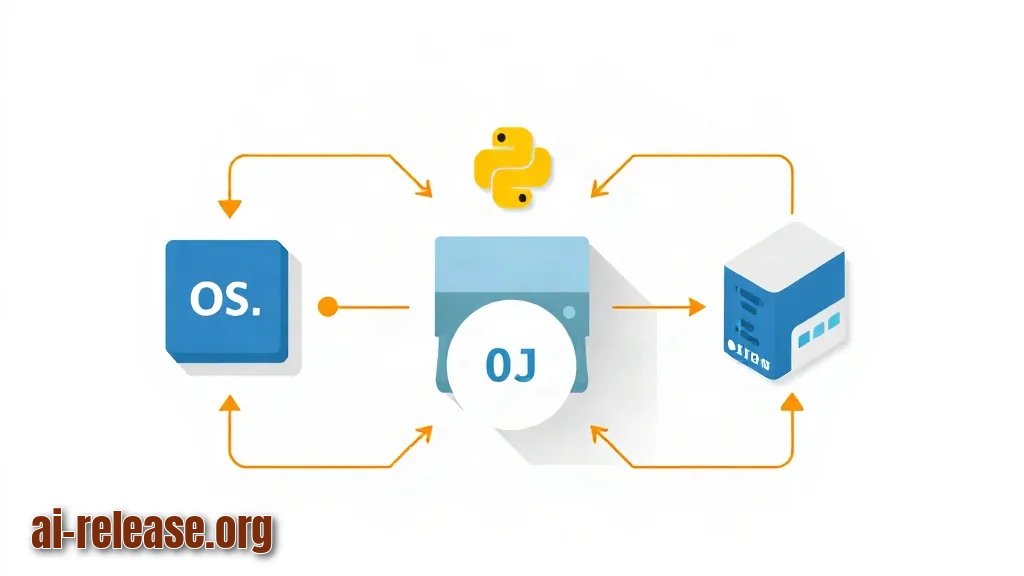
- OS: Linux, macOS, or Windows 10/11 with WSL2 recommended for GPU work.
- Python: 3.10 or newer. Verify with
python3 --version. - Disk: at least 10 GB free in the directory where you store weights. Check with
df -h .(Linux/macOS) orGet-PSDrive C(PowerShell). - GPU: optional. CPU rendering works but is slow; if you have an NVIDIA card, install the CUDA build of PyTorch instead of the default wheel — check the PyTorch install matrix for the exact command for your CUDA version.
- ffmpeg: needed for
ffprobeverification. Install withsudo apt install ffmpeg(Debian/Ubuntu) orbrew install ffmpeg(macOS). - Model access: a Hugging Face account and token if the checkpoint is gated. Set it as
HF_TOKENin your environment. The exact repository ID, license, and hardware requirements for the Stable Audio 3 checkpoint are not fixed in this guide — check the model card on the Stability AI / Hugging Face page before downloading. - MCP client: any app that supports MCP servers. If you prefer to drive generation from a hosted model over HTTP instead, the client-side setup is described in How to Use GPT-6.1 Sol via API: Complete Guide.
Checklist before you start:
- [ ]
python3 --versionprints 3.10 or higher - [ ]
ffprobe -versionprints a version banner - [ ]
echo $HF_TOKENprints a non-empty token (skip if the checkpoint is public) - [ ] At least 10 GB free disk space
- [ ] You know the exact checkpoint ID you are going to download
If you have never run a model locally before, start with How to run AI models locally on your PC: a beginner's guide — the virtualenv and weights-caching habits it describes are the same ones used here.
Step 1. Create an isolated environment and download the model weights
What to do: create a project folder, a virtual environment, install dependencies, and pull the checkpoint into a local models/ directory.
Why: a virtual environment (venv) is a private Python installation for one project, so a broken dependency here cannot break your system Python. Downloading weights into a project-local folder instead of the global Hugging Face cache makes it trivial to delete 10 GB later.
mkdir -p ~/local-audio && cd ~/local-audio
python3 -m venv .venv
source .venv/bin/activate          # Windows PowerShell: .\.venv\Scripts\Activate.ps1
python -m pip install --upgrade pip
pip install "mcp[cli]" torch torchaudio soundfile numpy
Example: on a CPU-only machine the PyTorch install downloads the CPU wheel automatically; on an NVIDIA machine, replace torch with the CUDA wheel command from the PyTorch install matrix.
Download the weights with the Hugging Face CLI, substituting the real repository ID from the model card:
pip install huggingface_hub
huggingface-cli download <org>/<stable-audio-checkpoint> --local-dir ./models/stable-audio
How to check: confirm the imports and the download.
python -c "import torch, soundfile, mcp; print(torch.__version__, 'cuda', torch.cuda.is_available())"
du -sh ./models/stable-audio
Expected output: a PyTorch version string followed by cuda True or cuda False, and a size line for the weights folder. If cuda prints False on a machine with an NVIDIA GPU, you installed the CPU wheel — reinstall PyTorch with the CUDA build.
Step 2. Wrap the model in an MCP server
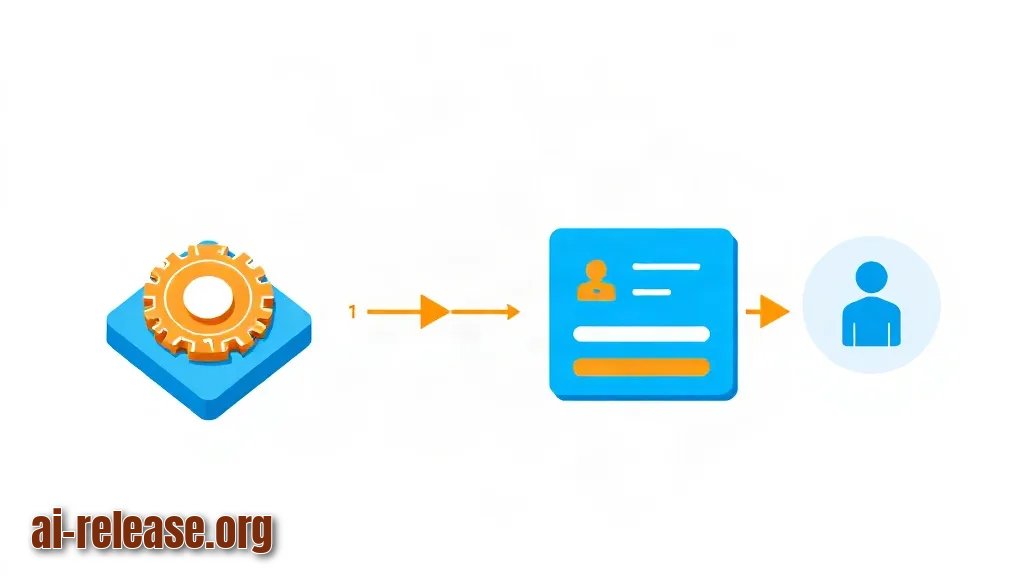
What to do: split the code into two files — engine.py (loads the model, renders audio) and server.py (exposes it as an MCP tool) — then register the server in your client's config.
Why: MCP (Model Context Protocol) is an open JSON-RPC protocol that lets an LLM client discover and call external tools. Instead of pasting code into a chat, you describe a function once; the client then calls generate_music(prompt="...") on its own. Keeping the model loading in engine.py means the same code serves both the MCP server and a plain CLI test.
engine.py:
import os, torch

MODEL_DIR = os.environ.get("AUDIO_MODEL_DIR", "./models/stable-audio")
_model = None

def _load():
    global _model
    if _model is None:
        # Replace this block with the loader from the model card.
        # It must return an object exposing a text-to-audio call.
        _model = load_pipeline(MODEL_DIR)   # noqa: F821
    return _model

def render(prompt: str, seconds: float = 30.0):
    pipe = _load()
    result = pipe(prompt=prompt, duration=seconds)  # argument names per model card
return result.audio, result.sample_rateserver.py:
import os, uuid, soundfile as sf
from mcp.server.fastmcp import FastMCP
from engine import render

OUT_DIR = os.environ.get("AUDIO_OUT_DIR", "./out")
os.makedirs(OUT_DIR, exist_ok=True)

mcp = FastMCP("local-audio")

@mcp.tool()
def generate_music(prompt: str, seconds: float = 30.0) -> str:
    """Generate a music or SFX clip from a text prompt. Returns the .wav path."""
    audio, sample_rate = render(prompt, seconds)
    path = os.path.join(OUT_DIR, f"{uuid.uuid4().hex}.wav")
    sf.write(path, audio, sample_rate)
    return path

if __name__ == "__main__":
    mcp.run(transport="stdio")   # stdio = client talks to the process over stdin/stdout
Register it in the client config. For a stdio server the client launches the process itself, so command must point at the virtualenv interpreter, not the system one:
{
  "mcpServers": {
    "local-audio": {
      "command": "/home/<user>/local-audio/.venv/bin/python",
      "args": ["/home/<user>/local-audio/server.py"],
      "env": {
        "AUDIO_MODEL_DIR": "/home/<user>/local-audio/models/stable-audio",
        "AUDIO_OUT_DIR": "/home/<user>/local-audio/out"
      }
    }
  }
}
On Windows the path is C:\\Users\\<user>\\local-audio\\.venv\\Scripts\\python.exe.
How to check: start the server manually first. It should print nothing and sit waiting — that is correct for stdio.
source .venv/bin/activate
python server.py
# ... nothing printed, cursor hangs → press Ctrl+C
Then confirm the tool is discoverable with the SDK's dev runner (mcp dev server.py, which opens the MCP Inspector) — the exact CLI flags for your SDK version should be checked against the MCP Python SDK documentation.
Step 3. Generate a track and a sound effect, then verify the file
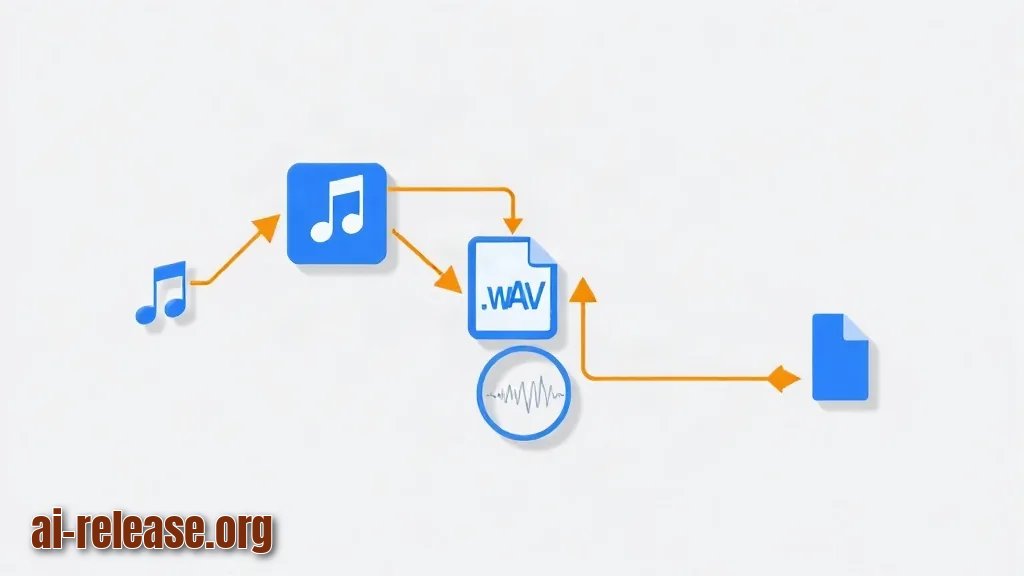
What to do: run one music prompt and one short SFX prompt through the same render() function, then inspect the produced .wav with ffprobe.
Why: ffprobe reads the file header without playing it, so it proves the audio is a real, decodable stream with the duration you asked for — not an empty buffer that was written to disk.
python - <<'PY'
from engine import render
import soundfile as sf, uuid
for prompt, secs in [
    ("warm analog synth pad, slow attack, 90 bpm", 20),
    ("short metallic door slam with reverb tail", 3),
]:
    audio, sr = render(prompt, secs)
    name = f"out/{uuid.uuid4().hex[:8]}.wav"
    sf.write(name, audio, sr)
    print(name, secs)
PY
Example output:
out/3f9a12bc.wav 20
out/a71c04de.wav 3
How to check:
ffprobe -v error -show_entries stream=sample_rate,channels \
        -show_entries format=duration -of default=noprint_wrappers=1 out/3f9a12bc.wav
Expected output is three lines — sample_rate=..., channels=..., duration=20.000000. The sample_rate and channels values must match what the model card specifies for that checkpoint; the duration must equal the number of seconds you requested. Play the file (ffplay out/3f9a12bc.wav) and listen for a clean start and no digital clipping.
Now call the same tool from your MCP client and ask for something like "generate a 5-second rain-on-a-window sound effect". The client should return the path of a new .wav inside AUDIO_OUT_DIR — that round trip is the final proof the whole chain works.
Troubleshooting
Problem. The MCP client shows the server as disconnected immediately after launch.
- Ошибка:
ModuleNotFoundError: No module named 'mcp' - Причина: the client launched
server.pywith the system Python, which has nomcppackage. Thecommandfield still points to/usr/bin/python3or was copied from an example without editing. - Решение: open the client config and set
commandto the absolute path of the virtualenv interpreter. Verify the path first:
/home/<user>/local-audio/.venv/bin/python -c "import mcp; print('ok')"If that prints ok, restart the client so it re-reads the config.
Problem. Generation starts, then dies partway through a long clip.
- Ошибка:
torch.cuda.OutOfMemoryError: CUDA out of memory. Tried to allocate ... - Причина: the requested duration and the model's context window exceed available VRAM. Longer clips need more memory, and other processes may already hold part of the card.
- Решение: shorten the clip first, then free the GPU. Generate a 30-second piece as two 15-second segments, or force CPU rendering:
CUDA_VISIBLE_DEVICES="" python -c "import torch; print(torch.cuda.is_available())"This must print False. CPU rendering is slower but has no VRAM ceiling.
Problem. The server process exits the moment the client connects.
- Ошибка:
MCP error -32000: Connection closed - Причина: the server crashed during import — a bad path in
AUDIO_MODEL_DIR, a missing weight file, or a syntax error inengine.py. The client only sees the closed pipe, not the traceback. - Решение: run the server by hand in the activated environment to see the real error:
cd ~/local-audio && source .venv/bin/activate && python server.pyFix whatever traceback appears, confirm the process now hangs silently, and reconnect the client.
Summary and next steps
You now have a local text-to-audio pipeline that writes real .wav files and is callable as an MCP tool from any compatible client. Next, add a second tool such as list_generated_files() or an AUDIO_OUT_DIR cleanup routine, and pin your dependency versions in requirements.txt so the environment is reproducible.
FAQ
Do I need a GPU to run Stable Audio locally?
No. CPU rendering works; it is just slower. A CUDA-capable NVIDIA card reduces generation time, and the required VRAM depends on the checkpoint — check the model card for the exact figure.
What is an MCP server in one sentence?
It is a small local program that exposes functions (here: "generate audio from a prompt") over the Model Context Protocol so an LLM client can discover and call them without you copying code into the chat.
Where do the generated files go?
Into the directory set by the AUDIO_OUT_DIR environment variable, which defaults to ./out relative to the working directory of the server process. If the files "disappear", check that variable in your client config.
Can I generate sound effects and music with the same tool?
Yes. Both are text-to-audio tasks, so one generate_music(prompt, seconds) tool covers them — the difference is only the prompt and the requested duration.
🤖 AI summary
- Updated: 2026-10-19
- Topics: генерация музыки нейросетью локально, stable audio как установить, mcp сервер для звука и музыки
- Summary: Руководство по локальной генерации фоновой музыки и SFX для видео и подкастов с подключением аудио-модели к Claude Code и другим MCP-клиентам.
- Key facts:
- TL;DR Time to complete: 45–60 minutes Difficulty: Intermediate You will need: Python 3.10+ with venv , pip , ffmpeg / ffprobe , ~10 GB of free disk for model weights (exact size depends on the checkpoint — check the model card), an MCP-capable client (Claude Desktop, the MCP Inspector, or any LLM app that speaks the Model Context Protocol), and a local Stable Audio checkpoint from Stability AI.
- Result: a working local pipeline that turns a text prompt into a .wav file, exposed as an MCP tool so any MCP client can call it.
- Requirements and setup Illustration: Requirements and setup OS: Linux, macOS, or Windows 10/11 with WSL2 recommended for GPU work.
- Python: 3.10 or newer.
- Verify with python3 --version .
- Disk: at least 10 GB free in the directory where you store weights.